Quick Facts
- Standard Lifespan: A modern Chromebook now typically lasts 10 years from its initial release date.
- AUE Policy: Google’s Auto Update Expiration (AUE) provides a decade of guaranteed security and feature updates for models released after 2021.
- The 2024 Shift: In early 2024, Google officially extended support windows, retroactively applying the 10-year rule to many older devices.
- Verification: You can find your specific "expiration date" under Settings > About ChromeOS > Additional Details.
- End of Life: Once a Chromebook hits its AUE date, it remains functional but loses security patches, making it risky for banking and sensitive tasks.
The Lifespan Question: From Disposable to Durable
In the early days of ChromeOS, Chromebooks were often dismissed as "disposable" hardware—budget-friendly laptops destined for a landfill after three or four years. As a travel critic who frequently relies on lightweight tech to file stories from remote locations, I’ve watched this narrative shift dramatically. Today, the question isn’t just "how long do Chromebooks last?" but "how long can you realistically expect a single investment to remain productive?"
The answer has changed significantly in 2024. Thanks to a landmark policy shift from Google, the lifespan of these devices has effectively doubled. A modern Chromebook is no longer a short-term solution; it is a decade-long productivity tool. However, understanding that lifespan requires looking past the physical hardware and into the software policy that governs its "brain."
Understanding the 10-Year Rule (AUE Policy)
The most critical factor in a Chromebook’s longevity is the Auto Update Expiration (AUE) date. Unlike a Windows PC or a MacBook, where you can often force-install a newer OS on older hardware, ChromeOS is tied to a specific support window.
Historically, this window was eight years. However, following pressure from environmental groups and a maturing hardware market, Google has officially increased the support window for all Chromebooks released after 2021 to a guaranteed 10 years of automatic updates.
This 10-year rule is a game-changer for the secondary market and for budget-conscious buyers. If you buy a model released in 2024, you are guaranteed security patches, Chrome browser updates, and new feature rollouts until 2034. For models released before 2021, Google has offered an "opt-in" extension for many devices, though some may still be capped at the original eight-year mark.
How to Check Your Chromebook’s Expiration Date
One of the most common mistakes I see travelers and professionals make is assuming the lifespan begins on the day they buy the laptop. In reality, the 10-year clock starts from the initial release date of the platform (the chipset and motherboard configuration), not the date of purchase.
To ensure you aren't buying a "new" laptop that only has three years of life left, you must check the AUE date. Here is the quick check process:
- Turn on your Chromebook and log in.
- Click on the Time in the bottom right corner and select the Settings (gear icon).
- On the left sidebar, click About ChromeOS.
- Select Additional Details.
- Look for the Update Schedule section. It will explicitly state the month and year your device will stop receiving updates.
Expert Tip: If you are shopping for a used or refurbished device on sites like Amazon or eBay, search the "Google AUE list" online. Google maintains a public database of every Chromebook ever made and its corresponding expiration date. Never buy a device without checking this list first.
What Happens After the AUE Date?
The term "expiration date" sounds ominous, but your Chromebook won't spontaneously combust when it hits that deadline. It will still turn on, the keyboard will still work, and you can still browse the web. However, as a critic who prioritizes data security, I cannot recommend using an "expired" device as your primary computer.
The Security Risk
Once the AUE date passes, the device stops receiving security patches. In a landscape where browser-based vulnerabilities are discovered weekly, an unpatched version of Chrome is a liability. Your device becomes increasingly vulnerable to malware, and websites that require high security—such as banking portals or government sites—may eventually block your browser because it is out of date.
Compatibility Issues
ChromeOS relies heavily on the web and Android app integration. Over time, newer web standards and updated Android apps will require a version of ChromeOS that your expired hardware cannot support. You’ll experience "broken" websites, apps that won't launch, and a general degradation of the user experience.
5 Signs It’s Time to Upgrade Before the Deadline
Even if your AUE date is years away, the physical hardware might give out sooner. Chromebook lifespan in 2024 is as much about the "feel" of the device as it is about the software updates. If you notice these symptoms, it’s time to look at the new Chromebook Plus category.
- Frequent Tab Crashes: If you have 8GB of RAM and your tabs are constantly refreshing or crashing, the processor is likely struggling with modern, resource-heavy websites.
- Battery Degradation: Standard laptop batteries are rated for about 300 to 500 charge cycles. If you find yourself tethered to a wall outlet after just two hours of use, the battery has reached its end of life. Top-tier Chromebook Plus models can achieve a tested battery lifespan of up to 14 hours per charge, which is the new gold standard for travel.
- Physical Instability: Dented hinges, flickering screens, or a "spongy" trackpad are signs that the build quality (often an issue on sub-$200 models) is failing.
- Slow Startup: ChromeOS is famous for booting in under 10 seconds. If your device takes 30-40 seconds to reach the login screen, the internal eMMC storage is likely wearing out.
- Inability to Video Conference: If your webcam looks like a pixelated mess during Zoom calls, you’re missing out on the 1080p AI-enhanced cameras that are now standard on newer models.
Buying Guide: Picking a Chromebook That Lasts
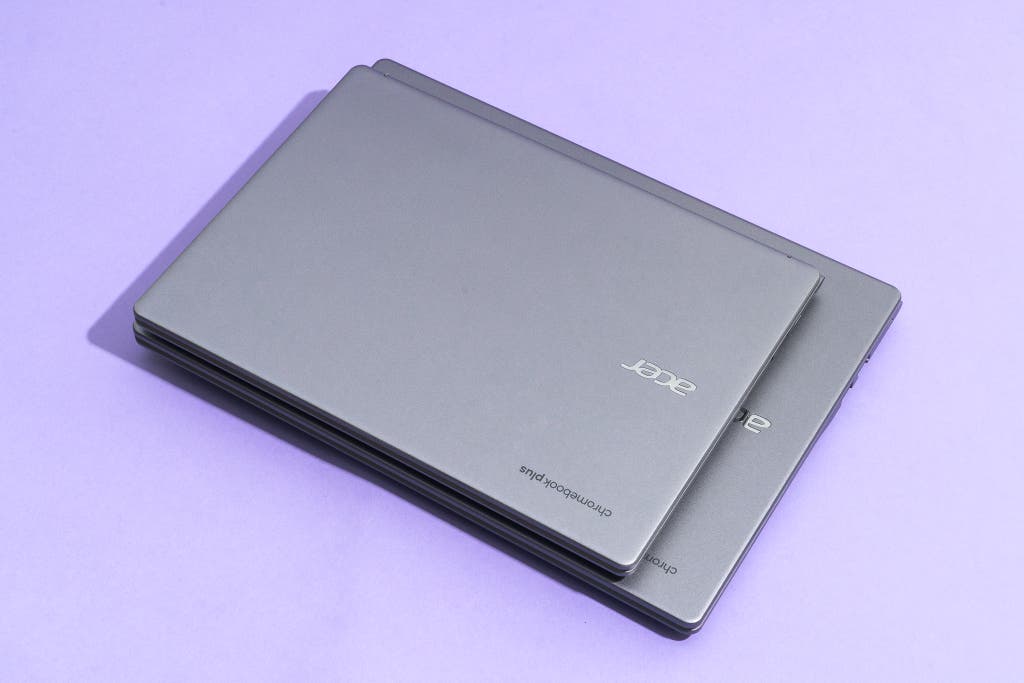
When shopping in 2024, the landscape has split into two distinct tiers: Standard and Chromebook Plus. To maximize your investment, I recommend looking almost exclusively at the "Plus" category. These are devices vetted by Google to meet specific hardware requirements that ensure they will actually be usable for that full 10-year AUE window.
Standard vs. Chromebook Plus Specs
| Feature | Standard Chromebook | Chromebook Plus |
|---|---|---|
| RAM | 4GB | 8GB+ (Essential for longevity) |
| Processor | Intel N-Series / MediaTek | Intel Core i3 (12th Gen) / Ryzen 3+ |
| Storage | 64GB eMMC | 128GB+ SSD |
| Display | 720p / 1080p TN | 1080p+ IPS (Better colors/angles) |
| Webcam | 720p | 1080p with AI temporal noise reduction |
Minimum Specs for Longevity
To ensure your Chromebook isn't just "supported" but actually fast five years from now, aim for an Intel Core 13th Gen or newer and 8GB of RAM. While 4GB models are cheaper, they are already starting to struggle with complex web applications like Google Docs and Sheets when multiple tabs are open.
Portability vs. Screen Size
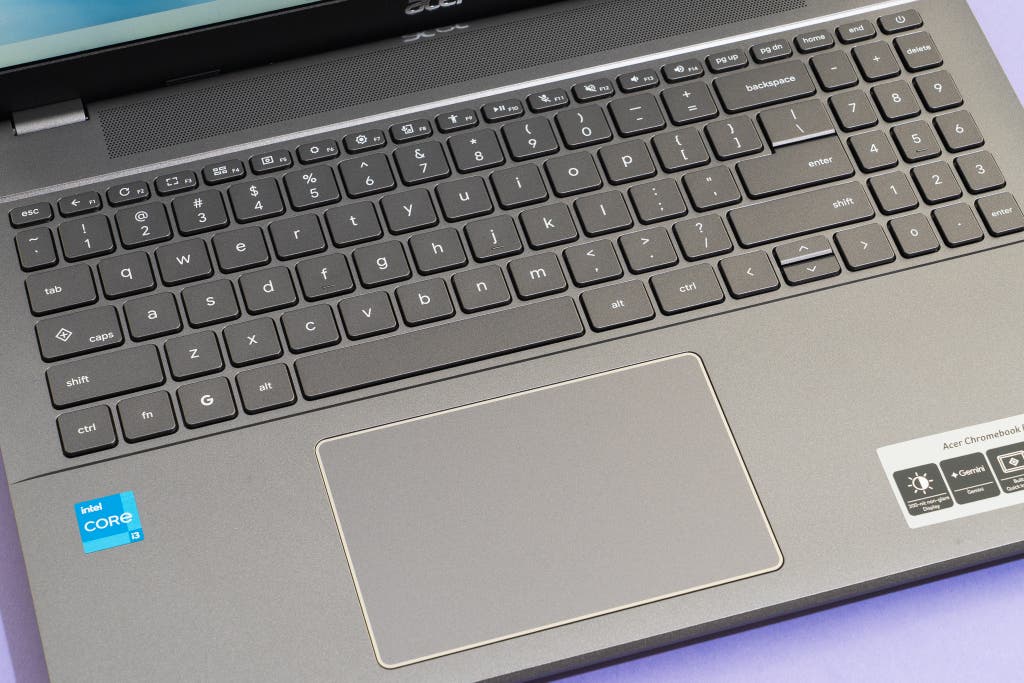
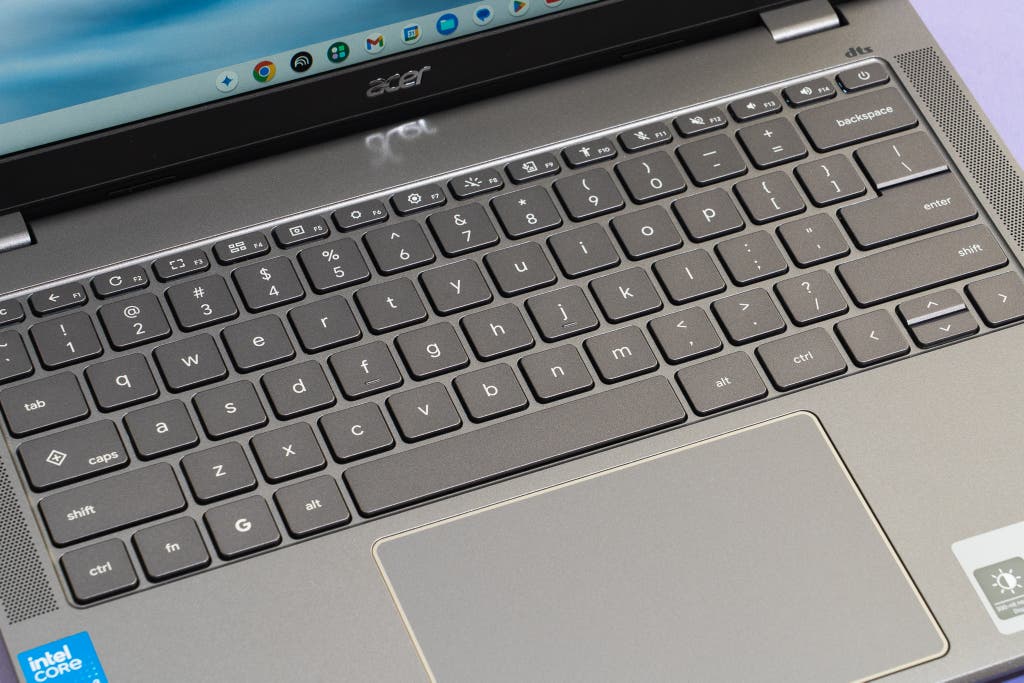
As a travel critic, I prefer the 14-inch form factor. It is the "Goldilocks" size—large enough for multitasking but small enough to fit on an airplane tray table. However, if this is a desktop replacement for a home office, the 16-inch models are becoming increasingly popular. They often include a dedicated number pad, which is a massive boon for productivity and data entry.
How to Extend Your Chromebook’s Life
While Google handles the software, the physical longevity is in your hands. After reviewing hundreds of devices, I’ve found that the "survivors" usually follow a few simple maintenance rules.
- Battery Care: Avoid the "100% Trap." If you leave your Chromebook plugged in 24/7, the battery chemistry degrades faster. Try to keep it between 20% and 80% when possible. Many modern Chromebooks now have "Adaptive Charging" settings to help with this.
- Storage Management: Chromebooks aren't meant for local file hoarding. Use Google Drive for your documents and photos. If you must have local files, utilize the microSD expansion slot if your model has one. Keeping your internal SSD relatively empty (below 80% capacity) helps maintain read/write speeds.
- Physical Maintenance: Dust is the enemy of electronics. Use compressed air to blow out the ports and keyboard every few months.
- Padded Protection: When traveling, always use a padded sleeve. Most Chromebook hardware failures I see aren't from "old age," but from a single drop in a poorly padded backpack.
Conclusion
The era of the "disposable laptop" is over. With Google’s 10-year rule, a Chromebook is now one of the most sustainable and cost-effective tech purchases you can make. By choosing a Chromebook Plus model and verifying the AUE date before you buy, you are securing a decade of secure, high-speed computing.
My final recommendation? Buy the newest model your budget allows. While a $150 "clearance" Chromebook might look tempting, if its AUE date is only three years away, you are paying a much higher "price-per-year" than you would for a $350 model that lasts until 2034.
FAQ
Can I install Linux on an expired Chromebook? Yes, advanced users can often install a Linux distribution (like GalliumOS or Ubuntu) on an expired Chromebook to keep it functional. However, this requires technical knowledge and may not support all hardware features like sound or specialized touchpads.
Is it safe to use a Chromebook for banking after updates end? I do not recommend it. Without security patches, your browser is vulnerable to "zero-day" exploits that could allow attackers to steal login credentials. For banking and shopping, always use a device that is currently receiving updates.
Do all brands (Acer, Lenovo, HP) follow the same 10-year rule? Yes. The 10-year AUE policy is set by Google and applies to the ChromeOS software itself, regardless of whether the hardware is manufactured by Acer, HP, Lenovo, or Asus.