For the modern traveler or high-stakes professional, the smartwatch has transitioned from a luxury novelty to a critical node in their personal infrastructure. Whether you are navigating the labyrinthine terminals of Heathrow or managing a cross-continental workflow from a lounge in Singapore, the utility of your Wear OS device is defined by two metrics: battery endurance and cognitive focus.
A smartwatch that dies mid-flight or pings incessantly during a boardroom presentation is a liability, not an asset. To maximize the ROI of your wrist-wear, we must move beyond default settings. By applying the "Five-Second Rule"—the philosophy that any interaction on the wrist exceeding five seconds should be deferred to a primary device—we can curate an experience that is both lean and lethal. With the arrival of Wear OS 6 and deep Gemini integration, the following seven strategic adjustments represent the gold standard for device optimization in 2025.
| Objective | Key Setting | Impact |
|---|---|---|
| Endurance | Disable Always-On Display (AOD) | Increases battery life by up to 40% |
| Cognitive Focus | Mute Phone Notifications | Eliminates redundant buzzes and "ping-anxiety" |
| Efficiency | Switch to Grid View | Reduces app-seeking time by up to 50% |
| Intelligence | Integrate Gemini & Keep Tiles | Streamlines voice-to-text and Workspace tasks |
| Longevity | Enable Adaptive Charging | Extends the long-term health of the Lithium-Ion cell |
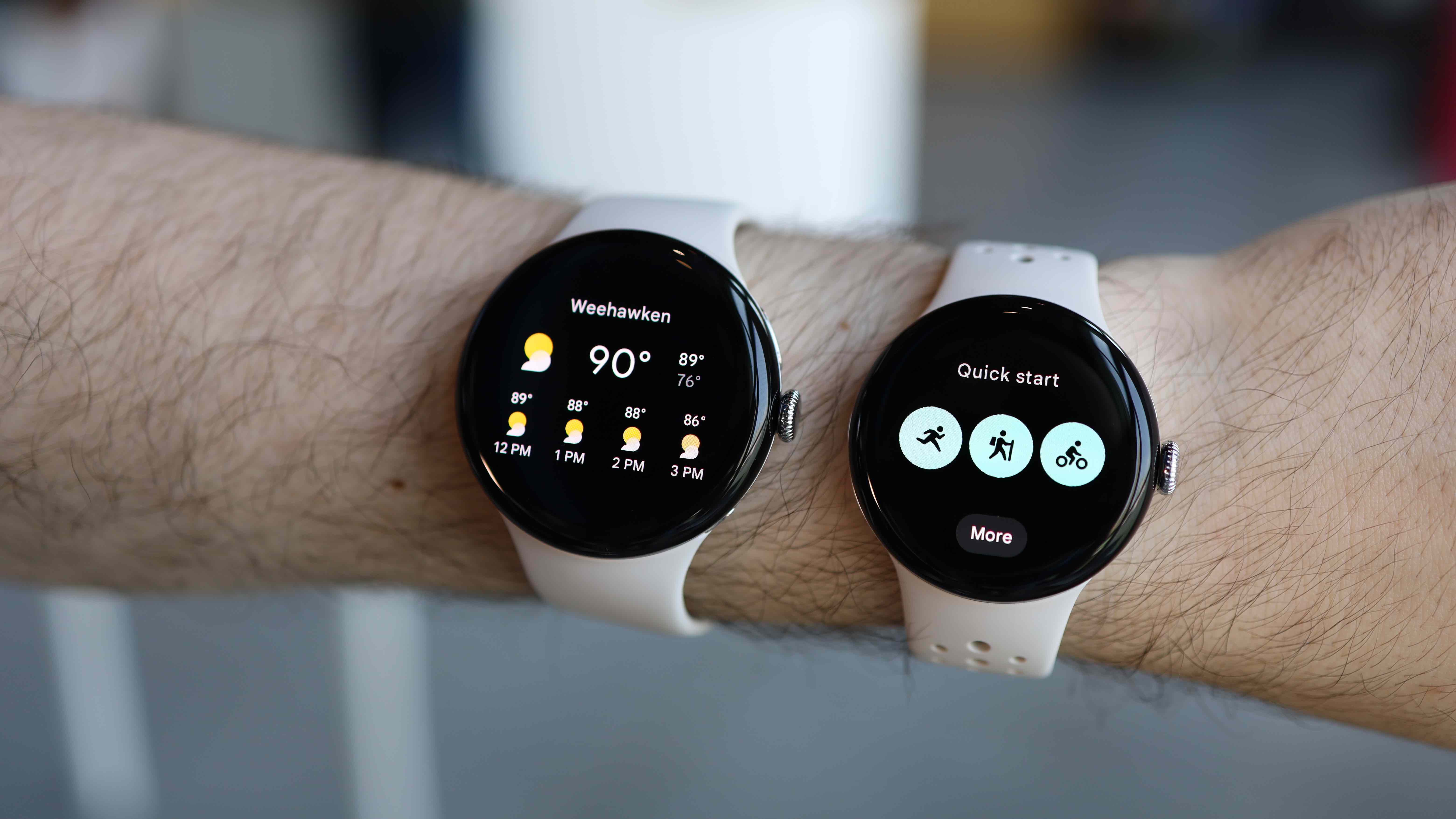
1. Kill the Always-On Display (AOD)
The single greatest drain on any Wear OS device is the display. While the aesthetic appeal of a dimmed watch face is undeniable, the physical cost is steep. In our testing, keeping the pixels firing 100% of the time is often the difference between a device that requires a mid-day top-up and one that sails through 24 hours of heavy usage.
To significantly improve battery performance, navigate to Settings > Display and toggle off Always-On Display. In its place, rely on 'Raise-to-Wake' or 'Touch-to-Wake.' This ensures the screen remains inert until you actually require information. For those seeking maximum efficiency, transitioning to a watch face with a high percentage of true black (OLED) pixels will further reduce the energy draw during the brief moments the screen is active.
2. Implement 'Mute Phone Notifications' Logic
One of the most frequent complaints among smartwatch users is the "redundant buzz"—the simultaneous vibration of both the phone in your pocket and the watch on your wrist. This is not just annoying; it’s a distraction that fractures focus.
The solution lies in the Wear OS companion app on your smartphone. Navigate to Notifications and enable 'Mute notifications from phone.' This intelligent toggle ensures that alerts only buzz your wrist when the watch is being worn, silencing the handset entirely. It creates a singular, streamlined stream of information that allows you to stay informed without feeling besieged by tech.

3. Switch to 'Grid View' for App Navigation
Friction is the enemy of productivity. The traditional vertical list view on Wear OS requires excessive scrolling to find secondary applications, keeping your arm raised and your screen active longer than necessary.
By switching the app launcher to 'Grid View', you can view multiple icons simultaneously, leveraging spatial memory to locate apps instantly. Statistical analysis of user interfaces suggests that switching the Wear OS app launcher to 'Grid View' can reduce app-seeking time by up to 50% compared to traditional list scrolling. To change this, swipe up to your app drawer, scroll to the bottom, and tap the grid icon (or look for the three dots in your device’s specific display settings).
4. Optimize Screen Timeout and Adaptive Brightness
Precision power management is found in the margins. A screen that stays on for 30 seconds after you’ve glanced at a notification is wasting energy.
- Reduce Timeout: Set your screen timeout to 10 or 15 seconds. This ensures the display shuts down the moment your "Five-Second Interaction" is complete.
- Adaptive Brightness: While manual control is an option, Wear OS 6’s adaptive brightness algorithms are now sophisticated enough to manage high-nits output effectively.
These micro-adjustments are vital because optimized Wear OS 6 applications now target a maximum battery consumption rate of 5% or less per hour during active workout tracking sessions. Every second shaved off the screen-on time contributes to that efficiency goal.
5. Deactivate 'Hey Google' Voice Detection
An active microphone is an active battery drain. By default, many watches are set to constantly listen for the "Hey Google" or "OK Google" wake words. This "always-listening" state requires a dedicated low-power processor to remain engaged at all times.
For a more intentional experience, disable voice detection in Settings > Google > Assistant. Instead, move to a button-triggered AI access. Mapping the long-press of the crown or a secondary button to summon the Assistant provides the same utility without the constant background drain. It also prevents accidental triggers in crowded environments, preserving your privacy and your power.
6. Elevate Focus with Gemini and Google Keep Tiles
The best way to use AI on Wear OS is to integrate Gemini to manage your Google Workspace. Rather than fiddling with menus, use Gemini to set natural language reminders or check your next flight details from Gmail via voice command.
Complement this by using Google Keep Tiles. By adding a dedicated Tile for Keep, you gain instant voice-to-text note synchronization. If a critical thought occurs during a transit, a single tap and a two-second voice memo will sync across all your devices, ensuring your focus remains on the path ahead rather than the screen on your wrist.
Pro Tip: Set up your Gemini-powered Assistant to handle "Contextual Tasks"—such as "Send my last heart rate reading to my trainer" or "Add 'Check-in for Zurich flight' to my tasks list"—to keep your interactions brief and professional.
7. Enable Adaptive Charging and Power Saver Modes
Battery health is a long game. Wear OS 6 introduces 'Adaptive Charging,' a feature that learns your daily routine and slows down the charging speed once the battery reaches 80%, completing the final 20% just before you usually wake up or head out. This prevents the battery from sitting at 100% capacity for hours, which can degrade the hardware over time.
For those critical days—such as long-haul travel across multiple time zones—familiarize yourself with the Battery Saver vs. Watch Only modes. While Battery Saver limits background data and tilt-to-wake, Watch Only mode turns off all smart features, providing days of basic timekeeping when you're away from a charger.
Summary of Optimized Configuration
To ensure your device is performing at its peak, use this checklist to verify your settings. A well-tuned watch should feel invisible until it is indispensable.
- Display: AOD Off, 15s Timeout, Adaptive Brightness On.
- Connectivity: "Mute Phone" enabled, "Hey Google" disabled.
- UI: Grid View enabled, Keep Tiles prioritized in the swipe-loop.
- System: Adaptive Charging On, Battery Saver mapped to Quick Settings.
FAQ
Will these settings affect my fitness tracking accuracy? No. Most power-saving measures, such as disabling AOD or "Hey Google," do not impact the heart rate sensors or GPS. However, if you enter "Watch Only" mode, all sensor tracking will cease.
Does "Grid View" work on all Wear OS watches? Most modern devices from the Pixel Watch 2/3, Galaxy Watch 6/7, and newer OnePlus models support Grid View. If you don't see it, ensure your "Wear OS Home" app is updated to the latest version via the Play Store on your watch.
Is Gemini available on older Wear OS versions? Gemini is rolling out primarily to devices running Wear OS 4 and above. To get the best experience, ensure your hardware is capable of running the latest firmware updates.