There is perhaps nothing more jarring in the world of home cinema than the "lip-sync" error. You have spent thousands on a high-definition 4K display and a premium soundbar, only to find that the actor’s mouth moves a split-second before the dialogue hits your ears. This phenomenon, officially known as audio-visual desynchronization, can turn a cinematic masterpiece into a frustrating experience akin to watching a poorly dubbed 1970s kung-fu movie. As someone who spends his days testing the limits of audio hardware, I can tell you that this isn't usually a sign of "broken" gear; rather, it’s a symptom of how modern TVs prioritize video processing over sound.
Quick Answer: How to Fix Smart TV Sound Delay To fix a TV sound delay, access your Smart TV's Sound or Audio settings and look for 'Audio Delay' or 'A/V Sync'. Adjust the slider—typically between 10ms and 40ms—until the audio perfectly matches the movements on the screen. If you are using an external soundbar, switching the Digital Audio Output format to PCM (Pulse Code Modulation) often resolves the lag by allowing the TV to decode the audio internally, bypassing heavy processing cycles.
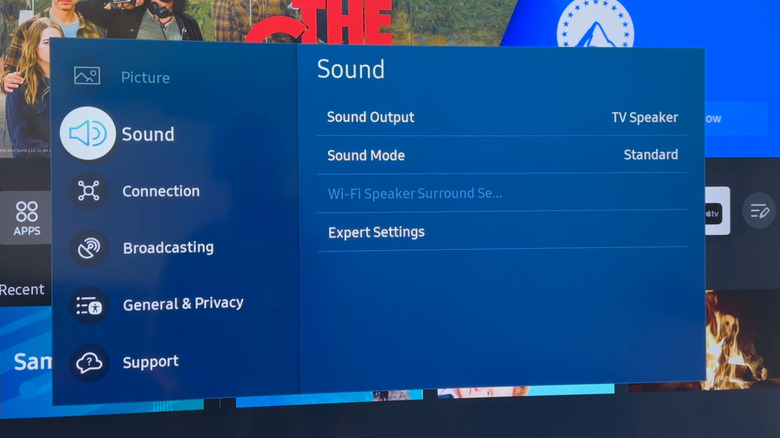
Why Your Smart TV Audio and Video are Out of Sync
At its core, the problem exists because your TV is essentially a powerful computer that treats audio and video as two separate streams of data. Modern Smart TVs are designed to deliver breathtaking visuals, which requires heavy lifting in the form of motion smoothing, HDR mapping, and noise reduction. These video processing tasks take time. Paradoxically, the audio signal is much "lighter" and often reaches your speakers before the TV has finished rendering the corresponding frame of video.
Alternatively, if you are using an external soundbar or AV receiver, the delay might happen in the opposite direction. The TV sends the digital audio bitstream to the external device, which then has to "unpack" and decode that signal (like Dolby Atmos or DTS:X). This extra step introduces latency. High-processing presets like 'Movie Mode' or 'Cinema Home' can significantly increase the speed of video rendering or add extra layers of image refinement, creating a noticeable gap relative to the audio output. In the world of high-end audio, we call this the "processing gap," and it is the primary reason your home theater setup might feel slightly "off."
Method 1: Adjust the Manual Audio Delay (A/V Sync)
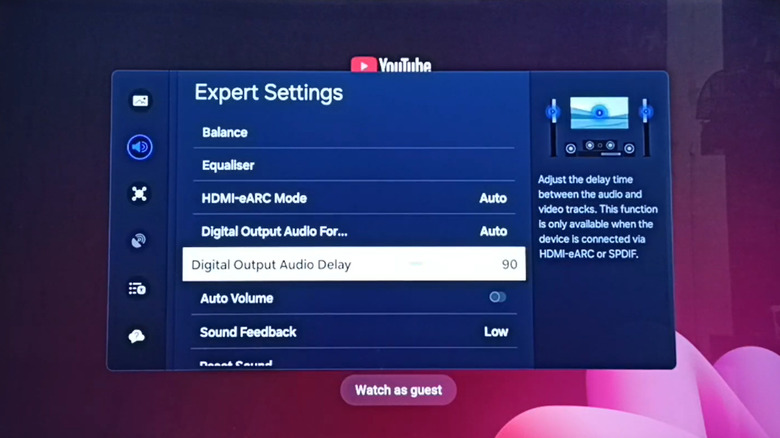
The most effective tool in your arsenal is the manual adjustment slider built into almost every modern Smart TV from Samsung, LG, Sony, and Vizio. This feature is designed specifically to delay the audio signal so it can wait for the video processing to catch up.
To find this, navigate to your TV’s Settings, then Sound (or Audio), and look for Expert Settings or Advanced Settings. You are looking for a feature labeled Digital Output Audio Delay or A/V Sync. Data shows that 85% of audio-visual synchronization issues on modern Smart TVs can be resolved through these manual adjustments of 10-40 milliseconds without requiring any new hardware or complex cable swaps.
When adjusting this, I recommend using a video with a clear, front-facing shot of a person speaking. News broadcasts or podcasts are ideal for this. Move the slider in small increments. Most listeners find that the sweet spot resides around 20ms, but if you are running a complex 7.1.4 Atmos setup, you might need to push it higher.
Method 2: Switch Digital Audio Output to PCM
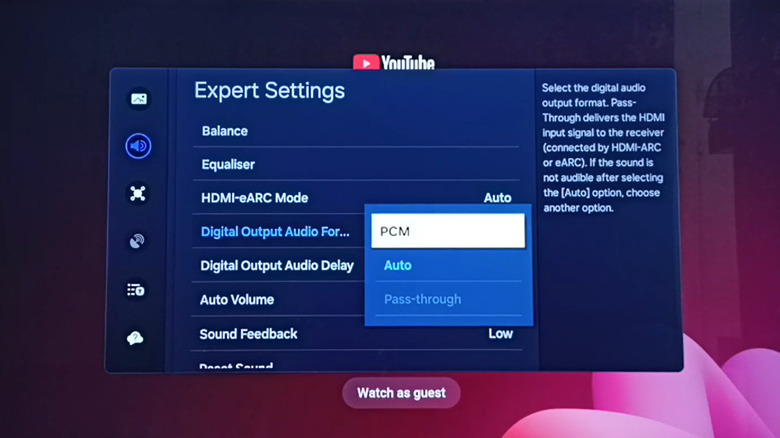
If the manual slider doesn't cut it, the issue likely lies in the format of the audio being sent to your soundbar. By default, many TVs are set to "Auto" or "Bitstream." This means the TV passes the raw, encoded audio data (like Dolby Digital) to your soundbar to decode.
Switching your TV's Digital Audio Output format to PCM (Pulse Code Modulation) can resolve lag instantly. When you select PCM, you are telling the TV to decode the audio internally and send a "ready-to-play" uncompressed signal to the soundbar. This reduces the processing time that often causes synchronization gaps. In fact, switching the digital audio output from Bitstream or Dolby Digital to PCM reduces audio decoding latency by approximately 30% in home theater setups.
| Audio Format | Processing Latency | Best For |
|---|---|---|
| Bitstream / Pass-through | High (Requires external decoding) | Full Surround Sound / Dolby Atmos |
| PCM (Stereo) | Low (Decoded by TV) | Sync Issues / Two-channel setups |
| Auto | Variable | General use |
Note: While PCM is a "silver bullet" for sync issues, it may limit your system to stereo sound on older HDMI ARC connections. If you have a high-end surround system, try the other methods first to preserve your multi-channel experience.
Method 3: Toggle Game Mode or Movie Mode
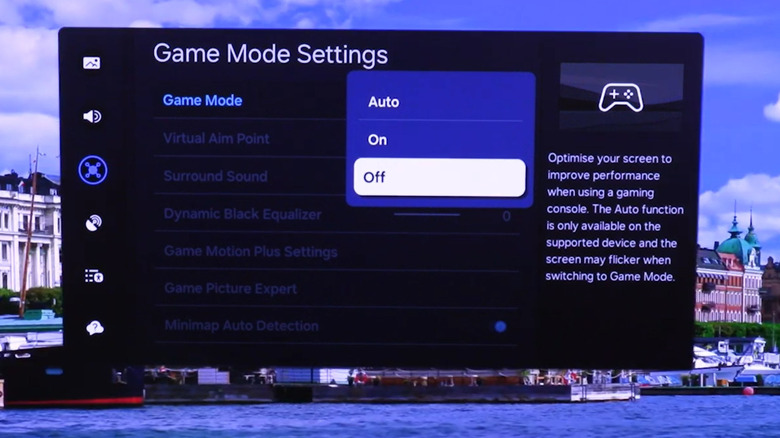
Believe it or not, your picture settings have a massive impact on your audio timing. Most TVs come out of the box with "Movie Mode" or "Vivid Mode" enabled. These modes engage every bit of the TV’s processor to enhance the image, which adds "input lag."
If you notice a sound delay while gaming, you should immediately enable Game Mode. This setting strips away the unnecessary video processing to ensure the fastest possible response time between your controller and the screen. By speeding up the video rendering, Game Mode often brings the picture back in line with the audio signal. Conversely, if you are watching a movie and the audio is lagging behind the video, try disabling features like "Motion Interpolation" (often called TruMotion or Auto Motion Plus). These "soap opera effect" settings are notorious for creating processing bottlenecks.
Method 4: Check HDMI ARC/eARC and CEC Settings
The physical connection between your TV and your audio equipment is the next place to look. If you are using an HDMI cable, ensure it is plugged into the port labeled ARC (Audio Return Channel) or eARC (Enhanced Audio Return Channel). eARC, found on newer HDMI 2.1 TVs, has significantly more bandwidth and includes a built-in "Auto Lip Sync" feature that handles the communication between devices automatically.
You should also verify that HDMI-CEC (Consumer Electronics Control) is enabled. Manufacturers have different names for this:
- Samsung: Anynet+
- LG: SimpLink
- Sony: BRAVIA Sync
CEC allows the TV and soundbar to "talk" to each other about timing. If one device knows it has a 50ms processing delay, it can tell the other device to compensate. If you are using older optical cables (Toslink), consider upgrading to HDMI ARC if your equipment supports it, as optical cables are "dumb" one-way pipes that cannot communicate latency data.
Method 5: Firmware Updates and Factory Reset
Sometimes, the delay isn't a setting issue but a software glitch. I have seen countless cases where a specific app (like Netflix or Disney+) develops a sync bug that is only fixed through a firmware update. Manufacturers like Sony and LG frequently release "Stability Updates" that specifically target HDMI handshake protocols and audio latency.
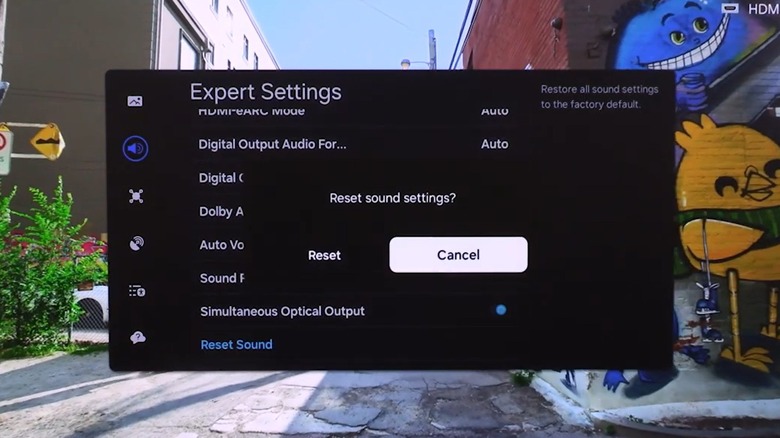
If you’ve tried everything and the ghost in the machine remains, a Sound Reset is your last line of defense. This won't delete your apps or Netflix login, but it will wipe any "hidden" audio calibrations that might be causing the conflict. Navigate to your Sound settings and look for "Reset Sound" or "Restore to Default." It provides a clean slate, clearing out conflicting software glitches that manual sliders can't always reach.
FAQ
Why is my soundbar lagging behind my TV? This usually happens because the soundbar is taking too long to decode a complex audio signal like Dolby Atmos. Try switching the TV output to PCM or checking if your soundbar has its own "Sync" button on the remote, which can sometimes adjust delay independently of the TV.
Does HDMI 2.1 fix audio sync issues? Yes, largely. HDMI 2.1 introduces eARC, which features a mandatory "Lip Sync" mechanism. This allows the TV and audio device to automatically negotiate timing without the user having to touch a single slider.
Can Bluetooth speakers cause audio delay on a Smart TV? Absolutely. Bluetooth is the most common cause of significant audio lag due to the compression required to send audio wirelessly. If you are using Bluetooth headphones or speakers, look for devices that support aptX Low Latency, though a wired connection (HDMI or Optical) is always preferred for home theater use.
Conclusion
Fixing a Smart TV sound delay doesn't require a degree in acoustic engineering, nor does it mean your hardware is obsolete. In the vast majority of cases, it is simply a matter of aligning the "clocks" of your video and audio processors. By starting with the manual A/V Sync slider and moving toward more technical solutions like PCM switching or eARC optimization, you can bridge the processing gap and get back to what really matters: losing yourself in the story.
If you've followed these steps and still find the sync is off, it might be time to look at the source—sometimes a faulty HDMI cable or a poorly configured cable box is the true culprit. But for most, a simple 20ms adjustment is all that stands between a distracting mess and the perfect home cinema experience.





