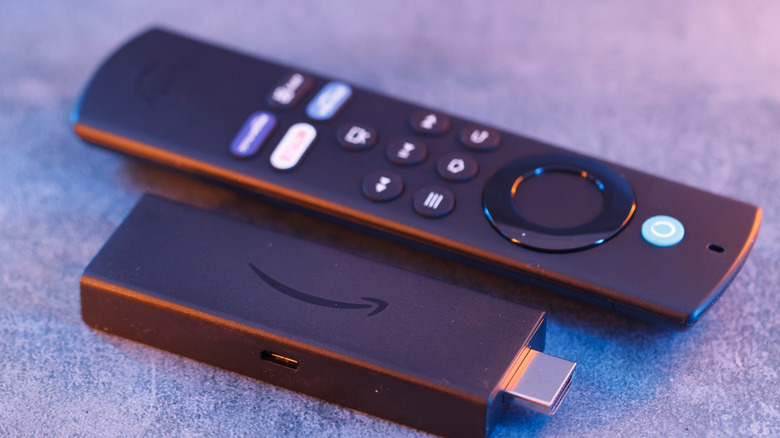
The Fire TV Stick is a masterpiece of modern convenience. For the price of a few fancy lattes, you get access to nearly every streaming service on the planet, integrated voice control, and a sleek UI that turns any "dumb" TV into a powerhouse. But there is an uncomfortable truth behind that low price point: Amazon often subsidizes the cost of these devices through aggressive data collection. Your Fire TV Stick isn't just a media player; it’s a portal for data miners.
Tests show that default Fire TV Stick settings transmit telemetry data to Amazon servers over 50 times per hour during active streaming sessions. From the specific shows you binge-watch to how long you hover over a movie thumbnail, your digital footprint is being mapped in real-time. If you’ve just unboxed a new device or haven't audited your current one lately, your privacy is likely compromised by default.
As a smart home editor, I always tell my readers that a "smart" home should never mean a "surveilled" home. To reclaim your privacy, you need to dig into the menus and flip the switches that Amazon prefers you leave alone. Here are the five essential privacy settings you must change today.
1. Disable Global Data Tracking (The Big Three)
The most significant leak in your privacy bucket is located within the "Privacy Settings" menu. Amazon categorizes its tracking into three main buckets: Device Usage Data, Collect App Usage Data, and Interest-Based Ads. By default, all three are usually toggled "On."
Device Usage Data allows Amazon to collect information on how you use the device's interface. Collect App Usage Data tracks which apps you open and for how long. Finally, Interest-Based Ads builds a profile of your preferences to serve you targeted commercials across the Fire TV ecosystem.
To stop Amazon from tracking your Fire TV Stick at this level, follow this path:
- Navigate to Settings (the gear icon on the far right).
- Select Preferences.
- Click on Privacy Settings.
- Toggle Device Usage Data to OFF.
- Toggle Collect App Usage Data to OFF.
- Toggle Interest-Based Ads to OFF.
When you disable these, you’ll see a warning claiming your experience might be "less personalized." In my experience, the only thing you'll miss is seeing ads for products you just searched for on your phone. The core functionality of the device remains identical.
2. Stop 3rd-Party App Surveillance
While Amazon’s own tracking is extensive, the third-party apps you install—like YouTube, Hulu, or smaller niche streaming services—can be even more invasive. Research indicates that over 70% of third-party streaming apps on the Fire TV platform request permissions for data access that are not essential for the app's primary functionality.
Within the same Privacy Settings menu mentioned above, you will find an option called Manage Sharing from Apps. This setting controls whether Amazon shares your specific "over-the-air" viewing data or app-specific usage with third-party developers.
Editor’s Pro Tip: Even if you trust a major developer like Netflix, remember that many smaller, "free" movie apps make their money entirely by selling user data. Always disable global sharing to ensure these apps aren't communicating your habits to external brokers.
To disable this, go to Settings > Preferences > Privacy Settings > Manage Sharing from Apps and ensure it is toggled to OFF. This forces apps to rely only on the data you provide within the app itself, rather than pulling a comprehensive profile from your Fire TV OS.
3. Lock Down Alexa Voice Privacy
The convenience of saying "Alexa, play The Boys" comes with a privacy cost. By default, Amazon stores a recording of every voice command you've ever uttered to train its machine-learning algorithms. While Amazon insists these recordings are used for "improving the service," the idea of a permanent library of your voice sitting on a server is a bridge too far for many privacy-conscious users.
You cannot disable Alexa entirely if you want to use the voice remote, but you can prevent Amazon from keeping your recordings indefinitely. While some settings are available on the TV, the most granular control happens in the Alexa mobile app or your Amazon web account.
To delete your Alexa voice history on Fire TV:
- Open the Alexa App on your smartphone.
- Navigate to More > Settings > Alexa Privacy.
- Select Review Voice History.
- Here, you can delete specific recordings from today, this week, or your entire history.
Better yet, set up Auto-Deletion. Within the same Alexa Privacy menu, select Manage Your Alexa Data and choose "Automatically delete recordings" after 3 or 18 months. This ensures your data footprint doesn't grow indefinitely.
4. Audit App Permissions & Data Monitoring
Beyond the general privacy settings, individual apps often hoard permissions like location access or microphone access. While a maps app might need your location, a wallpaper app certainly doesn't.
To audit these, head to Settings > Applications > Manage Installed Applications. Scroll through your list of apps. If you see an app you haven't used in months, uninstall it. For the ones you keep, check their individual permissions.
Another hidden setting to disable is Data Usage Monitoring. Amazon tracks how much bandwidth you use to provide "data alerts," but this is another way for the OS to monitor your active hours and streaming habits.
- Go to Settings > Preferences > Data Monitoring.
- Toggle Data Monitoring to OFF.
This stops the Fire TV Stick from constantly "phoning home" with reports about your internet consumption patterns.
5. Use a VPN to Mask Your IP and ISP Tracking
Even if you lock down every setting Amazon offers, your Internet Service Provider (ISP) can still see exactly which servers your Fire TV Stick is connecting to. They know when you’re watching Netflix versus when you’re using a third-party IPTV service. In many regions, ISPs are legally allowed to sell this anonymized "metadata" to advertisers.
The only way to truly go "invisible" is to use a Virtual Private Network (VPN). A VPN encrypts all the traffic leaving your Fire TV Stick, making it impossible for your ISP or any local network snoopers to see what you are doing.
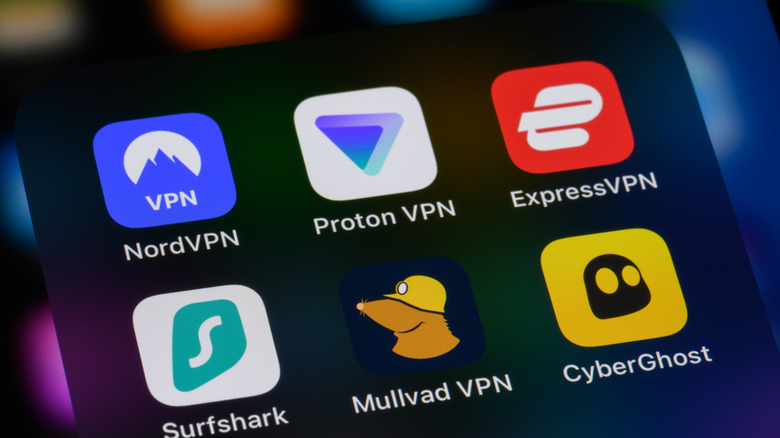
Using a VPN on a Fire Stick is incredibly simple:
- Search for a reputable VPN (like NordVPN or ExpressVPN) in the Fire TV App Store.
- Download and log in.
- Set the app to "Connect on Boot" or "Auto-Connect."
This adds a layer of encryption that hardware settings alone cannot provide, and it has the added benefit of bypassing geo-blocks so you can access content libraries from other countries.
Critical Warning: The 'Update Reset' Phenomenon
Here is something Amazon won't tell you in the manual: your privacy settings might not stay "Off." In the world of Firestick security tips 2026, the biggest threat is often the software update. Recent reports indicate that major Amazon software updates may automatically re-enable certain data sharing and ad personalization features without user consent.
I recommend performing a "Privacy Audit" once every few months or immediately after your Fire TV Stick performs a significant OS update. If you notice the UI looks different or you're seeing more "Recommended" content than usual, it's a red flag that your settings may have been reverted to factory defaults.
Staying ahead of these updates is the only way to ensure your streaming stick remains a tool for your entertainment rather than a tool for Amazon’s marketing department.
Conclusion
The Fire TV Stick remains one of the best values in tech, but that value shouldn't come at the cost of your personal privacy. By disabling global telemetry, limiting third-party app sharing, managing your Alexa recordings, auditing app permissions, and layering on a VPN, you transform your device from a data-collection beacon into a private entertainment hub.
Take ten minutes tonight to run through these settings. Your future self—and your data—will thank you.
FAQ
Does disabling these settings slow down my Fire TV Stick? No. In fact, many users report that disabling "Device Usage Data" and "Data Monitoring" can slightly improve performance. Because the device is no longer constantly processing and transmitting telemetry data in the background, more system resources are available for your actual streaming apps.
Will I still get software updates if I disable tracking? Yes. Disabling privacy-related tracking does not affect critical system updates or security patches. Your device will still receive all the latest features and bug fixes from Amazon.
Can I reset my Advertising ID? Yes. If you choose to keep "Interest-Based Ads" on (though I don't recommend it), you should periodically go to Settings > Preferences > Privacy Settings and select Reset Your Advertising ID. This wipes the current profile advertisers have built around you and starts it from scratch.





