In the high-stakes world of technology, much like the luxury travel market, the allure of the "latest and greatest" often obscures the superior value found in the secondary market. As we navigate 2026, the secondary MacBook market has matured into a sophisticated landscape where savvy buyers can secure professional-grade hardware for a fraction of its original MSRP. However, the line between a "bargain" and an "expensive paperweight" has never been thinner.
While the M-series silicon revolution fundamentally changed the longevity of Apple’s laptops, the hardware support cycles remain as rigid as ever. Are older M1 or M2 MacBooks still worth buying in 2026? The short answer is a resounding yes. These chips possess enough architectural overhead to handle modern productivity workflows for another three to five years, offering a value proposition that significantly outclasses entry-level M4 machines for the average professional. Yet, navigating this purchase requires more than just checking for scratches; it requires an understanding of Apple’s internal classification systems and the evolving demands of modern software.

1. Understand the Support 'Death Date': Vintage vs. Obsolete
When buying used, your primary enemy isn't wear and tear—it's the calendar. Apple maintains a strict hierarchy for how it services older hardware. If you buy a machine that is about to cross the "Obsolete" threshold, you are essentially purchasing a device with an expiration date on its repairability and security.
Apple classifies models based on when they were last distributed for sale. Understanding these two tiers is critical for long-term ownership:
| Category | Timeline (Years since last sold) | Service Status |
|---|---|---|
| Vintage | 5 to 7 years | Limited hardware support; repairs subject to part availability. |
| Obsolete | Over 7 years | No official hardware service or software updates. |
The "Vintage" designation is the warning light. While you might still get a screen replacement, it is no longer guaranteed. Once a model hits "Obsolete" status, Apple technicians are prohibited from even opening the machine. However, there is a strategic loophole: Apple guarantees a battery-only repair program for up to 10 years after a model was last sold. If you find an older Pro model with a failing battery, you may still be able to get a fresh cell from an Apple Store even after the device is technically "vintage."
2. Setting the 2026 Performance Floor: RAM and Storage
The most common mistake used buyers make is prioritizing the physical condition of the chassis over internal specifications that cannot be changed. In 2026, the 8GB RAM configuration—once the standard—has effectively become the new 4GB.
Modern macOS versions and the proliferation of AI-driven background tasks have increased the "baseline" memory usage significantly. If you intend to use your MacBook for anything beyond basic word processing and single-tab browsing, 16GB of RAM is no longer a luxury; it is the minimum requirement for a fluid experience.
Expert Insight: Remember that since the transition to Apple Silicon, the RAM (Unified Memory) and the SSD are soldered directly onto the logic board. There is zero path for internal upgrades. If you buy an 8GB model today, you are locked into that performance ceiling until the day you sell it.
When it comes to storage, avoid the base 256GB models if possible. Not only is the capacity restrictive, but in older M2 models specifically, the base storage used a single-chip configuration that resulted in slower read/write speeds compared to the 512GB and higher tiers.
3. The Value Sweet Spot: M1/M2 vs. Modern M4 Models
The current market data shows a fascinating trend: Certified refurbished M1 and M2 models currently offer a 30% to 50% cost saving compared to the latest M4 releases. Despite the age of the M1 chip, it retains over 80% of the processing efficiency required for daily productivity tasks—emails, 4K video playback, and intensive web multitasking.
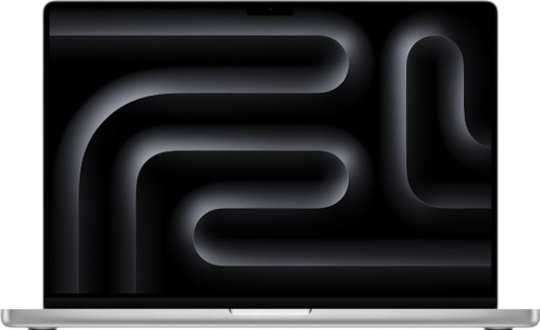
Performance vs. Price Index (2026 Market)
- M1 Air (Refurbished): ~$450 - $550 | 75% Performance | Best Value
- M2 Pro 14" (Refurbished): ~$1,100 - $1,300 | 90% Performance | Professional Choice
- M4 Pro 14" (New): ~$1,999+ | 100% Performance | Diminishing Returns
For most users, the leap from an Intel-based Mac to an M1 was a "generational" shift. The leap from M1 to M4 is "incremental." Unless your workflow involves heavy 3D rendering or high-end ProRes video editing, the M1 or M2 remains the smarter financial play. Conversely, Intel-based MacBooks (2019 and older) should be avoided entirely in 2026, regardless of how low the price drops. They are loud, run hot, and are rapidly losing macOS support.
4. Cooling Systems: Active vs. Passive (Air vs. Pro)
One of the most overlooked aspects of the used market is how the device handles heat. The MacBook Air is famous for its "fanless" design. This makes it silent and prevents dust buildup, but it also means the device will "thermal throttle" (slow down its processor) during sustained heavy workloads to prevent overheating.
If you are a writer, student, or administrative professional, the Air’s passive cooling is a benefit. However, if you are editing video or working with large datasets, the active cooling (fans) found in the MacBook Pro models is essential.
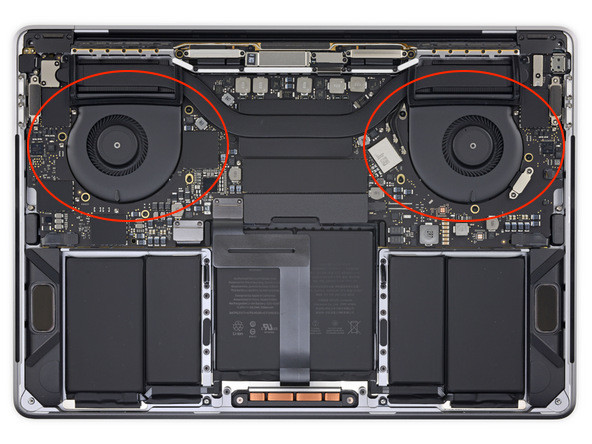
A used MacBook Pro can maintain its peak performance for hours, whereas an Air might see a 20-30% drop in speed after 15 minutes of high-intensity activity. When inspecting a used Pro model, always listen for "coil whine" or grinding noises from the fans, which can indicate a need for internal cleaning or fan replacement.
5. Screen Quality: ProMotion and XDR Benefits
In 2026, we are seeing a widening gap between display technologies. The older MacBook Air models use standard Retina displays with a 60Hz refresh rate. While crisp, they lack the fluid motion found on the MacBook Pro’s ProMotion (120Hz) screens.
- ProMotion (120Hz): Found on 14-inch and 16-inch M-series Pros. It makes scrolling and UI animations feel significantly smoother and reduces eye strain during long working sessions.
- Liquid Retina XDR: Offers 1,000+ nits of sustained brightness. This is a game-changer if you often work in bright environments, such as airport terminals or outdoor cafes, where standard screens (usually 400-500 nits) suffer from heavy glare.
When buying used, look for the "Stage Light" effect—a series of dark patches at the bottom of the screen—which was a common failure point in older "Flexgate" era models. While less common in M-series machines, a thorough screen inspection at 100% brightness is mandatory.

6. Security Red Flags: MDM and Activation Locks
The most dangerous pitfall in the used market isn't a broken screen; it’s a software lock that turns your purchase into a brick. You must verify that the device is not managed by a corporation or locked to a previous owner’s iCloud account.
The Pre-Purchase Security Checklist:
- [ ] Check for MDM (Remote Management): Go to
System Settings > General > Profiles & Device Management. If this section exists and shows a corporate profile, do not buy it. The company can remotely lock or wipe the device at any time. - [ ] Verify iCloud Status: Ensure "Find My Mac" is turned off and the previous owner has signed out of their Apple ID.
- [ ] The 'Sudo' Trick: Open the Terminal app and type
sudo profiles renew -check. If the output mentions a management server, the device is linked to an organization. - [ ] Apple Diagnostics: Restart the Mac and hold the 'D' key (or the power button on Apple Silicon to enter Options > Command+D). Run the hardware test to check for hidden sensor or logic board failures.
Browse Certified Refurbished MacBooks →
7. Buying Strategy: Avoiding the 'Apple Tax'
While the Apple Refurbished store is the safest option, it is rarely the cheapest. To truly save money, you should look toward authorized third-party resellers like Amazon or Best Buy, or specialized marketplaces like Back Market and Swappa. These platforms often offer their own 12-month warranties, providing peace of mind without the "Apple Tax" premium.
Never complete a transaction in a public space without seeing the device boot into the "Hello" setup screen. If a seller refuses to let you run the Apple Diagnostic tool or check the battery cycle count, walk away. A healthy battery should generally have fewer than 500-800 cycles and a "Maximum Capacity" above 85%.
Frequently Asked Questions
Is a 2020 M1 MacBook Air still a good buy in 2026? Yes, provided it has 16GB of RAM. It remains one of the most portable and efficient laptops ever made. However, expect it to lose macOS update support around 2027 or 2028.
What happens if I buy a MacBook that is 'Obsolete'? You will still be able to use the laptop, but you will stop receiving critical security patches, making it vulnerable to malware. Furthermore, if the keyboard or screen breaks, Apple will refuse to repair it, even if you offer to pay.
How can I check the battery health of a used MacBook?
Go to System Settings > Battery > Battery Health. Click the 'i' icon to see the Maximum Capacity percentage. You can also use the "system report" under "About This Mac" to see the exact cycle count.
Conclusion
Buying an older used MacBook in 2026 is a masterclass in calculated risk. By avoiding the allure of the base-model 8GB machines and focusing on the "Vintage" vs. "Obsolete" timelines, you can secure a machine that performs at 90% of the level of a brand-new model for half the price. Prioritize RAM, verify the MDM status, and stick to the M-series silicon. In the world of tech, the smartest traveler isn't the one with the newest bag, but the one with the most reliable gear bought at the best possible price.