Key Takeaways
- Effortless Silencing: In watchOS 26, a quick flick of the wrist allows users to silence incoming calls (first flick) and decline them (second flick) without ever touching the display.
- Hardware Exclusive: The feature utilizes a dedicated on-device machine learning model that processes motion data 2x faster than previous methods, limiting compatibility to Apple Watch Series 9, Series 10, and Ultra 2 or newer.
- Versatile Utility: Beyond calls, the wrist flick gesture snoozes alarms, dismisses timers, closes the Smart Stack, and exits the Control Center.
- Enhanced Visibility: The new "Liquid Glass" UI elements work in tandem with these gestures, utilizing transparent design layers to increase background photo visibility by 65%.
Imagine standing at a busy international check-in counter, your hands occupied with a passport, a boarding pass, and a carry-on handle. Suddenly, your wrist begins to vibrate with an incoming call you simply cannot take at that moment. In previous iterations of watchOS, you’d be forced to perform a clumsy one-handed dance to tap the screen or cover it with your palm. With the rollout of watchOS 26, Apple has solved this friction point with surgical precision. The "Wrist Flick" gesture is not just a minor software tweak; it is a sophisticated interaction model designed for those moments when your hands are physically or socially occupied. It represents a shift toward more intuitive, kinetic control that feels less like operating a computer and more like a natural extension of human movement.
The Hardware Check: Is Your Watch Ready?
Before diving into the settings, it is essential to understand "The Catch." As a critic who values performance consistency, I must highlight that this feature is not a universal software update for all legacy devices. The wrist flick gesture requires significant local processing power to distinguish between a deliberate command and a random arm movement.
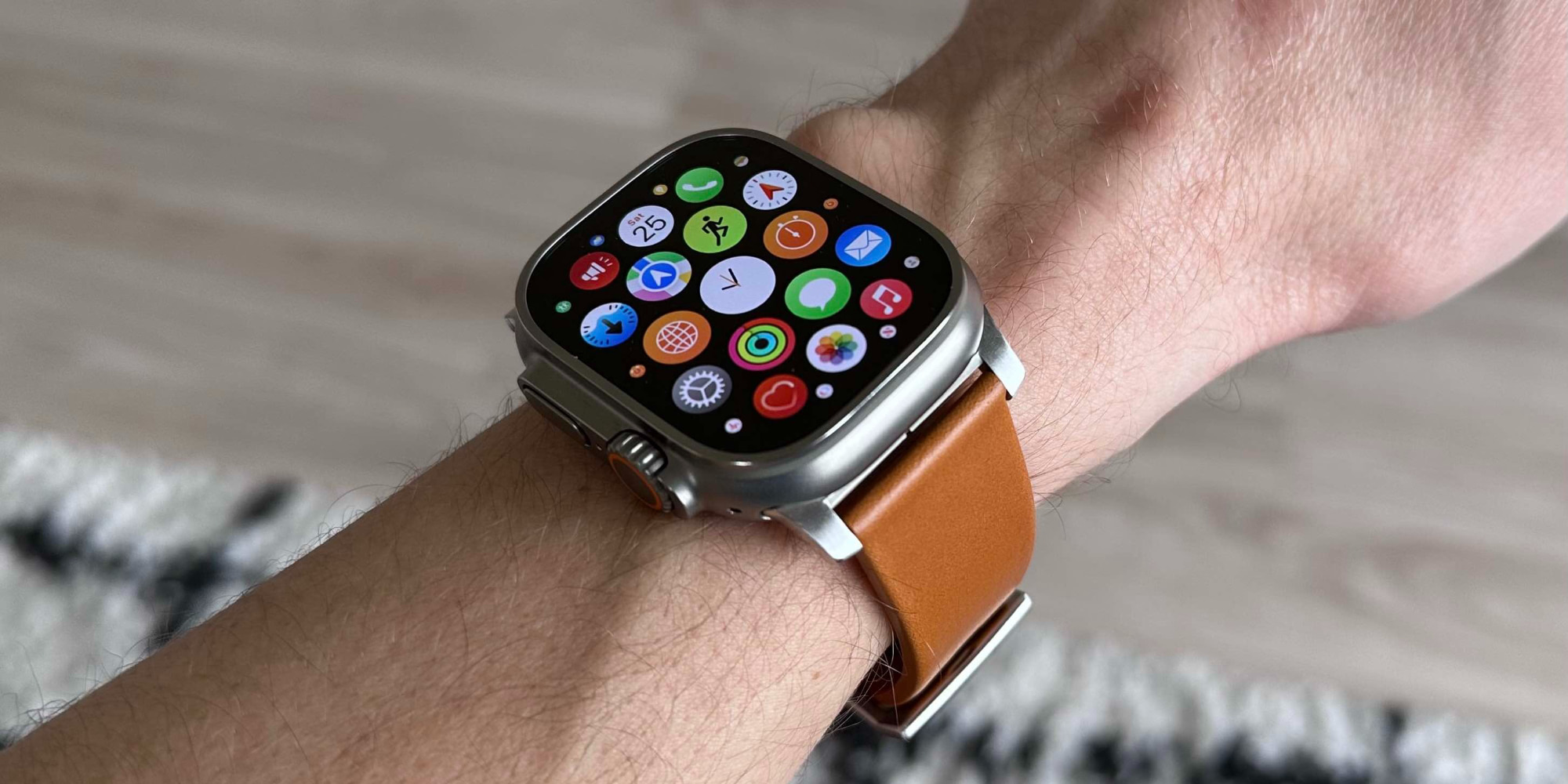
Apple has integrated a dedicated on-device machine learning model specifically for this gesture. This model processes motion data from the accelerometer and gyroscope 2x faster than the gesture detection methods used in older models. Consequently, the feature is strictly compatible with the Apple Watch Series 9, Apple Watch Series 10, and Apple Watch Ultra 2 (or any subsequent models). If you are sporting a Series 8 or an SE, the hardware simply lacks the neural engine throughput to handle these real-time calculations without significant battery drain or lag.
How to Enable and Perform the Wrist Flick
Activating the feature is straightforward, though it is tucked away within the deeper gesture settings to prevent accidental triggers for those who prefer traditional touch inputs.
- Open the Settings app on your Apple Watch.
- Scroll down and tap on Gestures.
- Select Wrist Flick.
- Toggle the switch to On.
The "flick" itself is a specific motion. It is not a slow rotation of the arm, but rather a crisp "forward and back" snap of the wrist. Think of it as a sharp, decisive gesture—similar to how you might flick a speck of lint off your sleeve. The watch’s haptic engine provides a subtle "click" sensation to confirm the gesture has been registered, ensuring you aren't left wondering if the alert was silenced.

7 Practical Ways to Use the Wrist Flick
In my testing across various environments—from quiet libraries to bustling transit hubs—the wrist flick has proven to be more than a parlor trick. It serves as a universal "dismiss" command that covers almost every interruptive element of the watchOS experience.
- Silencing and Declining Calls: This is the primary use case. A single flick silences the ringer or haptics instantly. A second flick sends the caller to voicemail. It is the height of discretion during a meeting or a dinner.
- Snoozing Alarms: For those who find the morning touch-target for "Snooze" too small to hit while groggy, a flick of the wrist offers an extra nine minutes of rest without needing to open your eyes.
- Dismissing Timers: When you’re in the kitchen and your hands are covered in flour, a wrist flick stops the timer alert once your task is complete.
- Clearing Notifications: When a notification banner drops down, a quick flick sends it away, keeping your current watch face or app visible.
- Closing the Smart Stack: If you’ve scrolled through your widgets and want to return to your watch face instantly, the flick acts as a "home" command.
- Exiting the Control Center: No need to swipe down; a flick collapses the Control Center and returns you to your previous screen.
- Managing App Alerts: Third-party apps that utilize standard watchOS notification frameworks automatically inherit this functionality, making it a system-wide convenience.
Visual Context: Liquid Glass and Notifications
One cannot discuss the wrist flick without mentioning the visual overhaul in watchOS 26. Apple has introduced what they call "Liquid Glass" UI elements. This design philosophy utilizes transparent, multi-layered windows that allow your background complications and photos to remain partially visible even when an alert is active.
Statistically, these 'Liquid Glass' elements increase background photo visibility by 65% compared to the opaque blocks of previous versions. When you use the wrist flick to dismiss a notification, the transition is seamless. The notification doesn't just "vanish"; it appears to dissolve back into the background layers of the UI. This creates a cohesive aesthetic experience where the hardware (your wrist motion) and the software (the transparent UI) feel perfectly synchronized.
Synergizing with Double Tap
It is important to distinguish the Wrist Flick from the Double Tap gesture introduced in the previous generation. While they may seem similar, they serve opposite purposes in the watchOS ecosystem.
The Double Tap is "Actionable"—it answers calls, pauses music, or stops a stopwatch. The Wrist Flick is "Dismissive"—it silences, hides, or closes. Using them in tandem allows for a truly hands-free experience. For example, if a call comes in, you can Double Tap to answer it on your AirPods, or Wrist Flick to silence it if you're busy.
| Feature | Primary Intent | Key Action | Hardware Requirement |
|---|---|---|---|
| Wrist Flick | Dismissive | Silence calls, dismiss timers, close UI layers | Series 9/10, Ultra 2+ |
| Double Tap | Actionable | Answer calls, play/pause, scroll Smart Stack | Series 9/10, Ultra 2+ |
Troubleshooting and Technical Integrity
From a critical standpoint, the most common issue users face is "Gesture Drift"—where the watch fails to register the flick because the motion is too fluid or too slow. The machine learning model is tuned to look for the high-frequency deceleration that occurs at the end of a sharp snap. If you find the gesture isn't working, try increasing the "crispness" of your wrist movement.
Regarding privacy, it is worth noting that all gesture processing happens locally on the S9 or S10 chip. Apple does not upload your motion data to the cloud to "learn" your movements. This on-device processing ensures that your physical activity remains private while maintaining the ultra-low latency required for the gesture to feel responsive.
For those looking to maximize their Apple Watch experience, mastering these kinetic shortcuts is no longer optional—it is the hallmark of a "pro" user.
Explore the New Apple Watch Collection →
FAQ
Does the wrist flick work if I’m wearing gloves? Yes. Unlike touch-based commands that require skin contact (or specialized gloves), the wrist flick relies entirely on internal sensors (accelerometer/gyroscope), making it perfect for winter sports or medical environments.
Will the wrist flick drain my battery? The impact is negligible. Because watchOS 26 utilizes the high-efficiency neural engine on newer chips, the power draw for gesture monitoring is integrated into the standard low-power motion coprocessor.
Can I customize what the wrist flick does? Currently, the wrist flick is hard-coded as a "dismiss/silence" gesture to maintain system-wide consistency. However, you can enable or disable it for specific categories like "Alarms" or "Calls" within the gesture settings menu.
James Wright is a Senior Travel Critic and technology analyst who focuses on the intersection of luxury hardware and functional software. He has spent the last decade reviewing wearables through the lens of global mobility and user efficiency.





