You’ve just unboxed a $500 Panasonic player and a $2,000 OLED TV. You pop in a reference-grade 4K disc, wait for the cinematic magic to happen, and then the frustration sets in. The screen is dull, the "HDR" icon never appears in the corner, or worse, the image flickers black like a dying strobe light. It’s a common irony in the home theater world: enthusiasts spend thousands on the "big" components but let a $10 accessory turn their flagship setup into a glorified 1080p rig.
In my years testing everything from the latest GPUs to high-end projectors, I’ve seen it time and again. The HDMI cable is the most overlooked component in the signal chain, yet it is the literal pulse of your home theater. If that pulse is weak, your Dolby Vision metadata won't survive the trip from the player to the glass.
The Cable Myth: Why 'Standard' Isn't Enough
The most dangerous phrase in tech is "a cable is just a cable." While it's true that digital signals don't "sound warmer" with gold-plated connectors, they absolutely do fail when they hit a bandwidth ceiling.
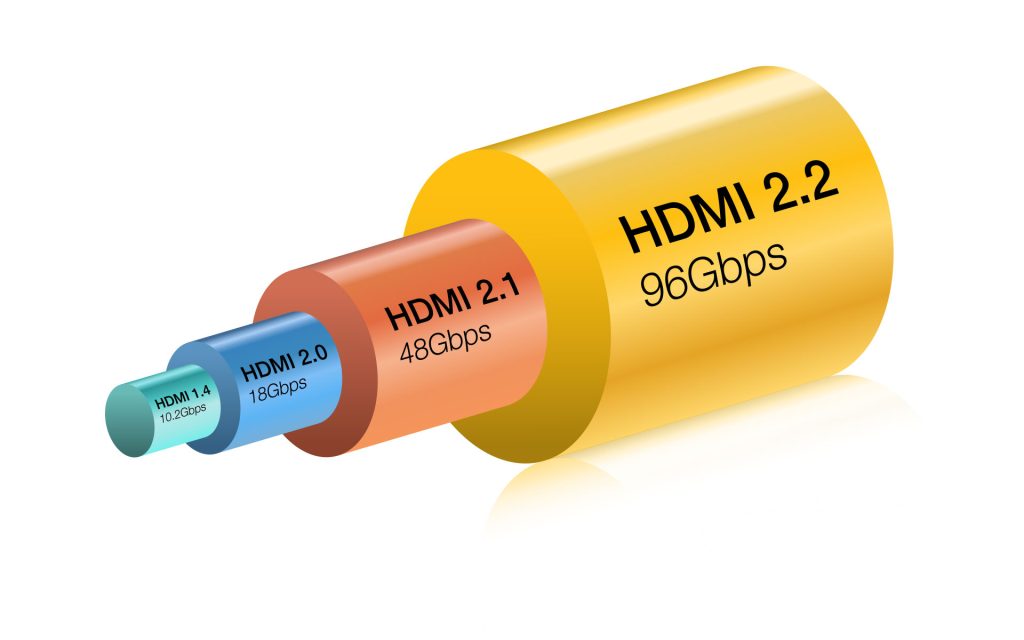
To enable HDR and Dolby Vision, you must use an HDMI cable labeled 'Premium High Speed' or 'Ultra High Speed' with a minimum transmission bandwidth of 18 Gbps.
Think of bandwidth like a highway. A standard 1080p signal is a single car. A 4K signal with High Dynamic Range (HDR) and 10-bit color is a fleet of semi-trucks. Legacy "Standard" HDMI cables are limited to 4.95 Gbps—barely enough to handle a basic 1080i signal. To get the full 4K/60Hz HDR experience, you need 18 Gbps. If you’re planning for the future (8K or 4K/120Hz gaming), you might even look at "Ultra High Speed" cables rated for 48 Gbps.
The 18Gbps Rule: For 4K Blu-ray playback, 18 Gbps is the non-negotiable floor. Anything less will result in "handshake" issues, where the player and TV fail to agree on a high-quality signal and default to the lowest common denominator: 1080p SDR.
When shopping, look for the "Premium Certified" QR code on the packaging. This isn't just marketing fluff; it means the cable has been independently tested to sustain 18 Gbps without signal dropouts.
| Cable Label | Max Bandwidth | Best For |
|---|---|---|
| Standard | 4.95 Gbps | 720p/1080i (Legacy devices) |
| High Speed | 10.2 Gbps | 1080p, 4K/30Hz (No HDR) |
| Premium High Speed | 18 Gbps | 4K/60Hz, HDR10, Dolby Vision |
| Ultra High Speed | 48 Gbps | 8K/60Hz, 4K/120Hz (Next-gen gaming) |
Port Priority: Not All HDMI Inputs Are Equal
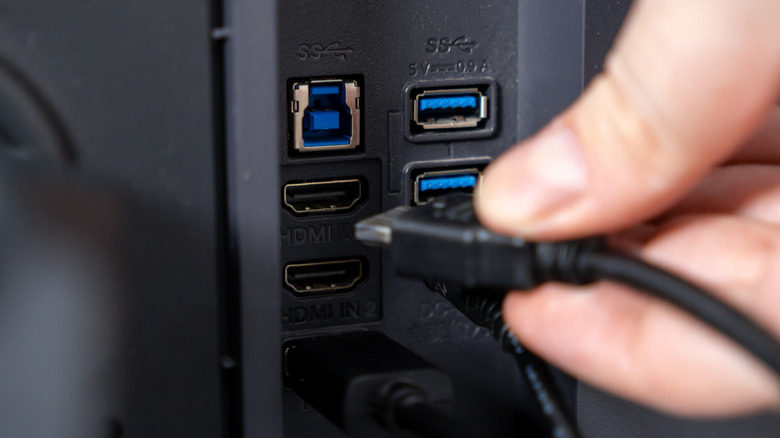
Once you have the right cable, you have to plug it into the right hole. This sounds simple, but TV manufacturers often cut corners. On many mid-range sets, only HDMI ports 1 and 2 support the full HDMI 2.0 or 2.1 specifications, while ports 3 and 4 might be legacy 1.4 ports.
The best TV connection for a Blu-ray player is an HDMI 2.0 or 2.1 port; older ports may restrict bandwidth and disable HDR metadata.
To identify the best port, check the back of your TV chassis for labels like "HDCP 2.2," "4K/60p," or "UHD." If your TV has an eARC (Enhanced Audio Return Channel) port, you might face a dilemma. Usually, you want to save the eARC port for your soundbar or A/V receiver to pass high-quality audio back from the TV. In this case, plug your Blu-ray player into another HDMI 2.0/2.1 port.
If you are running your player through an older A/V receiver before it hits the TV, that receiver becomes the bottleneck. If the receiver doesn't support HDCP 2.2, it will strip the HDR signal entirely, leaving you with a flat, standard-definition image despite your expensive player.
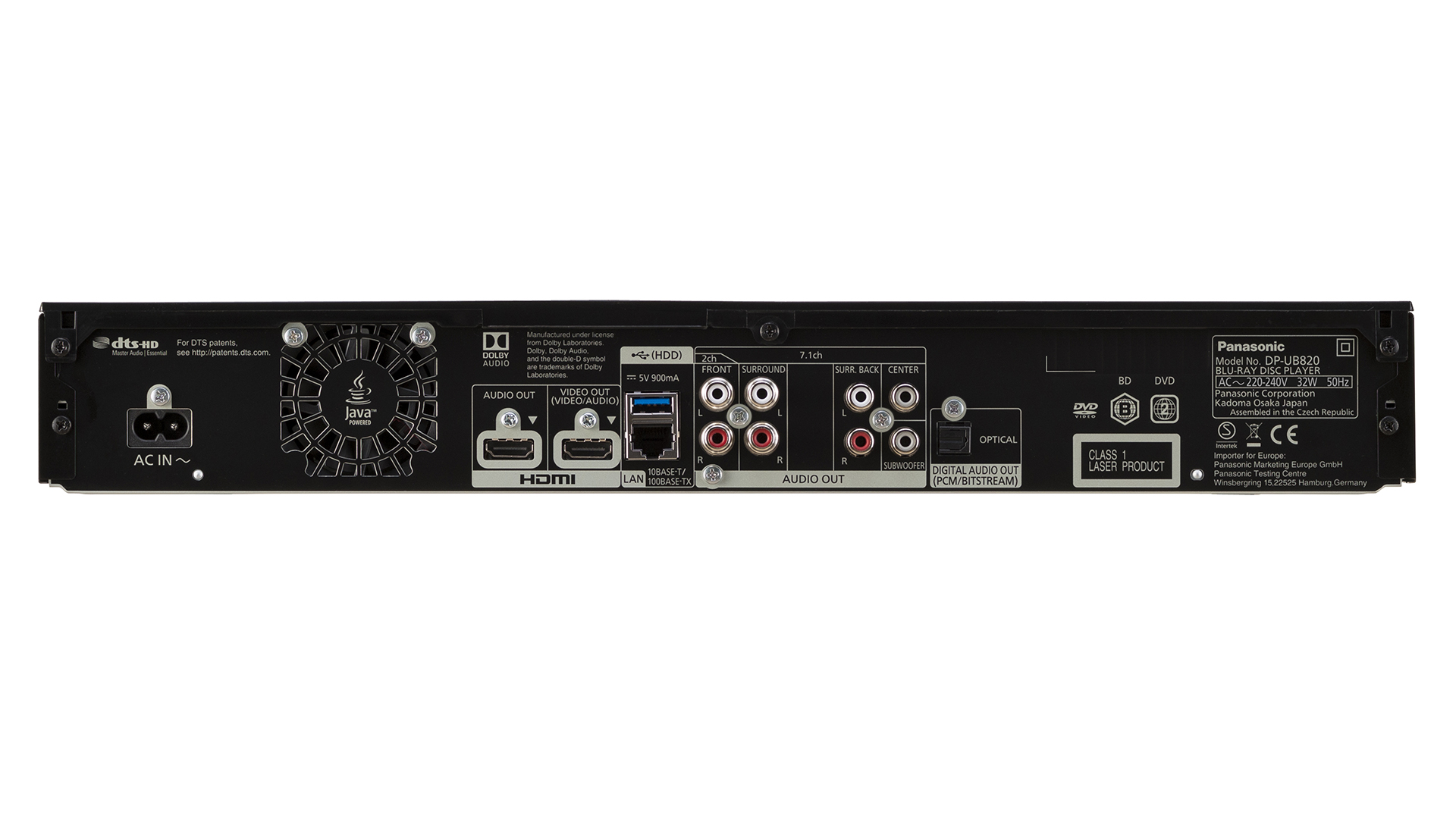
Pro-Level Setup: Optimizing the Panasonic DP-UB820
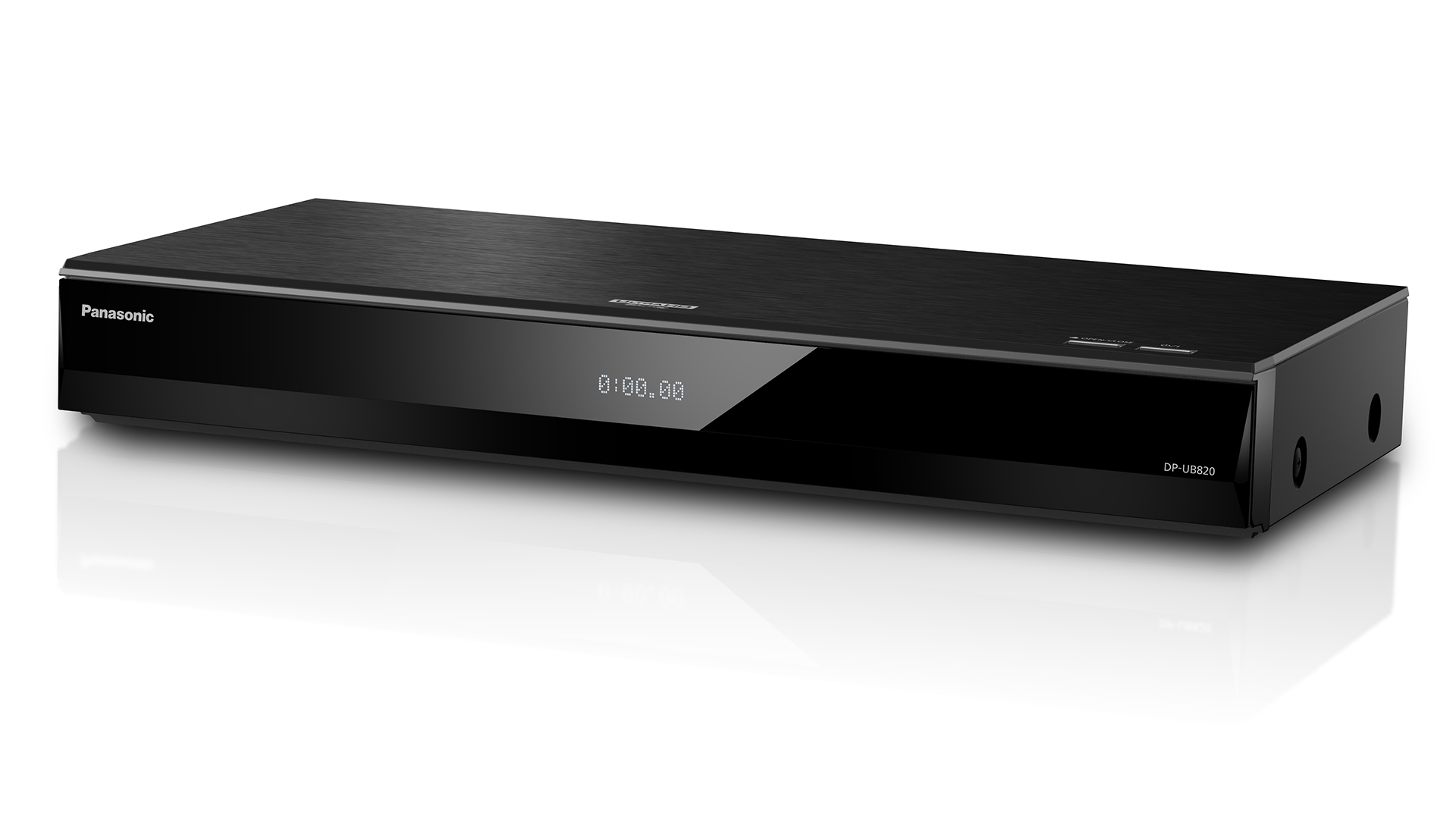
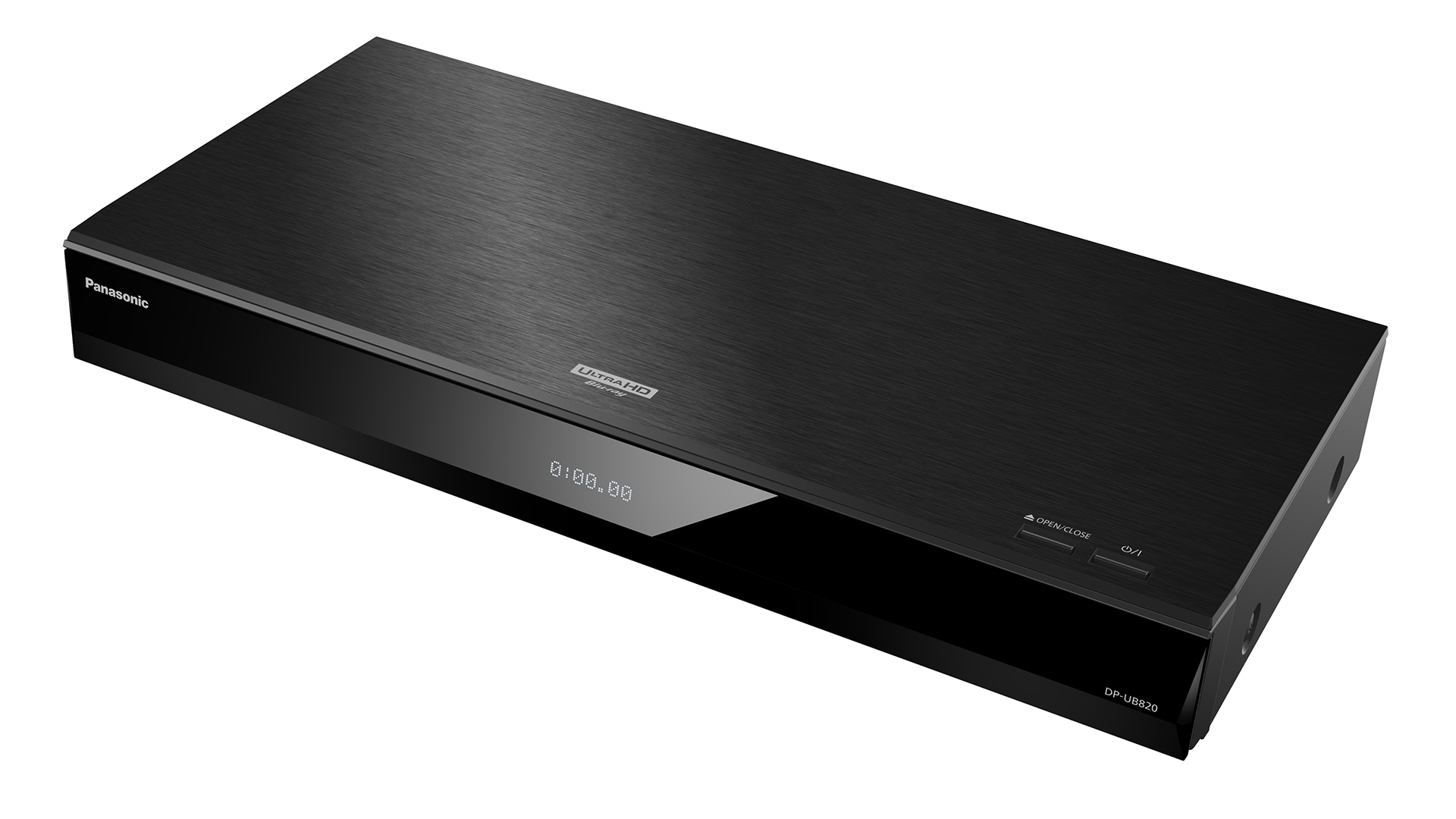
If you are serious about physical media, you likely own (or want) the Panasonic DP-UB820. It is widely considered the "go-to" for cinephiles because of its legendary processing power. While cheaper players simply pass the signal through, the Panasonic actually helps your TV look better.
For Panasonic DP-UB820 users, the 'HDR Optimizer' feature should be enabled to improve tone-mapping based on your TV's specific brightness limitations.
Most TVs struggle with "clipping." This happens when a movie has highlights (like a bright sun or a muzzle flash) that are brighter than the TV can actually display. Instead of showing detail, the TV just shows a big white blob. The HDR Optimizer fixes this by re-mapping the highlights to fit within your TV's specific "Nit" (brightness) capabilities.
Recommended Settings for the UB820:
- HDR Optimizer: ON. Set the "HDR TV Type" to match your display (OLED, High Luminance LCD, etc.).
- HDMI(VIDEO) Output Mode: Set to Auto.
- 4K60p(4:4:4) Output: Set to 4K/60p(4:4:4). This ensures the highest color resolution, provided your cable can handle the 18 Gbps load.
- Dolby Vision Setting: Set to ON. Note that when a Dolby Vision disc is playing, the "HDR Optimizer" is bypassed because Dolby Vision provides its own frame-by-frame instructions to the TV.
Distance and Signal Loss: The 25-Foot Rule
Most gamers and casual viewers have their player sitting right under the TV. But for those with dedicated home theaters or projectors, distance is the enemy.
Signal degradation in passive copper HDMI cables typically begins at around 25 feet. Beyond this length, the 18 Gbps data stream becomes unstable. You might see "sparkles" (tiny white pixels dancing on the screen) or experience total signal loss.
The solution for long runs—especially for ceiling-mounted projectors—is an Active Fiber Optic HDMI cable. Unlike copper, which uses electricity, fiber optic cables use light to transmit data. They can maintain full 18 Gbps (or even 48 Gbps) integrity over 50 or 100 feet without a sweat. They are more expensive, but they are mandatory for maintaining metadata integrity over distance.
Troubleshooting: Common HDR Handshake Issues
Even with the best gear, things go wrong. If you’re staring at a blank screen, try these "Gear-Head" quick fixes:
- The "Black Screen" Dropouts: If your screen goes black for two seconds every time a movie starts, your cable is likely right on the edge of failing. It can handle the menu (low bandwidth) but chokes on the 4K HDR movie signal (high bandwidth). Replace it with a Certified Premium cable immediately.
- Forced 1080p: If your 4K player says it's outputting 1080p, check your TV settings. Many TVs (especially Sony and older LG models) require you to manually enable "HDMI Enhanced Format" or "HDMI Ultra HD Deep Color" in the TV's input menu.
- The Receiver Bottleneck: If you have a legacy receiver in the middle that doesn't support HDR, use the "HDMI Out (Audio Only)" port on your Panasonic player. Connect the Video port directly to the TV and the Audio port to your receiver. This bypasses the receiver's outdated video chip entirely.
FAQ
Q: Do I need a new HDMI 2.1 cable for 4K Blu-ray? A: Not necessarily. A "Premium High Speed" (18 Gbps) cable is perfectly fine for 4K Blu-ray at 24fps or 60fps. You only need HDMI 2.1 ("Ultra High Speed") for 4K/120Hz gaming or 8K content.
Q: Why does my Dolby Vision look so dark? A: Dolby Vision is designed to be color-accurate to the director's intent, which is often darker than standard "Vivid" modes. Ensure your TV is set to "Dolby Vision Bright" if you are watching in a room with some ambient light, or "Dolby Vision Dark" for a pitch-black theater experience.
Q: Can I use an HDMI splitter to send HDR to two rooms? A: Only if the splitter is specifically rated for HDMI 2.0b and HDCP 2.2. Most cheap splitters will strip the HDR metadata and force both screens to 1080p.
Conclusion: Don't Starve Your Display
Your 4K OLED or high-end projector is a high-performance engine, and HDR metadata is the high-octane fuel it needs to perform. By ensuring your cables meet the 18 Gbps threshold, selecting the correct ports, and utilizing tools like the Panasonic HDR Optimizer, you move from "just watching a movie" to experiencing it as the cinematographer intended. Stop settling for "good enough" and fix your signal chain today.