Quick Facts
- Common Symptom: Users frequently report significant battery drain and general system lag during the first few days following a major software rollout.
- Safe Fix: Wiping the system cache partition through recovery mode is a non-destructive way to resolve deep-seated software conflicts without deleting personal data.
- Optimization Secret: Adjusting the animation scales to 0.5x in the hidden developer options menu provides an immediate boost to the perceived speed of the interface.
- Hardware Warning: Permanent physical artifacts like the vertical green line on an OLED panel are hardware failures that cannot be resolved through software troubleshooting.
- Network Hack: Switching to a private DNS such as dns.google can eliminate the 3-5 second delay often experienced when first loading web pages on mobile data.
- Device Care: Samsung's internal Device Care utility should be used to maintain a performance score of 100 by automatically closing idle background applications.
Most common samsung phone problems after a software update, such as battery drain and interface lag, can be resolved by allowing a one-week adaptive battery recalibration period and clearing the system cache partition in recovery mode. Addressing these samsung phone problems early through One UI optimization ensures your device remains responsive and efficient throughout its lifecycle.
In my years of testing the Galaxy ecosystem—from the early S-series to the latest foldables—I have noticed a recurring theme. Even the most powerful hardware can occasionally be tripped up by software quirks or minor maintenance oversights. Whether you are dealing with samsung phone issues after update cycles or just feel like your device has lost its "out-of-the-box" snap, you do not always need a technician to get things back on track. Most samsung phone problems today are tied to how the software manages resources, and with a few targeted adjustments, you can significantly extend the life and performance of your device.
Fix 1: Resolving Battery Drain and Lag After Updates
One of the most frequent complaints I hear from readers involves samsung phone issues after update notifications are cleared. You finally install the latest version of Android or One UI, and suddenly, your battery life takes a dive or the phone feels sluggish. Before you conclude that the update is "broken," it is important to understand the adaptive battery recalibration phase.
When a major update is installed, the system often resets its understanding of your usage habits. For about seven days, the phone works harder in the background to re-index files and learn which apps you use most frequently. During this time, you might experience samsung phone battery problems. My advice is to give the device at least one full week to settle. However, if the sluggishness persists, the culprit is often "leftover" data from the previous version of the software sitting in the cache.
To clean this up, you should perform a wipe of the system cache partition. This is a non-destructive process, meaning it will not delete your photos, messages, or apps.
- Power off your device completely.
- Connect your phone to a computer or use your USB-C headphones (required for some newer models to enter recovery).
- Press and hold the Volume Up + Power buttons simultaneously until the Samsung logo appears.
- Once the Recovery Menu appears, use the volume buttons to navigate to Wipe Cache Partition.
- Press the Power button to select it, then confirm by selecting Yes.
- Once finished, select Reboot System Now.
Safety/Risk Level: Low Wiping the cache partition is a standard maintenance step. Unlike a factory reset, it does not touch your personal data. It simply clears out temporary system files that may be conflicting with new firmware, a common cause of samsung phone update problems.
Fix 2: Speeding Up UI with Animation Scaling
If your phone feels like it is "thinking" too long every time you swipe home or open an app, you might be dealing with samsung phone laggy animations one ui settings. While Samsung’s animations are beautiful, they are timed to look smooth rather than feel fast. You can effectively "overclock" the feel of your phone by diving into the developer options menu.
First, you need to unlock this hidden menu. Go to Settings > About Phone > Software Information and tap on Build Number seven times until a message says "Developer mode has been enabled."
Once enabled, go back to the main Settings menu and scroll to the bottom to find Developer Options. Search for these three specific settings:
- Window animation scale
- Transition animation scale
- Animator duration scale
By default, these are set to 1.0x. Change all three to 0.5x. The difference is immediate. Your phone will stop "lingering" on the transition effects, making the whole One UI optimization feel significantly punchier.
Beyond animations, you should look into the RAM Plus feature. This allows the phone to use a portion of its internal storage as virtual memory. Depending on your model, you can choose between 2GB and 8GB. For users with mid-range devices or those who keep dozens of apps open, setting this to the maximum can help keep background application activity from being prematurely killed.

Fix 3: Clearing the 'Moisture Detected' Charging Error
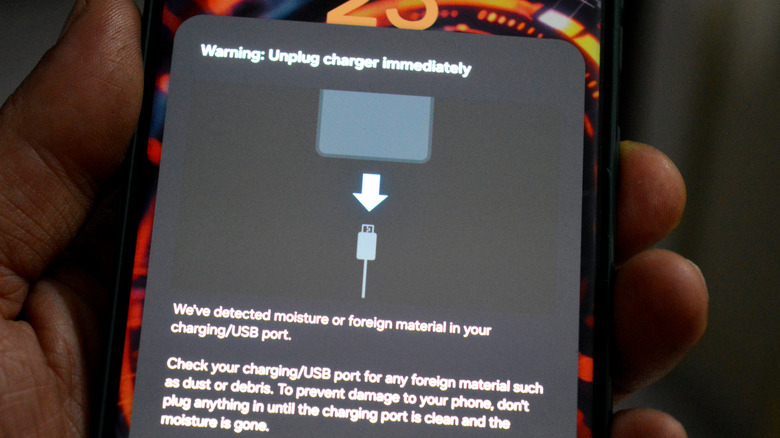
Few things are as frustrating as the samsung phone moisture detected notification fix when you know your phone is bone dry. This error is a safety feature designed to prevent short circuits in the USB-C port, but sometimes a software bug or a bit of dust can trigger a false positive, leading to significant samsung phone charging problems.
If you have confirmed there is no actual water in the port (perhaps by using a hair dryer on a cool setting or a can of compressed air), and the error won't go away, you likely have a persistent cache issue within the USB controller software. This is one of those samsung problems and solutions that isn't found in the basic manual.
Follow these steps to reset the port's software:
- Go to Settings > Apps.
- Tap the Filter/Sort icon (usually next to "Your apps") and toggle on Show system apps.
- Search for USBSettings.
- Tap on Storage and then select Clear Data.
Once you clear the data, the system is forced to re-scan the hardware status of the port. You can also try to bypass the error by performing a forced restart (hold Volume Down + Power for 10 seconds) while the phone is already plugged into a wall charger. This occasionally forces the handshake between the charger and the phone before the software has a chance to trigger the moisture alert.
Fix 4: Fixing Web Browsing Latency with Private DNS
Have you noticed your phone hanging for a few seconds before a website starts to load, even when you have full 5G or Wi-Fi bars? This is a growing samsung phone problems today issue related to how your device talks to your carrier's Domain Name System (DNS) servers. When you enter a URL, your phone asks the carrier where that site is located. If the carrier's server is slow, you get a "white screen" delay.
You can bypass this bottleneck by using a Private DNS. This ensures that your web requests go to faster, more reliable servers managed by Google or Cloudflare.
- Navigate to Settings > Connections > More connection settings.
- Tap on Private DNS.
- Select Private DNS provider hostname.
- Type in
dns.googleor1dot1dot1dot1.cloudflare-dns.com. - Tap Save.
By changing this setting, you are optimizing the "handshake" your phone performs every time it accesses a new server. This won't necessarily increase your download speed, but it will drastically reduce the latency or "wait time" before a page begins to render.
Community Tip If you find that certain public Wi-Fi networks (like those in hotels or airports) won't let you connect, you may need to temporarily set Private DNS back to Automatic. Some public portals require their own DNS to show you the "Sign-In" page.
When to Stop Troubleshooting: Hardware vs. Software
While the fixes above solve many performance hurdles, it is vital to know when the problem is beyond a DIY software fix. I often see users trying to resolve physical defects with factory resets, which only leads to more frustration.
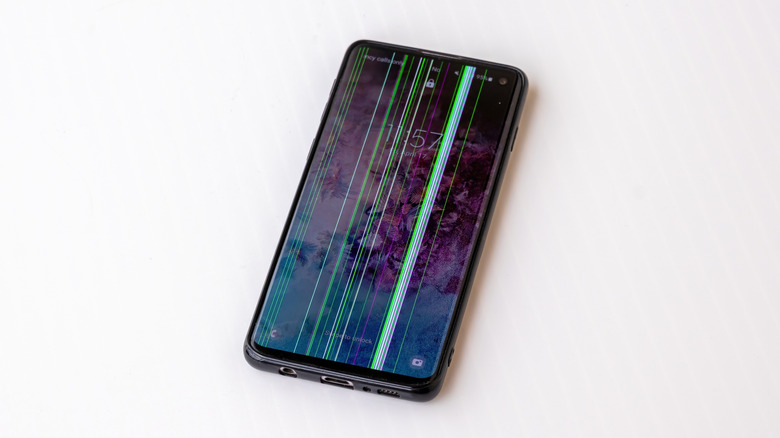
The most prominent example is the "vertical green line." If a thin line appears on your screen and stays there regardless of what app is open, this is a hardware failure in the OLED panel—likely caused by heat or a microscopic hairline crack in the display ribbon. Similarly, if your camera lens has internal condensation or your speakers are muffled even after cleaning, these are physical samsung phone problems that require a professional.
Before heading to a repair center, use the Samsung Members diagnostics tool. Open the Samsung Members app, tap Get help, and select Diagnostics. This allows you to run a full hardware scan on everything from the vibration motor to the touchscreen sensitivity. If the diagnostic tool returns a "Fail" on a specific sensor, it is time to contact Samsung support for a warranty assessment.
Keeping your Galaxy running at peak performance requires a mix of routine software hygiene and knowing your device's limits. By managing your system cache, tweaking your animations, and monitoring your hardware health, you ensure that your phone remains a tool that empowers your lifestyle rather than a source of daily stress.
FAQ
What is the most common problem with Samsung phones?
The most frequently reported issues are related to battery drain after a software update and the 'moisture detected' charging error. These are usually software calibration issues rather than permanent hardware failures and can be fixed by clearing the system cache or the USBSettings app data.
Is there a problem with Samsung phones?
Generally, no. Samsung phones are among the most reliable on the market. However, because they run highly complex software (One UI), users often encounter minor optimization quirks following large Android version updates or when using unoptimized third-party apps.
What is the average life of a Samsung phone?
With current software support policies, a modern Samsung Galaxy flagship is designed to last 4 to 7 years. Samsung now provides up to seven years of security updates for its newest models, making the physical battery health the most likely limiting factor after about 3 to 4 years of heavy use.
Is Samsung having an issue right now?
Specific issues vary by model, but some users have recently reported display artifacts like the 'green line' on older S20 and S21 units. If you are experiencing this or significant network drops, always check the Samsung Members app for an official diagnostic update or notices regarding specialized repair programs.