Quick Facts
- Input Lag: Technical benchmarks show integrated hubs typically add less than 1 millisecond of delay, which is imperceptible during gameplay.
- Power Output: Standard downstream ports often provide only 2.5W (5V/0.5A), insufficient for high-drain devices like external hard drives.
- Best Use Case: Ideal for low-bandwidth peripherals such as keyboards, monitor light bars, or wireless dongles for casual gaming.
- Performance Risk: High-polling rate mice (over 1000Hz) may experience micro-stutters if the hub bandwidth is shared with data-heavy devices.
- Hardware Requirement: A dedicated upstream connection cable must be connected from the monitor to the PC to enable data transfer.
- High-End Exception: Modern monitors with USB 3.2 Gen 2 or Thunderbolt 4 support handle high-speed data and peripherals with significantly better stability.
Does a monitor usb hub introduce lag or ruin your FPS? For most gamers, the answer is a relief, but there are critical technical bottlenecks involving power and bandwidth that could still impact your setup. While a high-quality monitor usb hub is generally safe for peripherals, your specific hardware configuration determines whether you will see a dip in responsiveness or connection stability.
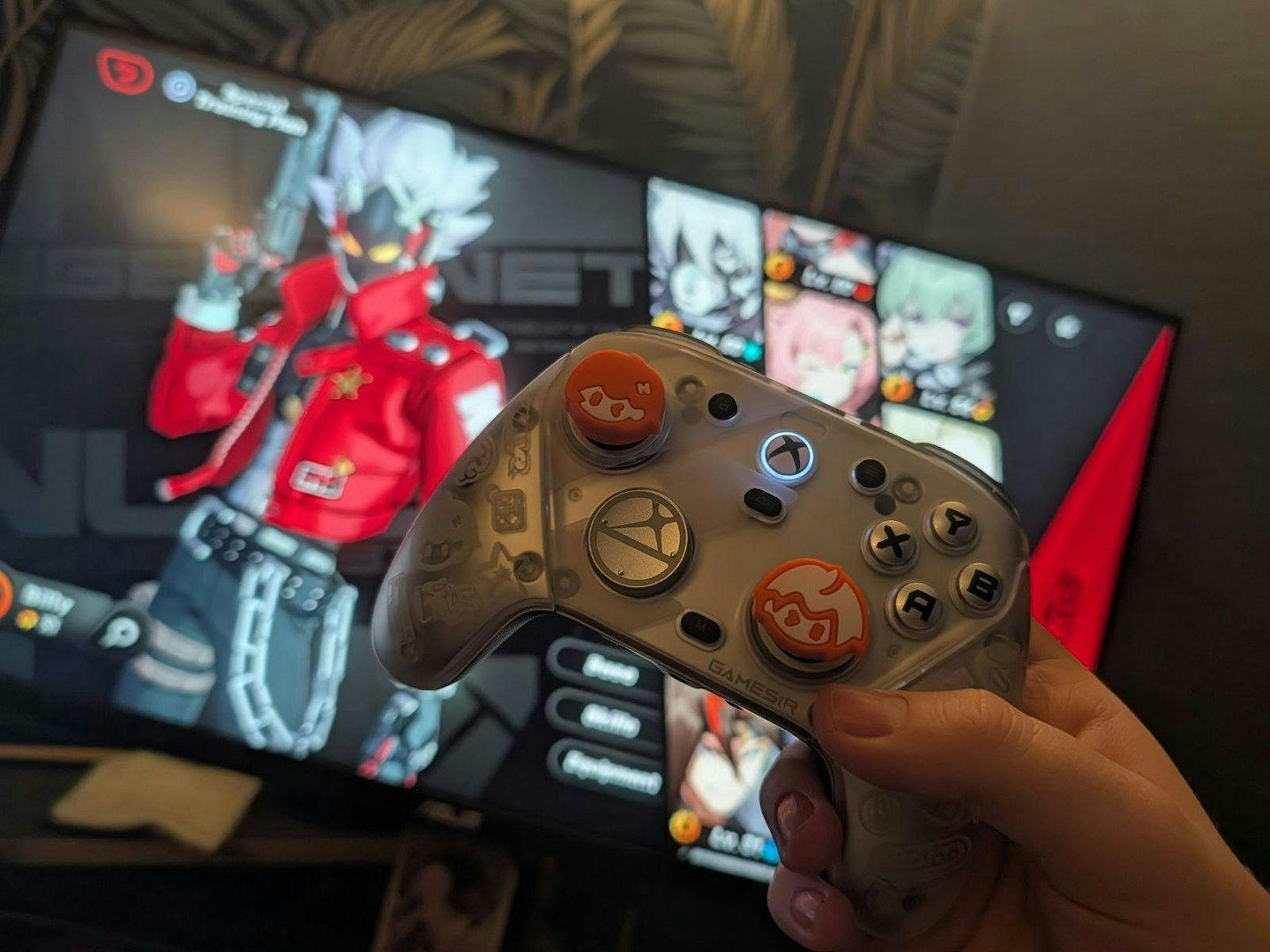
The Latency Myth: Does Monitor USB Passthrough Cause Lag?
The most common fear among competitive players is that adding a monitor usb hub between their mouse and their motherboard will create a massive delay. However, technical benchmarks demonstrate that high-quality USB hubs integrated into gaming monitors typically add less than 1 millisecond of input latency, a delay that is considered imperceptible to human users during gameplay. For the average player, monitor usb passthrough is a perfectly viable way to manage cables without sacrificing your K/D ratio.
The reason this delay is so low is that these hubs act as simple repeaters. Unlike a complex software-driven docking station, a built-in monitor hub uses a hardware-level host controller to pass signals through. Independent testing indicates that using a monitor's built-in USB 3.0 hub does not measurably increase average button-to-pixel delay for gaming mice, even when the hub is under stress from concurrent high-bandwidth data transfers.
That said, performance can degrade if you hit a host controller bottleneck. This happens when the monitor is forced to manage too many high-speed signals at once. If you are using an older monitor with a USB 2.0 upstream connection, the gaming peripheral latency might become noticeable due to the limited packet rate. Furthermore, unshielded cables placed too close to the monitor's power supply can lead to signal interference, causing the occasional dropped input that gamers often mistake for lag.
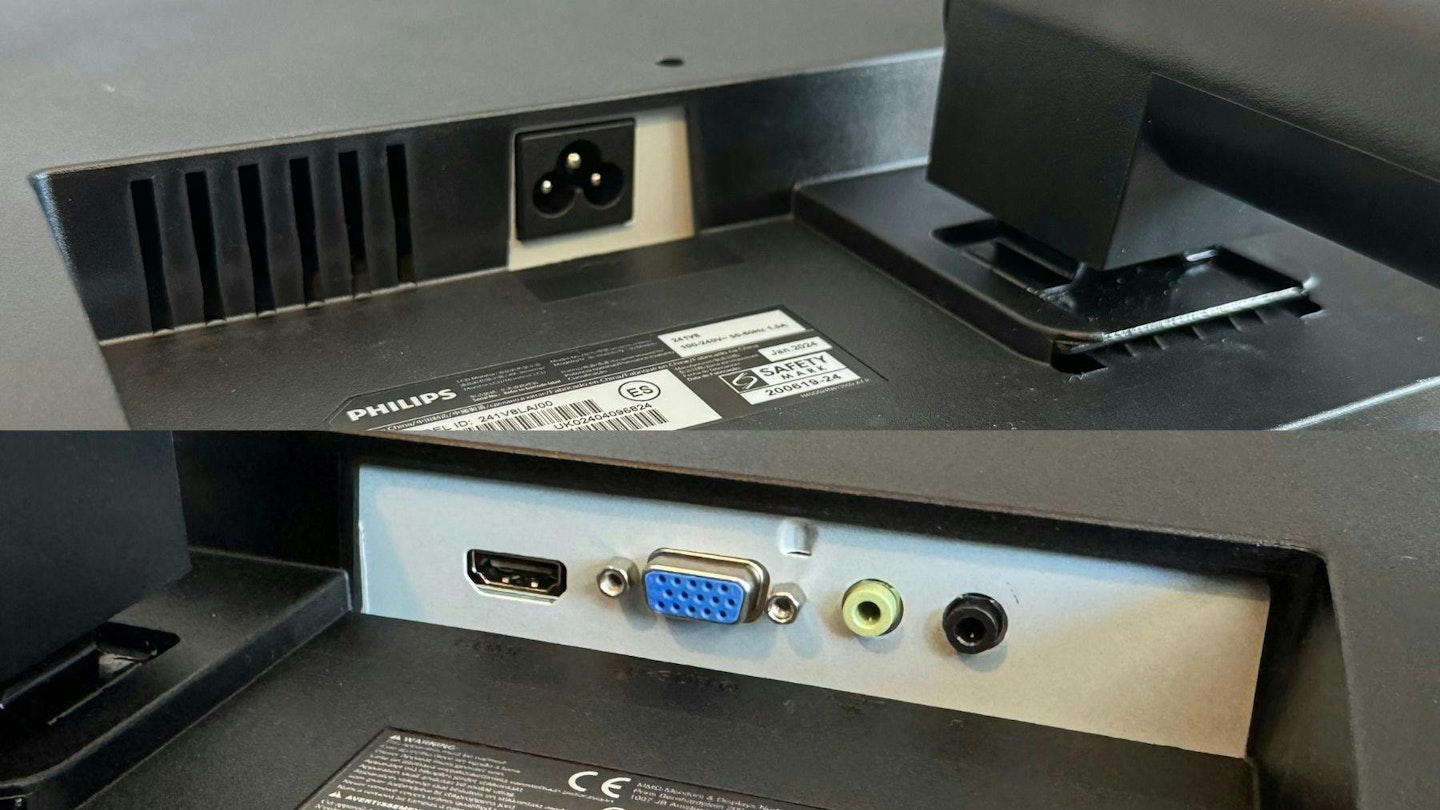
Power and Bandwidth: The Real Performance Killers
While latency is rarely the issue, bus power constraints are a very real problem. Most downstream ports on a standard monitor are designed for low-power devices. They often output only 2.5W of power. If you are connecting gaming mouse to monitor usb hub alongside a high-draw RGB keyboard, you might notice the mouse sensor behaving erratically or the keyboard lights flickering.
The shared nature of the hub means that bandwidth is a finite resource. Sharing a USB hub's bandwidth between high-polling rate gaming mice and other high-demand devices, such as webcams or external drives, can cause power fluctuations that lead to micro-stutters in tracking precision. This is particularly relevant for modern "ultra-polling" mice that operate at 4000Hz or 8000Hz. These devices require a consistent, high-speed peripheral polling rate that a crowded monitor usb hub simply cannot guarantee.
Technical Reality Check: Power Wattage
- Standard Monitor Port: 2.5W (Too weak for charging phones or powering external SSDs).
- Dedicated Charging Port: 7.5W - 15W (Found on premium gaming monitors).
- PC Motherboard Port: 4.5W - 15W+ (The gold standard for stable peripheral power).
The USB-C Exception: Thunderbolt and High-End Hubs
Not all hubs are created equal. If you are using a monitor with usb-c hub capabilities, such as the dell ultrasharp 27 4k usb-c hub monitor u2723qe, you are dealing with a much wider pipe. These monitors utilize DisplayPort Alt Mode to carry video while simultaneously providing a high-speed data lane for the integrated hub.
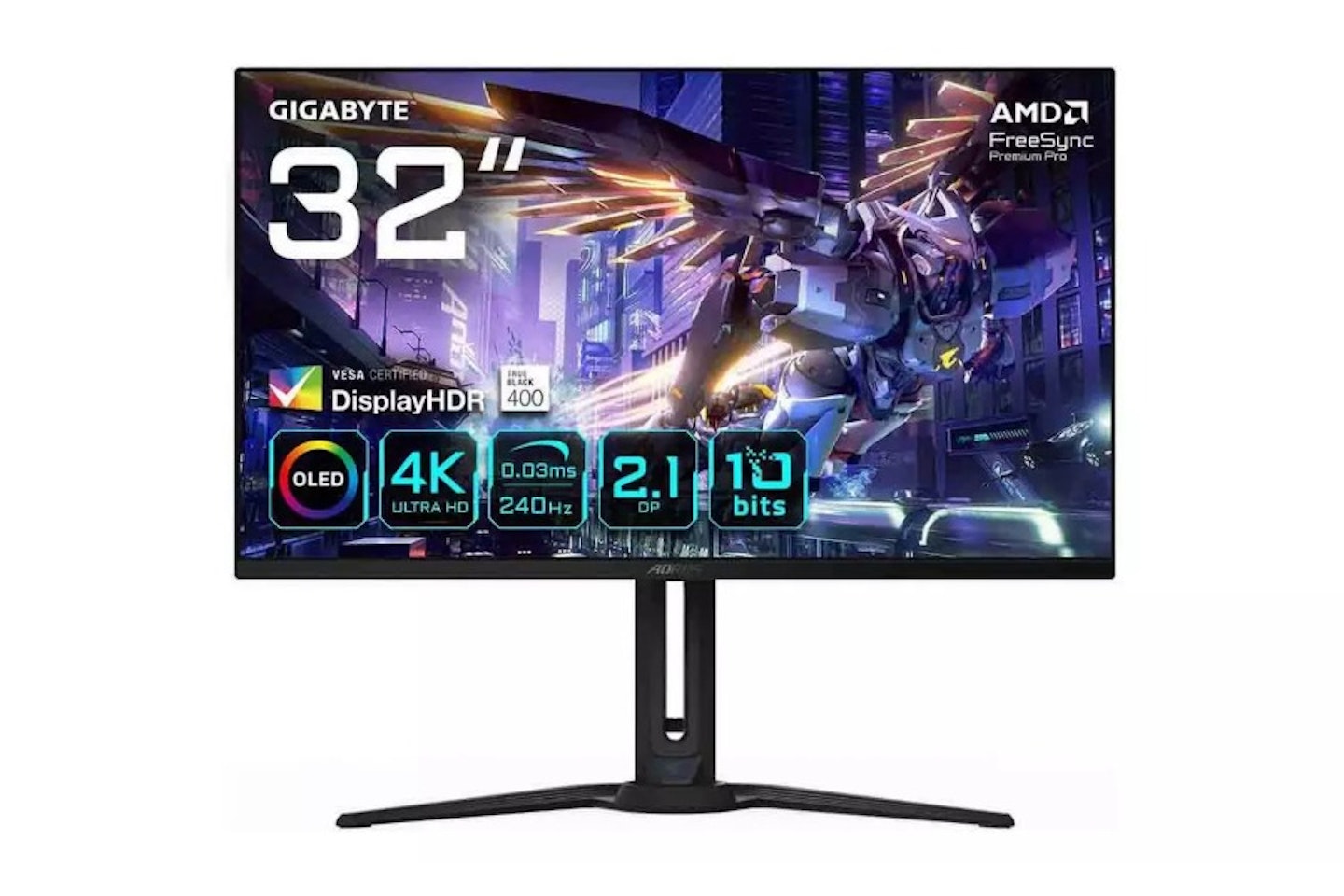
For laptop users, a monitor with usb connection to laptop via a single USB-C cable is a productivity dream. These setups often include an integrated KVM switch, allowing you to use the same mouse and keyboard across two different computers. High-end panels like the Gigabyte AORUS FO32U2P even support USB 3.2 Gen 2, which offers up to 10Gbps of throughput. This virtually eliminates the host controller bottleneck for standard peripherals, though I still recommend direct motherboard connections for external NVMe drives to avoid any potential packet loss during intense gaming sessions.
Comparison: Connection Methods for Gaming
| Feature | Direct PC Connection | Monitor USB Hub (Built-in) | External Unpowered Hub |
|---|---|---|---|
| Added Latency | 0ms | < 1ms | 1ms - 5ms |
| Power Stability | High | Low/Medium | Very Low |
| Data Bandwidth | Max (Up to 20Gbps) | Shared (5-10Gbps) | Shared (480Mbps - 5Gbps) |
| Best For | Mice, SSDs, VR Headsets | Keyboards, Dongles, Lights | Webcams, Printers |
Troubleshooting: Why Your Hub Isn't Working
If you've plugged your gear into your monitor and nothing is happening, don't panic. It is rarely a broken port; it is usually a configuration error.
- Check the Upstream Connection: Your monitor is not a magic box. It needs a dedicated USB-B or USB-C cable running back to your PC to function as a hub.
- Identify Port Types: Some ports are "power only" and will charge your phone but won't transmit data to the PC.
- Avoid Daisy-Chaining: Connecting an external usb hub into your monitor's ports is a recipe for disaster. This compounds the signal interference and almost guarantees a power delivery failure.
- Update Drivers: Sometimes the internal hub requires specific chipset drivers from the monitor manufacturer to handle high-speed USB 3.2 Gen 2 data correctly.
FAQ
Do USB hubs work for monitors?
Yes, most modern gaming and productivity monitors include a built-in hub. However, they require a separate upstream cable (usually USB-B or USB-C) connected to your computer to enable the data ports. Without this cable, the ports may only provide power for charging.
Is there a downside to using a USB hub?
The primary downsides are limited power delivery and shared bandwidth. While latency is negligible for most users, connecting too many high-speed devices can cause signal drops or micro-stutters. High-polling rate gaming mice are the most likely to be affected by these fluctuations.
Can I run a monitor through USB?
You can run a monitor through USB if the port supports DisplayPort Alt Mode or Thunderbolt. This is common on laptops using a usb c hub for dual monitor setups. However, standard USB-A ports cannot output video signals without a specialized (and often laggy) adapter.
What not to plug into a USB hub?
Avoid plugging in high-speed external SSDs, VR headsets, or high-end webcams that require maximum bandwidth. You should also avoid plugging in devices that require significant power, such as large bus-powered hard drives or fast-charging smartphones, as the monitor's port may not provide enough wattage.
Should I get a 2.0 or 3.0 USB hub?
Always aim for USB 3.0 (also known as USB 3.1 Gen 1 or 3.2 Gen 1) or higher. USB 2.0 hubs are significantly slower and are more likely to cause bottlenecks when using modern gaming peripherals or transferring files from a flash drive.
Summary Checklist: To Plug or Not to Plug?
To maintain a clean desk without sacrificing performance, follow these simple rules for your monitor usb hub:
- Plug it in: Mechanical keyboards, wireless mouse dongles (2.4GHz), monitor light bars, and basic webcams.
- Avoid it: Wired 8KHz gaming mice, external NVMe SSDs, and USB-powered audio interfaces.
- Buy if: You want a one-cable setup for a laptop and your monitor supports USB-C with power delivery.
- Don't buy if: You are a professional esports player where every micro-millisecond and signal consistency is vital.