Quick Facts
- The Risk: A staggering over 90% of smartphone users are unaware that their shared photos contain embedded GPS coordinates.
- The Invisible Data: Every photo captures more than just an image; it records EXIF metadata including camera settings and exact latitude and longitude.
- The Solution: Users must manually disable Location Services for their camera app to stop the collection of location metadata.
- The Cleanup: Existing photos can be stripped of their digital footprint using built-in tools on Windows, macOS, or mobile share sheets.
- Platform Risks: Messaging apps like iMessage and Slack often preserve original metadata, unlike social media platforms that usually strip it.
- Safety First: Disabling geotagging prevents cyberstalking and the tracking of your daily patterns by malicious third parties.
Geotagging is the process of embedding precise GPS coordinates, including latitude and longitude, into a photo's EXIF metadata. While this helps organize images by location, it poses a significant privacy risk by revealing sensitive addresses or tracking daily patterns. If you share original photo files via email or messaging apps, anyone can extract this metadata to pinpoint exactly where the image was captured. To stop your smartphone from recording location data, you must disable camera access to location services.
What is Geotagging? Understanding the Invisible Risk
Whenever I test a new smartphone, the first thing I do isn't checking the zoom lens or the refresh rate; it is diving into the privacy settings. Most of us treat our phone cameras as simple tools for capturing memories, but in reality, they are sophisticated data collection devices. This brings us to the core issue: what is geotagging and why should you care about it?
When you snap a picture, your phone creates a file that includes more than just pixels. It generates EXIF metadata, which stands for Exchangeable Image File Format. This digital file acts as a passport for your photo, containing the camera model, the aperture used, the exact timestamp, and most importantly, your GPS coordinates.
Consider a common geotagging example: You take a beautiful photo of your newborn sleeping in their nursery or a picture of an expensive new mountain bike in your garage. You then send that original file to a group chat or post it on a forum. Within that file is the exact latitude and longitude of your home. A study by cybersecurity firm Kaspersky revealed that over 90% of smartphone users are unaware that photos they share online can contain embedded geotagged metadata, including precise GPS coordinates.
The privacy implications are severe. According to a 2023 report, 67% of social media users geotag their posts at least once a month, with 30% doing so regularly without evaluating the potential privacy risks. This data can lead to cyberstalking or reveal when your house is empty based on the patterns of your digital footprint. In technical circles, this vulnerability is even categorized under standards like CWE 1230, which deals with the exposure of sensitive information through metadata.
How to Disable Geotagging on iPhone and Android
Fortunately, taking back your privacy is relatively straightforward. As a mobile editor, I recommend making these adjustments immediately. The process varies slightly depending on your operating system, but the goal is the same: sever the link between your GPS and your shutter button.
Disabling Geotagging iPhone
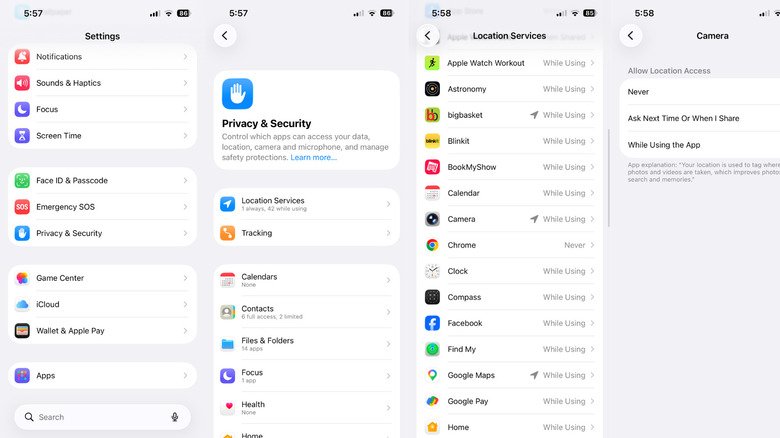
For those using an iPhone, Apple has integrated location privacy into the system-level settings. To disable geotagging iphone settings, you need to tell the iOS that the camera doesn't have permission to know where it is.
- Open the Settings app.
- Scroll down and tap Privacy & Security.
- Select Location Services.
- Find Camera in the list of apps.
- Change the setting to Never.
If you still want the convenience of seeing where your photos were taken in your personal gallery but want to strip the data when sharing, iOS 13 and later offers a "Share Sheet" option. When you tap the share icon on a photo, look for the Options link at the top of the screen. Here, you can toggle off Location before sending the photo to a friend or posting it online. This is a great middle-ground for personal safety.
Disabling Geotagging on Android
Android devices can be a bit more varied due to different manufacturer skins (like Samsung's One UI or Google's Pixel UI), but the general path to turn off geotagging on android camera remains consistent.
- Open the Camera app.
- Tap the Settings gear icon (usually in the corner or hidden in a "More" menu).
- Look for a toggle labeled Save Location, Location Tags, or GPS Tags.
- Switch it to the Off position.
Alternatively, you can go through the system settings by navigating to Settings > Apps > Camera > Permissions > Location and selecting Don't Allow. This ensures that the geotagging camera function is completely disabled at the system level.
Mobile OS Privacy Comparison
| Feature | iOS (iPhone) | Android |
|---|---|---|
| Primary Method | System Privacy Settings | Camera App Settings |
| Granularity | Never / Ask Next Time | Toggle On/Off |
| Sharing Protection | Strip location in Share Sheet | Requires 3rd party or manual edit |
| System Permission | Location Services > Camera | App Permissions > Location |

The Cleanup: How to Strip EXIF Data from Existing Photos
Turning off the setting today protects your future photos, but what about the thousands of images already sitting in your cloud storage or on your hard drive? These photos still carry your history in their image properties. Research by Surfshark found that outdoor security camera applications collect an average of 12 data points, including precise location data, which is 50% more than the average for other smart devices. This highlights how aggressively our devices seek to log our location metadata.
Remove Location Metadata from Photos Windows
If you are using a PC, you don't need fancy software to clean up your files. Windows has a built-in tool that allows you to remove location metadata from photos windows folders in bulk.
- Select one or more photos in File Explorer.
- Right-click and select Properties.
- Click the Details tab.
- At the bottom of the window, click Remove Properties and Personal Information.
- Select Remove the following properties from this file and check the boxes for Latitude and Longitude.
- Click OK.
How to Strip EXIF Data from Images on macOS and Mobile
For Mac users, the Preview app is your best friend. Open the image, go to Tools > Show Inspector, click the small 'i' icon, then the GPS tab, and click Remove Location Info.
If you are on the go, there are several mobile apps designed specifically for metadata removal. Apps like "ViewExif" for iOS or "Photo Exif Editor" for Android allow you to audit your entire library and strip GPS coordinates before you upload them to a public cloud. For power users, the command-line tool ExifTool is the gold standard for bulk auditing and cleaning professional photography libraries.

Can Someone Find My Address From a Photo? Sharing Safety
A question I often get from readers is: can someone find my address from a photo? The answer is a definitive yes—if you share the original file. However, the risk depends heavily on the platform you are using. Not all social media sharing is created equal.
Most major social media platforms like Instagram, Facebook, and X (formerly Twitter) automatically strip EXIF metadata when you upload a photo to protect user privacy. They do this to prevent the very risks we’ve discussed. However, communication tools designed for high-fidelity file sharing often do the opposite.
Metadata Preservation by Platform
| Platform | Strips Location Data? | Risk Level |
|---|---|---|
| Yes | Low | |
| Yes | Low | |
| Yes (usually) | Low | |
| iMessage | No (preserves original) | High |
| Slack | No (preserves original) | High |
| No | High | |
| Discord | No (depends on settings) | Medium/High |
When you send a photo via AirDrop or iMessage, you are sending the raw, unedited file. This is great for keeping image quality high for printing, but it is dangerous for data privacy if the recipient is someone you don't know well.
Safe Sharing Checklist
To ensure your personal safety and maintain a clean digital footprint, follow this pre-sharing checklist:
- Check your settings: Ensure the camera app's location services are toggled to Never.
- Use the Share Sheet: On iPhone, use the Options menu to strip location before sending.
- Screenshot it: If you are in a rush, taking a screenshot of a photo and sharing that instead effectively creates a new file without the original metadata.
- Audit old posts: If you have a public Flickr or an old blog, use a metadata viewer to see if your home address is inadvertently public.
- Be wary of smart devices: Remember that smart home cameras often collect 12 data points, including precise location data, so check those app permissions as well.
Managing your mobile devices is about finding a balance between convenience and security. While seeing your vacation photos on a map is a neat feature, the potential for that data to be used against you is a trade-off many of us aren't willing to make. By disabling geotagging and cleaning up your existing files, you add a vital layer of protection to your digital life.
FAQ
What is geotagging used for?
Geotagging is primarily used to organize digital media. It allows photo applications like Google Photos or Apple Photos to group your images by location, creating "Memories" or maps of your travels. It is also used by researchers and hikers to mark specific points of interest or catalog wildlife sightings with exact precision.
What is an example of geotagging?
A common example is taking a photo of a meal at a restaurant. If geotagging is enabled, the photo file will contain the street address of that restaurant. If you take a photo of your new car in your driveway, the file contains the exact coordinates of your home, allowing anyone with the file to see your house on a satellite map.
How do I geotag a photo?
If you actually want to include location data, you simply need to enable Location Services for your camera app in your phone settings. Once enabled, every photo you take will automatically embed the current GPS coordinates into the file metadata. You can also manually add location data to existing photos in apps like Apple Photos by selecting "Add a Location."
Should I turn off geotagging?
For most users, yes, you should turn off geotagging for the camera app. The privacy risks of accidentally sharing your home or work address outweigh the benefits of map-based organization. If you want to remember where a photo was taken, it is safer to manually add a general city or landmark name later rather than storing precise GPS coordinates.
Is geotagging the same as GPS?
Geotagging and GPS are related but different. GPS (Global Positioning System) is the technology that determines your location. Geotagging is the act of taking that GPS data and "tagging" it onto a piece of media, like a photo or a social media post. Without a GPS signal, your phone cannot perform geotagging accurately.





