In the rapidly evolving landscape of mobile technology, the Android operating system has transitioned from a mere utility to a sophisticated, AI-driven companion. As we navigate through 2025, the complexity of these devices has reached a point where the average user typically utilizes less than 10% of the functional potential buried within their handset's software. For the discerning user—the professional traveler, the remote executive, or the productivity enthusiast—fine-tuning these devices isn't just about customization; it is about reclaiming time and reducing cognitive friction.
To significantly improve Android ease of use, you should prioritize three critical adjustments: enabling Notification History to safeguard against dismissed alerts, configuring a Personal Dictionary for high-velocity typing shortcuts, and implementing Extend Unlock to maintain device accessibility in trusted environments. Beyond these, adjusting animation scales and gesture controls can transform a standard user experience into one that feels bespoke and fluid.
1. Never Miss an Alert: Notification History
One of the most persistent frustrations in the mobile experience is the accidental dismissal of a critical alert. Whether it is a gate change notification for a long-haul flight or an urgent message from a colleague, the "swipe-away" reflex is a well-documented user habit. Recent surveys indicate that approximately 65% of smartphone users accidentally dismiss at least one high-priority notification daily. This inadvertent loss of information often leads to unnecessary stress and missed opportunities.
By default, Android does not display a log of your past alerts. Once they are swiped from the shade, they are effectively gone—unless you have enabled the Notification History feature. This setting creates a chronological archive of every alert received in the last 24 hours, including those you dismissed or those that disappeared automatically.
How to Enable:
- Open your device Settings.
- Navigate to Notifications.
- Select Advanced settings.
- Tap on Notification history and toggle the switch to On.
Once activated, you can return to this menu at any time to see a categorized list of recently dismissed notifications. This provides a safety net that ensures you never lose track of important alerts, regardless of how quickly you clear your notification tray.
Pro Tip: Notification History is particularly useful for reading messages on apps that notify the sender when a message has been "read." By viewing the alert in the history log, you can consume the content without triggering a read receipt.
2. Type Faster with Personal Dictionary Shortcuts
Efficiency is the cornerstone of a high-quality user experience. While mobile keyboards have become increasingly predictive, they still struggle with specific, repetitive data entry tasks such as inputting long email addresses, physical home addresses, or standard professional sign-offs. This is where the Personal Dictionary feature—a hidden gem in Android’s "General Management" suite—becomes indispensable.
The Personal Dictionary allows you to assign short, easy-to-type keywords to much longer phrases. For instance, you could set the shortcut "@@" to automatically expand into your full email address. Implementing Personal Dictionary shortcuts can reduce average mobile typing time for common phrases by up to 40% per session. This is not just a convenience; it is a fundamental shift in how you interact with your device’s interface.
Setup Guide:
- Navigate to Settings.
- Go to General management (or System > Languages & input on some models).
- Select Personal Dictionary.
- Choose your primary language.
- Tap the + (plus) icon to add a new entry.
- In the "Type a word" field, enter the full phrase (e.g., your address).
- In the "Shortcut" field, enter a short trigger (e.g., "myaddr").

This feature is a quintessential productivity setting for beginners and power users alike. It eliminates the repetitive labor of form-filling and messaging, allowing you to communicate with the precision of a desktop environment while on the move.
3. Seamless Access with Extend Unlock (Formerly Smart Lock)
Security is paramount, but excessive security checks in safe environments can become a barrier to ease of use. The average person unlocks their phone over 100 times a day. If you are in the sanctity of your own home or connected to your personal vehicle’s Bluetooth, the constant requirement for a fingerprint or PIN can feel redundant.
Extend Unlock (previously known as Smart Lock) solves this by keeping your device unlocked under specific, "trusted" conditions. This ensures that your phone remains accessible when you are in a secure location, but reverts to full biometric/PIN protection the moment you leave that perimeter.
Configuration:
- Go to Settings.
- Navigate to Lock screen (or Security & privacy).
- Tap on Extend Unlock.
- You will be presented with three options:
- On-body detection: Keeps the device unlocked while it’s in motion and on your person.
- Trusted places: Uses GPS to keep the device unlocked at specific locations like your home or office.
- Trusted devices: Keeps the device unlocked when it is paired with a specific Bluetooth device, such as a smartwatch or car stereo.
While this feature significantly enhances the fluidity of daily use, it requires a balanced approach to privacy. For example, if you live in a shared space, you may want to avoid using "Trusted places" to ensure your device remains locked even when you are nearby.
4. Boost Navigation Speed: Animation Scales
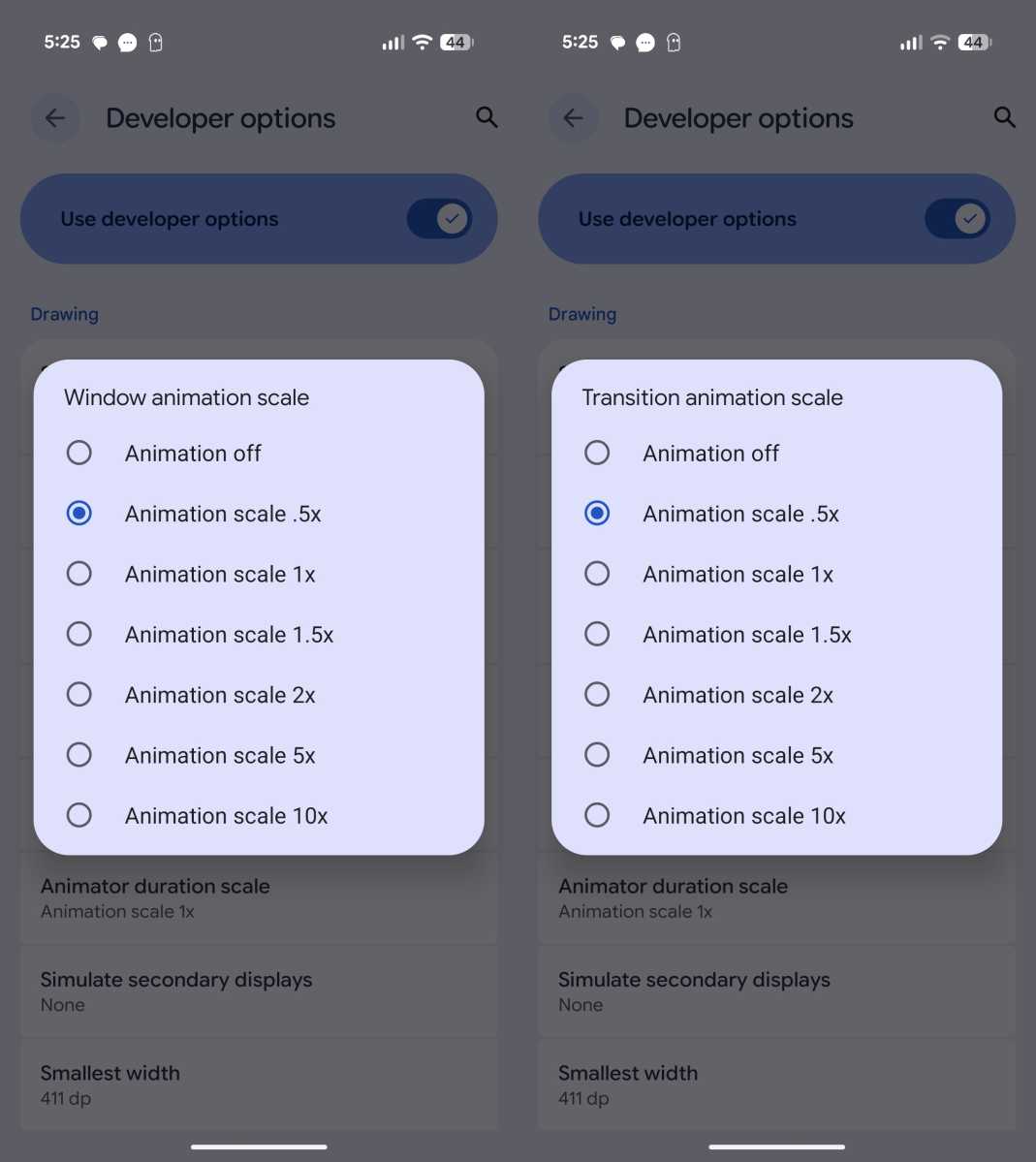
Perception of speed is often more important than the actual processing power of a device. Even a flagship Android phone can feel "sluggish" if the system animations—the way windows slide in and out—are set to be too deliberate. By accessing a hidden menu known as Developer Options, you can effectively "overclock" the visual feel of your UI.
Adjusting animation scales doesn't make the processor faster, but it reduces the time it takes for the software to transition between screens. This makes the interface feel significantly snappier and more responsive to touch.
The Tweak:
- Go to Settings > About phone.
- Find the Build number and tap it 7 times until you see a message saying "You are now a developer!"
- Go back to the main Settings menu and navigate to System > Developer options.
- Scroll down until you find the "Drawing" section.
- Locate these three settings:
- Window animation scale
- Transition animation scale
- Animator duration scale
- Change each from 1.0x to 0.5x.
| Setting Type | Default (1.0x) | Optimized (0.5x) | Off (0.0x) |
|---|---|---|---|
| Visual Feel | Smooth but deliberate | Fast and responsive | Instant but jarring |
| UX Impact | Standard | High Productivity | Pure Speed |
| User Level | General | Recommended | Power User |
Pro Tip: Never disable animations entirely (0.0x). While it is faster, it removes the visual cues that tell your brain a transition has occurred, which can lead to a disorienting user experience. The 0.5x setting is the "Goldilocks" zone for speed and aesthetics.
5. Instant Actions with Quick Tap Gestures
Finally, we look at physical interaction. Modern Android devices (particularly Pixels and those running near-stock software) include a feature called Quick Tap. This allows you to assign a specific action to a double-tap on the back of the phone. It utilizes the device's internal sensors to detect the vibration of your finger hitting the chassis.
Instead of fumbling through menus to turn on the flashlight at night or trying to hit two buttons simultaneously for a screenshot, you can simply tap the back of your phone twice.
Customization:
- Navigate to Settings.
- Select System.
- Tap on Gestures.
- Select Quick Tap to start actions.
- Toggle it to On and choose your preferred action, such as Take screenshot, Play/pause media, or Open a specific app.
This tactile shortcut is an essential Android setting for ease of use because it bypasses the UI entirely, providing immediate access to your most-used tools regardless of what app you currently have open.
Conclusion
The transition from a standard Android setup to an optimized one is a journey of small, cumulative gains. By enabling Notification History, you protect your digital trail; through Personal Dictionary shortcuts, you reclaim hours of typing; and with Extend Unlock, you remove the friction of constant authentication. When combined with animation tweaks and Quick Tap gestures, these five essential settings transform your device into a high-performance tool that anticipates your needs rather than hindering them.
In the world of professional travel and high-stakes productivity, the equipment you carry should work for you, not against you. These adjustments represent the "low-hanging fruit" of Android optimization—simple to implement, yet profound in their impact on your daily digital life.
Learn More About Android Security →
FAQ
Q: Will changing animation scales drain my battery faster? A: No. In fact, lowering animation scales may slightly reduce battery consumption because the GPU spends less time rendering complex transition frames.
Q: Is Notification History private? A: Yes. The history is stored locally on your device and is not synced to Google’s servers. However, anyone with access to your unlocked phone can view this history, so ensure you use Extend Unlock judiciously.
Q: Can I use Personal Dictionary for emojis? A: Absolutely. Many users set shortcuts like "heart" to expand into a specific emoji sequence, making social interactions much faster.





