Quick Facts
- The Conflict: A legal dispute with Masimo led the U.S. International Trade Commission (ITC) to ban Apple Watch models with pulse oximetry features in late 2023.
- The Cutoff: Models purchased in the U.S. after January 18, 2024, typically have the on-device blood oxygen processing disabled.
- The Solution: Apple’s "split-processing" workaround allows the iPhone to handle the heavy lifting of data analysis, provided both devices are updated.
- The Software: You must be running at least iOS 18.6.1 and watchOS 11.6.1 (or later) to restore or access this functionality on affected models.
- The Identification: U.S. part numbers ending in LW/A are the specific units impacted by this hardware-software shift.
For the modern traveler, physiological data is more than just a novelty; it is a critical metric for managing jet lag, monitoring altitude acclimation in the Alps, or assessing recovery after a 14-hour long-haul flight. However, since the beginning of 2024, the Apple Watch’s blood oxygen (SpO2) feature has been at the center of a complex patent litigation battle. As a travel critic who relies on precise data to evaluate everything from cabin pressure comfort to wellness retreats, I’ve tracked this development closely.
If you have recently upgraded to an Apple Watch Series 10 or a newer Ultra 2, you likely noticed that the Blood Oxygen app doesn't function exactly as it used to on older models. Accessing this data now requires a specific "handshake" between your wrist and your iPhone. This guide details the authoritative steps to navigating this workaround.
Understanding the Apple-Masimo Patent Dispute
The shift in how we access blood oxygen data isn't a design choice; it’s a legal necessity. In late 2023, the U.S. ITC ruled that Apple infringed on patents held by Masimo, a medical technology company. This led to a temporary ban on the sale of the Series 9 and Ultra 2. To keep their products on the shelves, Apple implemented a "workaround" that fundamentally changed how the sensor data is processed.
The January 18, 2024, cutoff marks a pivotal hardware transition where U.S. Apple Watch part numbers ending in 'LW/A' shifted to iPhone-based data processing. Essentially, the watch still takes the physical measurement, but it is no longer allowed to calculate the percentage on the watch itself. Instead, the "raw" light-reflection data is sent to your iPhone, which performs the calculation and then displays the result back to you. This "off-device" processing is the core of the 2024 workaround.
Is Your Apple Watch Affected?
Before troubleshooting, you must determine if your device falls under the ITC-mandated restriction. This primarily affects users in the United States. If you purchased your watch in London, Tokyo, or Dubai, your on-watch processing likely remains intact.
How to check your model:
- On your Apple Watch, open Settings.
- Go to General > About.
- Scroll down to Model. Tap the model number to reveal the part number.
- If the part number ends in LW/A, your device is part of the "workaround" batch.
| Model Series | Purchase Date (U.S.) | Impact Status |
|---|---|---|
| Series 6, 7, 8 | Any | Not Affected (Legacy Processing) |
| Series 9 / Ultra 2 | Pre-Jan 18, 2024 | Not Affected |
| Series 9 / Ultra 2 | Post-Jan 18, 2024 | Affected (Workaround Required) |
| Series 10 | Any | Affected (Workaround Required) |
Mandatory Software Requirements
To facilitate the split-processing of blood oxygen data, your ecosystem must be perfectly synced. Apple released specific firmware updates to enable the iPhone to take over the analytical duties previously performed by the watch's S-series chips.
Accessing the restored blood oxygen feature requires updating your devices to at least iOS 18.6.1 and watchOS 11.6.1 to enable the split-processing data analysis. Without these specific versions, the Blood Oxygen app on your watch may simply display a message stating the feature is unavailable, or the data may fail to sync to your Health app.
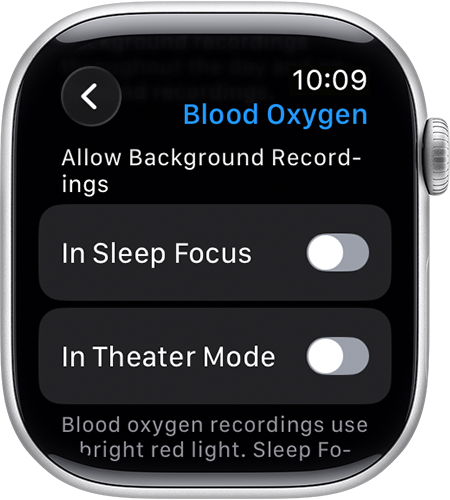
How to Take a Measurement with the Workaround
Even with the workaround, the physical act of taking a measurement remains consistent with previous generations, though the "success rate" depends heavily on your technique. The sensors use a combination of red and green LEDs and infrared light to shine into your wrist and measure the color of your blood, which indicates oxygen saturation.
For travelers, I recommend taking these readings while seated in a quiet environment—ideally not during heavy turbulence or while walking through a terminal. Ensure your wrist strap is snug but comfortable. If the band is too loose, ambient light can "leak" into the sensor, resulting in an "Unsuccessful Measurement" error.
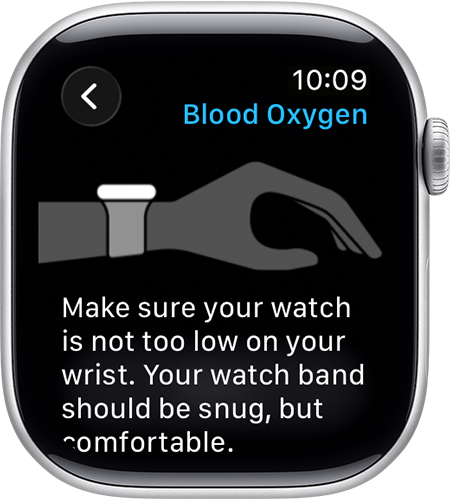
The 15-second steady-arm requirement for sensor accuracy is non-negotiable. Blood oxygen measurements on Apple Watch require a 15-second steady-arm period to ensure data accuracy before syncing to the iPhone Health app. During this time, any micro-movements can disrupt the reflective light path.
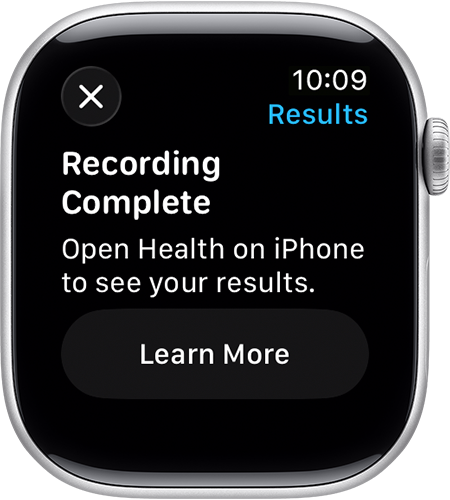
Viewing Your Results on iPhone
Once the watch completes its 15-second scan, the data is encrypted and sent to your paired iPhone. Because the calculation happens on the phone for 'LW/A' models, the iPhone Health app becomes your primary dashboard for reviewing these metrics.
To view blood oxygen data on your iPhone, open the Health app, tap the 'Browse' tab, select 'Respiratory', and then tap 'Blood Oxygen' to see your latest saturation percentages.
- Open the Health app on your iPhone.
- Tap the Browse tab in the bottom right corner.
- Select Respiratory from the list of health categories.
- Tap Blood Oxygen.
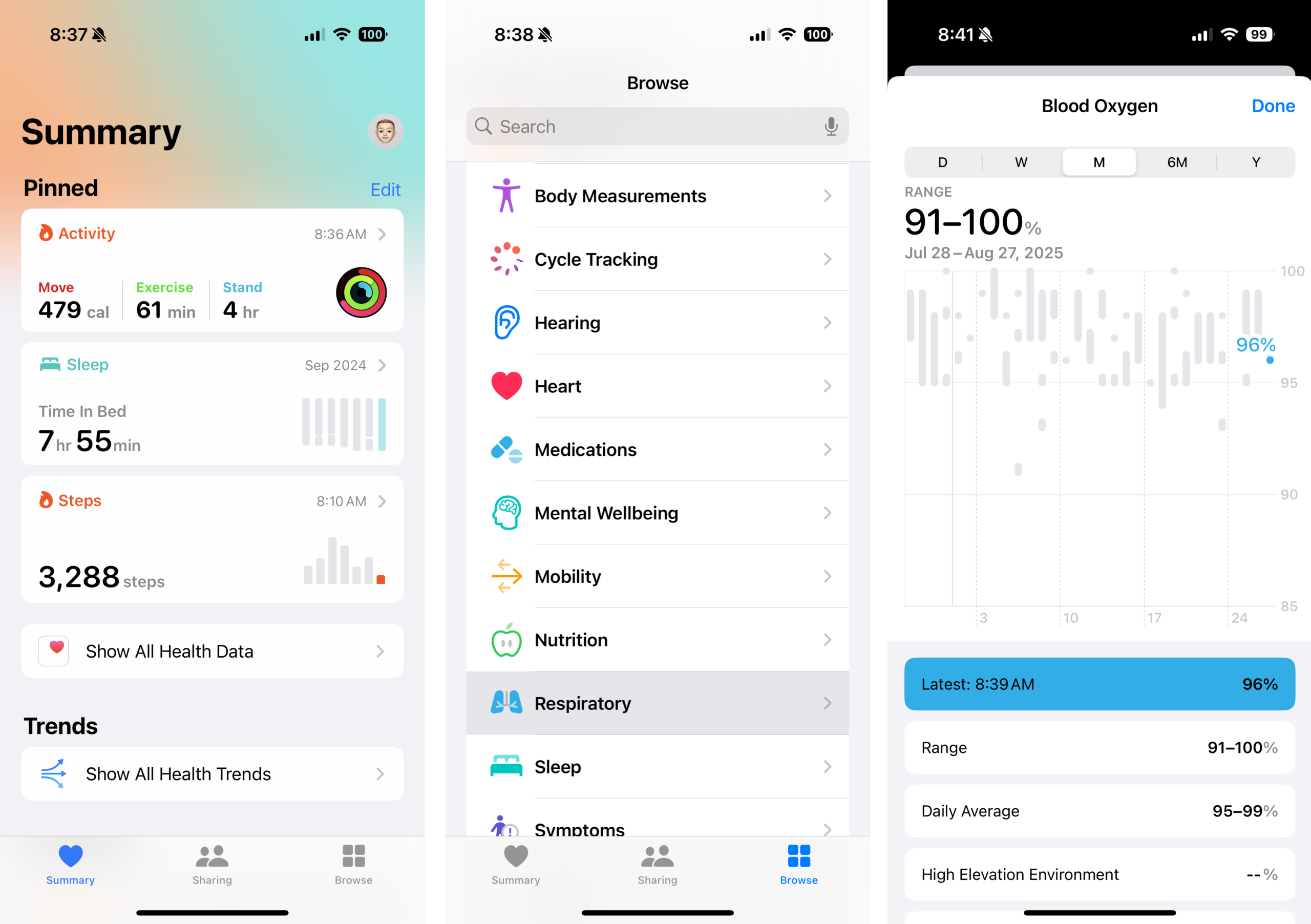
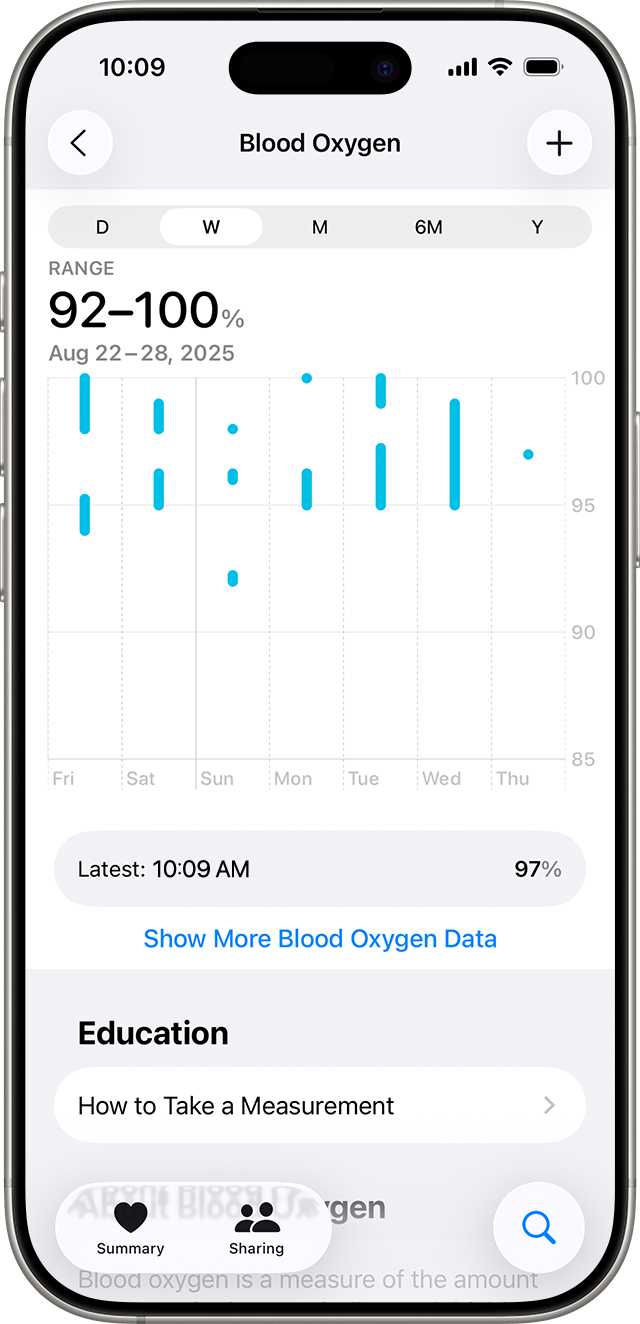
Once inside this menu, you can see your most recent reading as a percentage. For most healthy adults, a "normal" range is between 95% and 100%. If you are flying or at a high-altitude destination like Cusco or Aspen, you may see slightly lower numbers, which is an expected physiological response to lower atmospheric pressure.
Tips for Improving Data Accuracy
In my time reviewing wellness-focused destinations, I’ve found that environmental factors often play a larger role in data accuracy than the hardware itself. If you are getting inconsistent readings, consider the following technical adjustments:
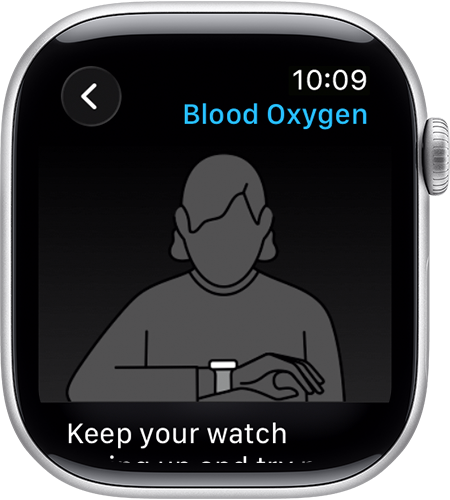
- Resting Position: Always rest your arm on a table or your lap with your palm facing up. This stabilizes the wrist and keeps the watch face parallel to the ground.
- Skin Temperature: Cold weather causes "peripheral vasoconstriction," where blood flow to the skin is reduced to keep your core warm. This can make it difficult for the sensor to get a reading.
- Tattoos: The ink in some tattoos can block the light from the sensor. If you have a sleeve tattoo, try wearing the watch on the other wrist or on a patch of skin with less ink.
Pro-Tip: If you are a frequent traveler, add Blood Oxygen to your "Favorites" in the Health app. Open the Health app > Summary > Edit (top right) > Tap the star next to Blood Oxygen. This puts your SpO2 data on the front page of the app for instant access upon landing.
Understanding Your Data Trends
While a single reading is a snapshot, the real value of the iPhone-based workaround is the ability to view long-term trends. By clicking "Show More Blood Oxygen Data," you can view daily, weekly, and monthly averages.
For those of us tracking the impact of "Travel Fatigue" or the quality of sleep in different time zones, these trends are far more informative than a one-off 98% reading. If you notice a consistent downward trend in your resting blood oxygen levels while traveling, it may be a signal to increase hydration or adjust your activity levels.
Medical Disclaimer and Limitations
It is vital to maintain an objective perspective on this technology. The Apple Watch is a consumer-grade wellness device, not a medical-grade diagnostic tool. While the sensors are highly sophisticated, they are not intended to replace a clinical pulse oximeter used in a hospital setting.
If you are experiencing shortness of breath, chest pain, or other symptoms of low oxygen (hypoxia), do not rely solely on your iPhone's Health app data. Consult a healthcare professional immediately. The "workaround" allows for continued use of the hardware, but the user must understand its role as a general health monitor rather than a medical necessity.
FAQ
Q: Why can't I see the blood oxygen percentage directly on my Apple Watch Series 10? A: Due to the ITC ruling, U.S. models purchased after January 18, 2024, are legally prohibited from performing the oxygen calculation on the watch itself. The calculation must be offloaded to the iPhone, making the Health app the primary viewing port.
Q: Does the blood oxygen sensor still work while I sleep? A: Yes. If you have Background Measurements turned on in your settings, the watch will continue to take readings during sleep. The data will be processed by your iPhone and will be available for review in the Health app the following morning.
Q: Will a future software update restore the feature to the watch face? A: This depends entirely on the legal outcome of Apple’s appeal or a potential settlement with Masimo. For now, the iOS 18.6.1 and watchOS 11.6.1 workaround is the official permanent solution for the foreseeable future.
Monitoring your vitals is a cornerstone of smart travel and proactive health management. While the Apple-Masimo dispute has added a layer of complexity to the user experience, the iPhone Health app remains a powerful tool for those who know how to navigate its depths.





