For years, the iPad has occupied a precarious middle ground: more powerful than a phone, yet often more restrictive than a laptop. For the professional traveler or the mobile creative, the "walled garden" of full-screen apps has frequently felt like a digital straitjacket. However, the release of iPadOS 26 marks a definitive shift in Apple’s software philosophy. With the introduction of the "Liquid Glass" design language and a fully realized windowed apps mode, the iPad has finally matured into a desktop-class powerhouse.
This update isn't merely a cosmetic refresh; it represents a 300% expansion in multitasking capability for flagship models. By transitioning from the rigid Split View of the past to a free-form windowing system, iPadOS 26 allows users to manage up to 12 active windows simultaneously on M4-equipped devices. Whether you are tracking flight data while editing a spreadsheet or managing a multi-stream social media campaign from a hotel lounge, the iPad is no longer just a companion—it is the primary tool.
Quick Start: How to Enable Windowed Mode on iPadOS 26
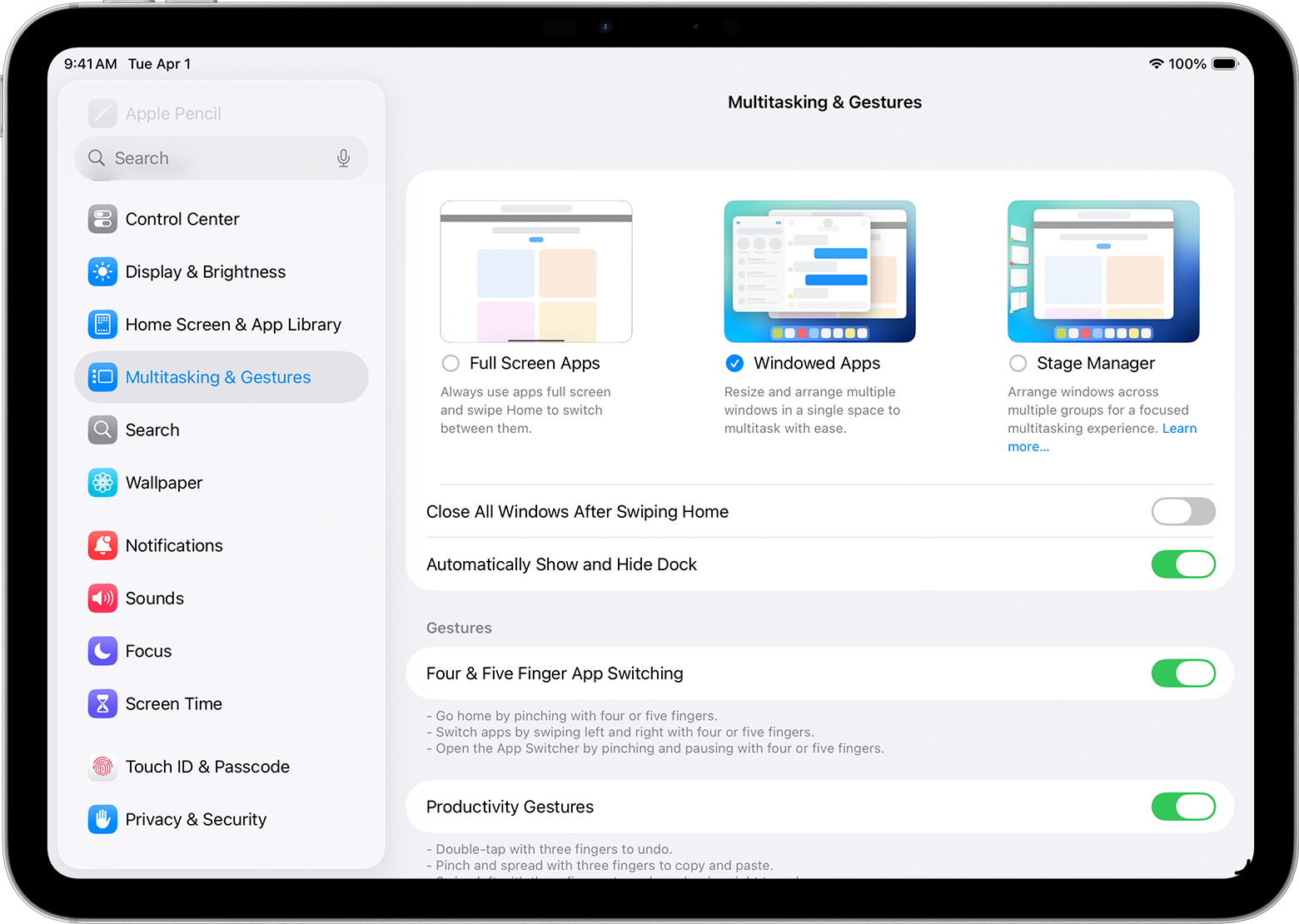
If you are looking to abandon the traditional full-screen constraints immediately, the setup process is remarkably intuitive. Apple has tucked the toggle within the revamped Multitasking menu to ensure users can choose between the classic iPad experience and the new professional workflow.
To enable windowed apps on iPadOS 26:
- Open the Settings app on your iPad.
- Scroll down the left-hand sidebar and tap on Multitasking & Gestures.
- Under the "Multitasking" header, you will see three options: Off, Split View & Slide Over, and Windowed Apps.
- Select Windowed Apps to activate the free-form windowing environment.
Once selected, your iPad will immediately transition into a mode where apps no longer default to full screen. Instead, they open in resizable, overlapping windows that can be moved anywhere on the digital canvas.
Hardware Compatibility & Performance Limits
While iPadOS 26 is broad in its reach, the "Liquid Glass" multitasking experience scales based on the silicon under the hood. The most significant leap is found in the M4 iPad Pro, which utilizes the increased memory bandwidth to handle a dozen active windows without stuttering.
A surprising and welcome addition to the compatibility list is the 6th generation iPad mini. Previously sidelined during the initial Stage Manager rollout, the iPad mini now supports a modified version of Windowed Apps, albeit with a 4-window limit to preserve the thermal envelope of the A-series chip.
iPadOS 26 Multitasking Compatibility Table
| iPad Model | Max Simultaneous Windows | Optimized Feature |
|---|---|---|
| iPad Pro (M4) | 12 Windows | Full External Display Support (6K) |
| iPad Air (M2/M3) | 8 Windows | Desktop-class Windowing |
| iPad mini (6th Gen) | 4 Windows | Compact Window Mode |
| iPad (10th Gen) | 2 Windows + Slide Over | Basic Multitasking |
Pro Tip: To maximize your real estate in Windowed Mode, go to Settings > Display & Brightness > Display Zoom and select More Space. This increases the pixel density, allowing you to fit more windows on the screen without them feeling cramped.
Step-by-Step: Mastering Windowed Multitasking
Once you have enabled Windowed Apps, the way you interact with your device changes fundamentally. It moves away from the "mobile" feel and adopts the ergonomics of macOS.
Launching and Organizing Apps
Beyond just tapping icons on the Home Screen, the most efficient way to build your workspace is via the Dock. While inside any app, a short swipe up from the bottom of the screen reveals the Dock. Simply drag an icon into the center of the screen to open it as a floating window. Alternatively, using Spotlight (Cmd + Spacebar) allows you to search for an app and hit 'Enter' to launch it directly into your current window group.
Precision Resizing and the 'Stoplight' Controls
In previous versions, resizing was limited to fixed ratios. In iPadOS 26, you can resize windows by long-pressing and dragging the grab handle located in the bottom-right corner of any window.
However, the real "Mac-like multitasking on iPad" experience comes from the new Stoplight controls in the top-left corner. Mirroring the traffic light system on a Mac:
- Red: Closes the window.
- Yellow: Minimizes the app to the newly redesigned "Shelf."
- Green: Toggles between the custom window size and full-screen mode.
Placement and Tiling
While the windows are "freestyle," Apple has included an invisible magnetic grid. If you drag a window toward the edge of the screen, it will offer to "snap" into a 50/50 or 1/3 tiling option. This is particularly useful when you need to reference a document while typing, ensuring your windows are perfectly aligned without manual pixel-pushing.
Navigation: The New Menu Bar and Gestures
One of the most authoritative updates in iPadOS 26 is the inclusion of the Mac-inspired Menu Bar. By swiping down from the top-middle of any active window, a contextual menu appears, offering file options, edit commands, and view settings specific to that app. This eliminates the need to hunt through hamburger menus within the app UI.
For power users who utilize the Magic Keyboard or an external mechanical keyboard, the shortcut integration has been overhauled to streamline the workflow.
Keyboard Shortcut Cheat Sheet
| Shortcut | Action |
|---|---|
| Globe + F | Enter/Exit Full Screen |
| Cmd + M | Minimize Window |
| Cmd + W | Close Window |
| Globe + Up Arrow | Enter Exposé Mode (View all 12 windows) |
| Cmd + Tab | Cycle through active window groups |
The Exposé Mode is particularly impressive. On an M4 iPad Pro, triggering this gesture shrinks all 12 active windows into a bird's-eye view, allowing you to jump between different project clusters instantly. It is a seamless workflow that rivals—and in some touch-latency aspects, exceeds—the macOS experience.
Advanced Productivity: Stage Manager vs. Windowed Apps
It is important to distinguish between Stage Manager and the new Windowed Apps mode. Stage Manager remains an excellent tool for "App Grouping." For instance, you might have a "Travel Planning" group consisting of Safari, Notes, and Mail.
In iPadOS 26, these two features work in tandem. You can use Stage Manager to organize your sets of apps on the left-hand strip, but once a set is active, Windowed Apps mode gives you the freedom to place them anywhere, rather than being confined to the overlapping "piles" of the original Stage Manager design.
Furthermore, for those using external monitors, iPadOS 26 now supports extended desktop cursor behavior. When you plug into a Studio Display or any 4K monitor, the iPad maintains its touch-first UI on the tablet screen while providing a traditional, pixel-perfect pointer experience on the external display.
Troubleshooting Common Friction Points
Transitioning to a new OS architecture always involves a learning curve. One frequent issue involves "Legacy Apps"—those built for iPhone or older iPad versions—that do not support free-form resizing. These apps will often appear with fixed aspect ratios or "pillar-boxing." Unfortunately, until developers update their manifests for iPadOS 26, these apps remain static.
Another point of confusion is the fate of Slide Over. With the move toward a 12-window limit, Slide Over has been largely rebranded as "Pinned Windows."
If you find yourself "fighting the dock" or unable to trigger a window, ensure that you aren't in "Low Power Mode." iPadOS 26 aggressively throttles multitasking capabilities when the battery is low to preserve core system stability, often reverting the device to a more basic single-window mode until the device is tethered to a power source.
FAQ
Can I use Windowed Apps on an iPad with an A-series chip? Yes, but with limitations. The iPad mini (6th Gen) and newer A-series iPads support up to 4 windows. The full 12-window experience is reserved for M-series (M1, M2, M4) hardware due to RAM requirements.
Does enabling Windowed Apps drain the battery faster? In our testing, the impact is negligible for 2–3 apps. However, maintaining 10–12 active windows with "Liquid Glass" animations does increase power draw by approximately 15% compared to standard full-screen usage.
How do I quickly go back to a single app view? The fastest way is the keyboard shortcut Globe + F, or by clicking the green "Stoplight" button in the top-left corner of the window.
The evolution of iPadOS 26 is a testament to Apple finally listening to its professional user base. By enabling windowed apps, the iPad moves beyond its reputation as a consumption device and solidifies its place as a legitimate production tool for the modern, mobile professional.





