Quick Facts
- The Hub Solution: Adding more USB ports to a Chromebook is most efficiently achieved through a USB-C hub or a dedicated docking station, which can expand a single port into over a dozen inputs including USB-A, HDMI, and Ethernet.
- Dual Monitor Capability: Yes, Chromebooks in 2026 support dual 4K monitor setups provided you use a dock with DisplayPort Alt Mode or DisplayLink technology, such as the Baseus 10-in-1 or Anker 568.
- Storage Economics: External storage has reached record-low pricing; a 5 TB portable hard drive now costs approximately $120, making local backups more viable than ever for Chrome OS users.
- Universal Compatibility: Most modern USB-powered SSDs and HDDs are natively compatible with Chrome OS, though USB-C connections are the gold standard for peak 10 Gbps transfer speeds.
Introduction: The Chromebook Port Dilemma
The evolution of the Chromebook has been nothing short of a paradigm shift. Once dismissed as "web-only" machines for the education sector, the 2026 lineup of Chromebooks—particularly those in the Plus and Pro categories—now serves as primary workstations for travel writers, digital nomads, and corporate professionals alike. However, as these devices have become thinner and more sophisticated, they have succumbed to the "ultrabook curse": a drastic reduction in physical ports.
For the modern professional, the trade-off between portability and connectivity is a constant friction point. You might have the latest 14-inch Chromebook with a stunning OLED display, but if it only features two USB-C ports, your workflow grinds to a halt the moment you need to connect a mouse, an external drive, and a presentation monitor simultaneously.
To bridge this gap, the solution lies in high-performance peripherals. By utilizing a USB-C hub or a desktop docking station, you can transform a single port into a comprehensive array of connections. In this guide, we will analyze the data-driven choices for expanding your Chromebook’s ecosystem, ensuring your hardware doesn't limit your productivity.
The Hardware Fix: USB-C Hubs vs. Docking Stations
When looking to expand your Chromebook's USB ports, you must first decide between a portable hub and a stationary docking station. The distinction in 2026 is defined by bandwidth and power delivery.
Portable hubs are designed for the traveler. They are typically bus-powered (drawing energy from the laptop) and offer 5 to 8 ports. Docking stations, conversely, are mission-critical hardware for a desk setup. These units often feature their own power supply, offering "Pass-Through Charging" that can deliver 85W to 100W back to your laptop, ensuring it stays charged even under heavy peripheral load.
In terms of raw data, the expansion potential is staggering. Premium 13-in-1 docking stations can increase a single Chromebook port's connectivity by 1,300%. This translates to a single cable connection providing dual HDMI 2.1 outputs, a Gigabit Ethernet port, multiple USB-A 3.2 slots, and dedicated SD card readers. For those managing high-resolution photography or 4K video projects on Chrome OS, this isn't just a luxury—it’s a requirement.
Top Recommendations for Chromebook Expansion in 2026
1. The All-Rounder: Baseus 10-in-1 Dual Monitor Docking Station
For the majority of users, the Baseus 10-in-1 represents the "sweet spot" of the market. It balances high-speed 10 Gbps data transfer with robust video output capabilities. It is particularly noted for its heat dissipation and its ability to handle dual 4K 120Hz monitors—a rarity in this price bracket.
Pros:
- High-Speed Throughput: Supports 10 Gbps transfers, perfect for NVMe external SSDs.
- Versatile Video: Includes two HDMI ports and a VGA port for legacy equipment.
- Power Delivery: Supports up to 100W PD input.
Cons:
- Footprint: Slightly larger than "slim" travel hubs.
- Cable Length: The integrated host cable is somewhat short for certain vertical laptop stands.
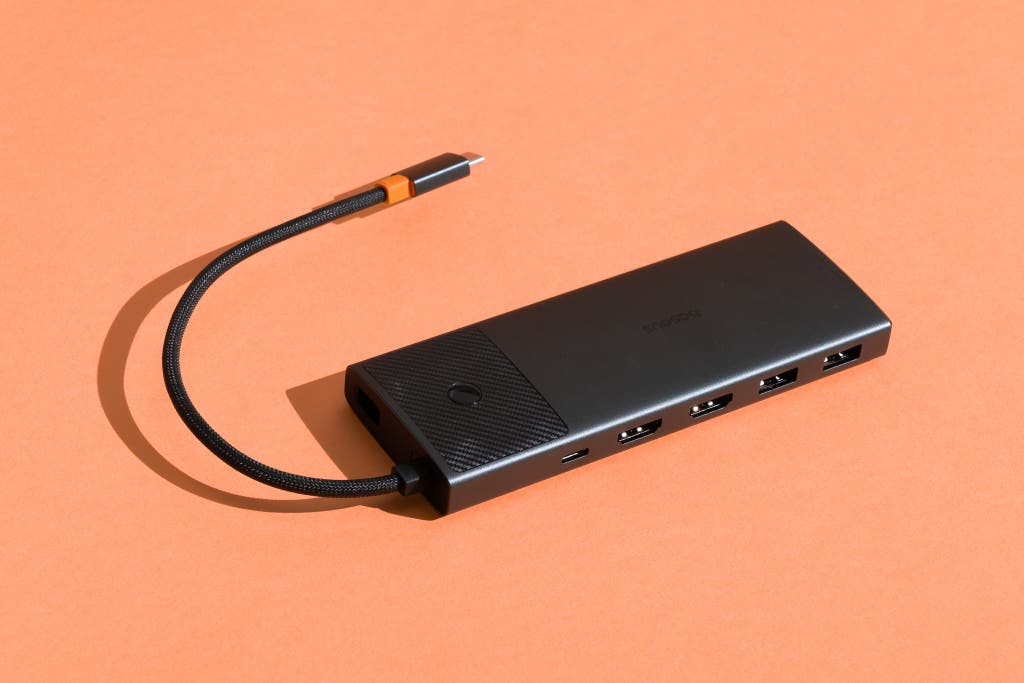
View the Baseus 10-in-1 on Amazon →
2. The Budget Choice: Ugreen Revodok Pro 6-in-1
If your needs are more streamlined—perhaps just a mouse, a keyboard, and one external monitor—the Ugreen Revodok Pro 6-in-1 is the most efficient choice. It strips away the bulk of Ethernet and SD slots to focus on high-speed USB-A and 4K HDMI.
Pros:
- Ultra-Portable: Fits easily into a tech pouch or pocket.
- Build Quality: Features a sleek aluminum alloy shell that matches modern Chromebook aesthetics.
- Price-to-Performance: Offers 10 Gbps speeds at a significantly lower entry point than full docks.
Cons:
- Limited Ports: Lacks an Ethernet port, which may be a dealbreaker for those in hotels with spotty Wi-Fi.
- No SD Reader: Not ideal for photographers.
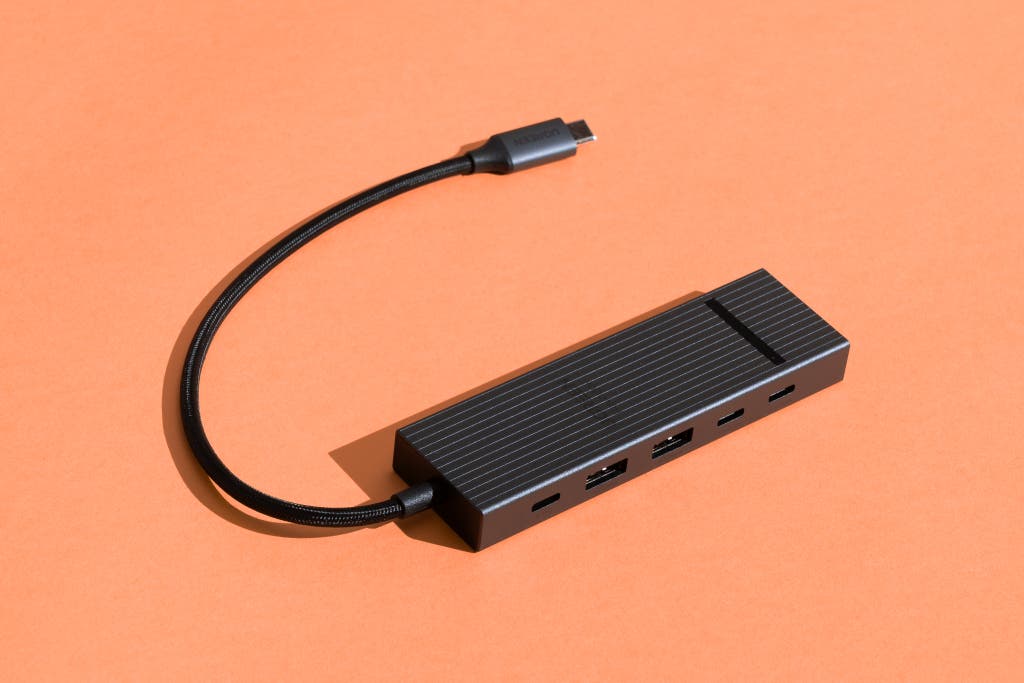
Check Ugreen Revodok Pricing →
3. The Professional Pick: Anker 568 USB4 Dock
For power users who demand the absolute maximum bandwidth, the Anker 568 leverages USB4 technology. With a 40 Gbps total bandwidth, this dock is designed for those who treat their Chromebook as a workstation replacement. It is one of the few docks that feels future-proofed for the next several years of Chrome OS updates.
Pros:
- USB4 Technology: Unmatched data speeds and video bandwidth.
- Triple Monitor Support: Can drive up to three displays on compatible hardware.
- Certified Reliability: Highly stable firmware that minimizes "peripheral drop-out."
Cons:
- Premium Price: This is a significant investment compared to standard hubs.
- External Power Brick: Requires its own large power adapter, making it a permanent desk fixture.
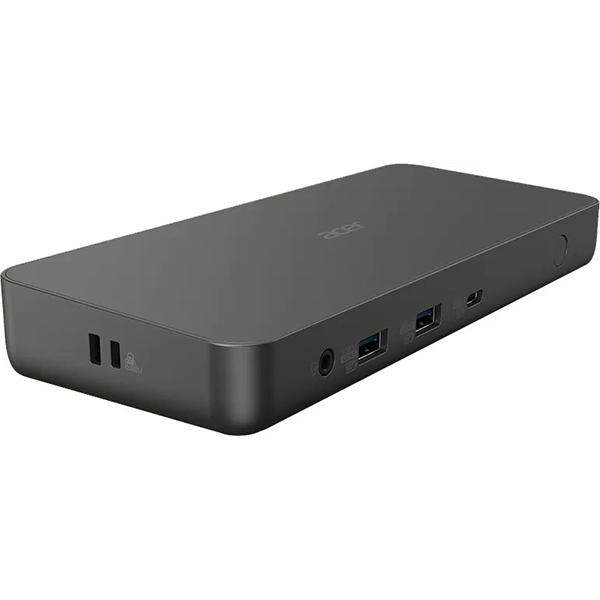
Hub Comparison Table (2026)
| Feature | Baseus 10-in-1 | Ugreen Revodok Pro | Anker 568 USB4 |
|---|---|---|---|
| Total Ports | 10 | 6 | 11 |
| Max Resolution | Dual 4K @ 120Hz | Single 4K @ 60Hz | Triple 4K @ 60Hz |
| Data Speed | 10 Gbps | 10 Gbps | 40 Gbps |
| Power Delivery | 100W | 100W | 100W |
| Best For | Daily Workstation | Travel/Budget | High-End Creative |
Expanding Your Storage: HDDs and SSDs
One of the most common questions from Chromebook users is whether external hard drives are compatible with Chrome OS. The answer is a definitive yes. Almost all USB-powered HDDs and SSDs are plug-and-play.
While cloud storage is the backbone of the Google ecosystem, local storage remains vital for offline work, large video files, and Linux container backups. The economic landscape of storage has shifted dramatically; in 2026, external storage affordability has improved to the point where 5 TB portable hard drives are priced at approximately $120. This represents a significant decrease in cost-per-gigabyte, making it feasible to carry your entire digital library in your pocket.
When choosing a drive, prioritize the connection type. While older USB-A drives work with an adapter, a native USB-C SSD like the Samsung T7 or SanDisk Extreme offers speeds up to 1,050 MB/s. This allows you to run Linux apps or edit high-resolution photos directly from the external drive without the "lag" associated with older spinning disks.
Multi-Monitor Mastery: Going Dual 4K
Can a Chromebook support dual monitors? Yes, but it requires specific hardware coordination. Most Chromebooks built after 2024 support "DisplayPort Alt Mode" over USB-C. To run two 4K monitors at 60Hz (or 120Hz), you must ensure your docking station supports Multi-Stream Transport (MST) for Chrome OS.
Expert Tip: If you are using a budget Chromebook with a less powerful processor, you may encounter limitations with dual 4K resolutions. In these cases, look for a docking station with "DisplayLink" technology. This uses a proprietary driver (available as a Chrome extension) to handle the video processing, allowing even entry-level devices to power multiple high-res screens.
Setting up a dual-monitor environment dramatically increases productivity—allowing you to keep a research window open on one screen while drafting your document on the primary display.
Specialized Accessories: Microphones and File Transfer
Beyond screens and storage, a professional setup requires high-quality audio and input devices. The integrated microphones in most Chromebooks are sufficient for casual calls, but for recorded meetings or professional presentations, a dedicated USB microphone is essential.
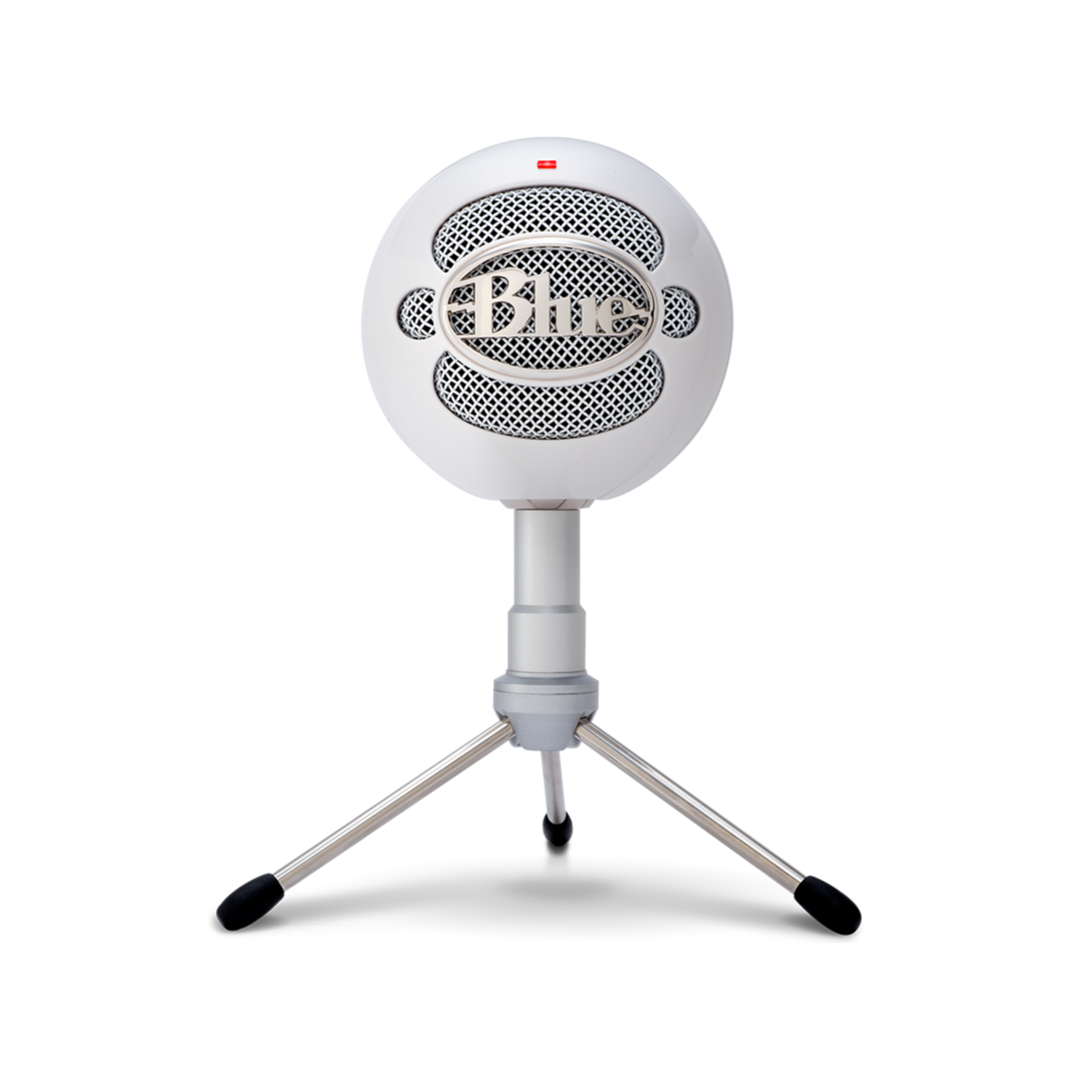
Plug-and-play devices like the Razer Seiren V3 or the Blue Snowball iCE are natively recognized by Chrome OS. Simply plug them into your hub, and they will appear as an input option in your System Settings.
Furthermore, if you are migrating from a Windows or Mac environment, the most stable way to move large quantities of data is a direct file transfer via a USB-C to USB-C cable or a high-speed thumb drive. Chrome OS’s "Files" app has been updated to handle complex file structures from other operating systems with much greater stability than in previous years.
Troubleshooting Chromebook Connectivity
Even with the best hardware, you may occasionally encounter connectivity hurdles. Here are the most common issues and their data-backed solutions:
- The "Slow Charging" Warning: This occurs when your USB-C hub is consuming too much of the power from your charger. If you use a 45W charger with a hub that draws 15W, your Chromebook only receives 30W. To solve this, always pair your docking station with a 65W or 100W GaN charger.
- Overheating Hubs: High-speed data transfer and 4K video output generate significant heat. In 2026, premium hubs use thermal pads and aluminum fins to manage this. If your hub is hot to the touch, ensure it is in a well-ventilated area and not tucked behind a warm monitor.
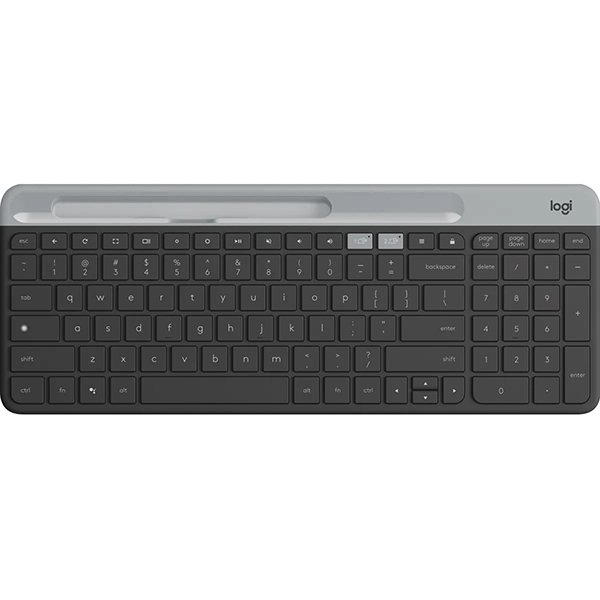
- Peripheral Dropout: If your mouse or keyboard "stutters," it might be due to 2.4GHz interference from USB 3.0 ports. Using a short USB extension cable for your wireless dongle or switching to Bluetooth can resolve this immediately.
FAQ
Q: Do I need a "Works With Chromebook" certified hub? A: While certification ensures a "no-compromise" experience, most standard USB-C hubs and docks designed for Windows or Mac will work perfectly with Chrome OS due to the universal nature of the USB-C standard. However, certification is a safer bet for firmware updates.
Q: Can I connect a mechanical keyboard to my Chromebook hub? A: Absolutely. Most mechanical keyboards are plug-and-play. While specialized RGB software (like Razer Synapse) may not run on Chrome OS, the core typing functionality and standard media keys will work without issue.
Q: Will an external hard drive drain my Chromebook battery? A: Yes, bus-powered drives draw energy from the laptop. If you plan on using an external HDD for several hours, it is highly recommended to use a hub with Power Delivery (PD) connected to a wall outlet.
Conclusion
The limitation of ports on a Chromebook is no longer an obstacle to professional productivity; it is simply a hardware puzzle with a very clear solution. By investing in a high-quality USB-C hub or docking station, you can transform a portable device into a powerhouse workstation capable of driving dual 4K monitors and managing terabytes of data.
Whether you choose the versatile Baseus 10-in-1 for your home office or the compact Ugreen Revodok for your travels, the key is to prioritize bandwidth and power delivery. In 2026, the "web-only" stigma is dead—long live the fully connected Chromebook workstation.
Ready to upgrade your setup? Start by auditing your current peripheral needs and choosing the dock that offers at least two more ports than you currently require; in the world of tech, you will always find a use for that extra slot.





