We’ve all been there: you’re about to capture the perfect sunset over a Mediterranean coastline or record the final song of a high-energy concert, only for the dreaded "Storage Almost Full" notification to kill the mood. In an era where a 256GB smartphone has the theoretical capacity to store approximately 214,000 photos at 12-megapixel quality, one might think storage anxiety would be a thing of the past. However, with the rise of 4K 60fps video and ProRAW photography, that massive capacity can vanish in a single weekend.
While cloud services offer a convenient safety net, they often introduce a recurring monthly "tax" on your memories and rely heavily on stable, high-speed internet—something that isn't always available when you're traveling or off the grid. The solution for the modern creator is a compact, external SSD. It offers a tangible, fast, and offline method to secure your data without the latency of the cloud.
Why Choose a Portable SSD Over Cloud Storage?
For the seasoned traveler or professional creator, the debate between local storage and cloud storage often comes down to three pillars: speed, privacy, and long-term cost. Cloud storage is essentially a rental model; once you stop paying, your access to your own data becomes precarious. In contrast, an external SSD is a one-time investment that places you in total control of your media.
The performance gap is perhaps the most striking factor. Using USB 3.2 Gen2 technology, a modern compact SSD can transfer 8.8GB of media—roughly hundreds of high-resolution photos—in under nine seconds. To achieve that same result via a cloud upload on a standard Wi-Fi connection could take twenty minutes or more, assuming no connection drops. Furthermore, for those prioritizing privacy, keeping your data on a physical drive ensures your personal moments aren't sitting on a third-party server, vulnerable to breaches or data mining.
Unlike traditional external hard drives (HDDs), SSDs have no moving parts. This makes them significantly more reliable for mobile users. If you drop an HDD while it's spinning, it’s likely game over for your data. A portable SSD, however, is built to withstand the rigors of travel, often featuring 3-meter drop protection and vibration resistance that an HDD simply cannot match.
| Feature | Portable SSD | Cloud Storage | Traditional HDD |
|---|---|---|---|
| Transfer Speed | Up to 1,050 MB/s (10Gbps) | Dependent on Internet | ~120 MB/s |
| Cost | One-time purchase | Recurring monthly fee | Low one-time cost |
| Internet Required | No | Yes | No |
| Durability | High (Shock resistant) | N/A | Low (Fragile) |
| Privacy | High (Local) | Variable (Third-party) | High (Local) |
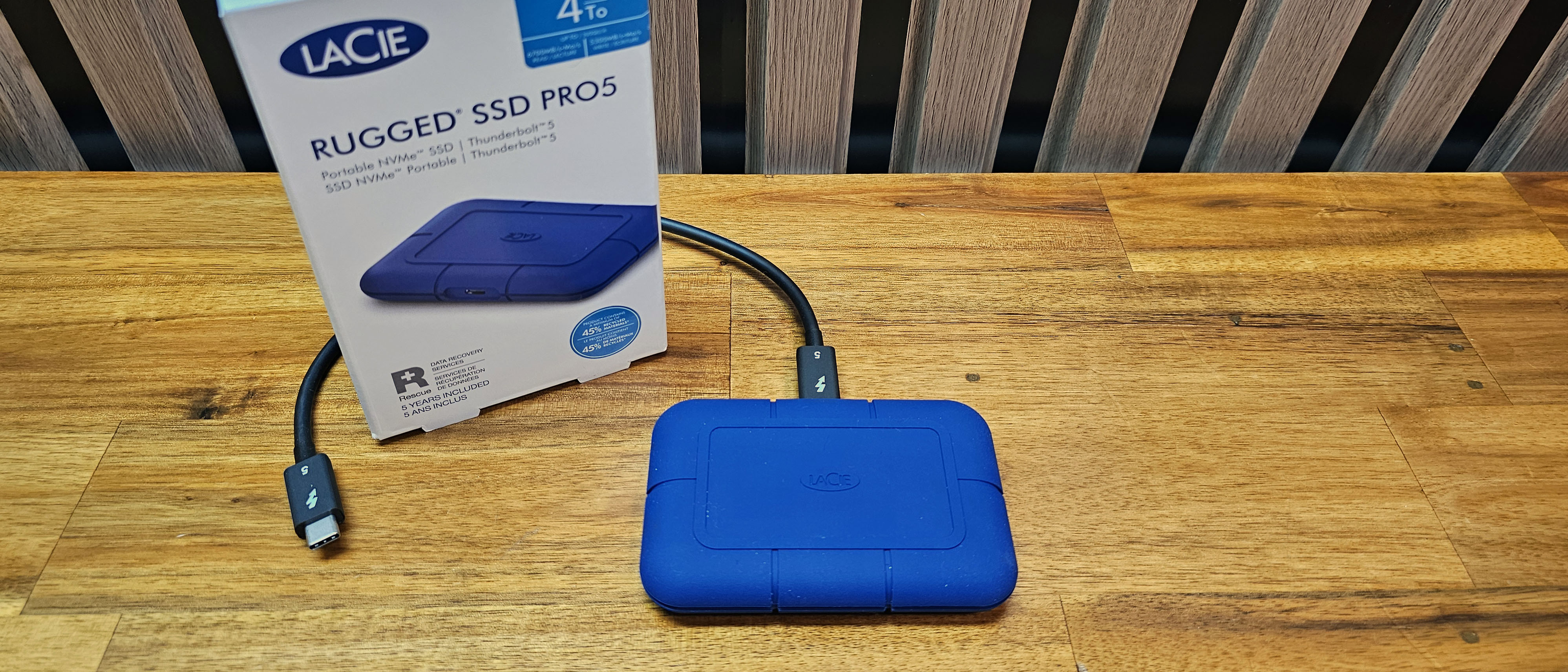
The Top Pick: Seagate Ultra Compact SSD
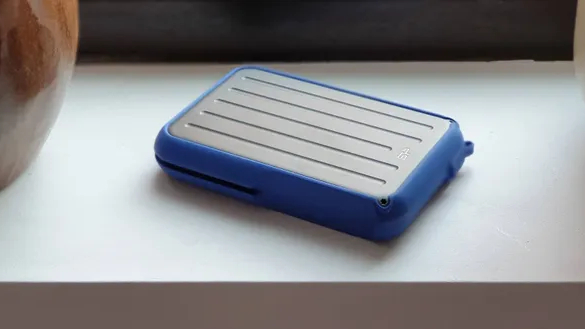
In the saturated market of external storage, the Seagate Ultra Compact SSD stands out as a premier choice for mobile users. Its design philosophy clearly targets the traveler: it is small enough to fit in a coin pocket yet rugged enough to survive a downpour. It features IP54 rain and dust resistance, meaning a splash of water or a dusty trail won't jeopardize your backup process.
Beyond its physical resilience, the Seagate Ultra Compact SSD is engineered for true plug-and-play compatibility. Whether you are using the latest iPhone with a USB-C port or a flagship Android device, the drive is recognized instantly without the need for proprietary software. Its rubberized outer grip ensures it won't slide off a tray table during a turbulent flight—a small but thoughtful detail for those who work on the move.
View Seagate Ultra Compact SSD Pricing →
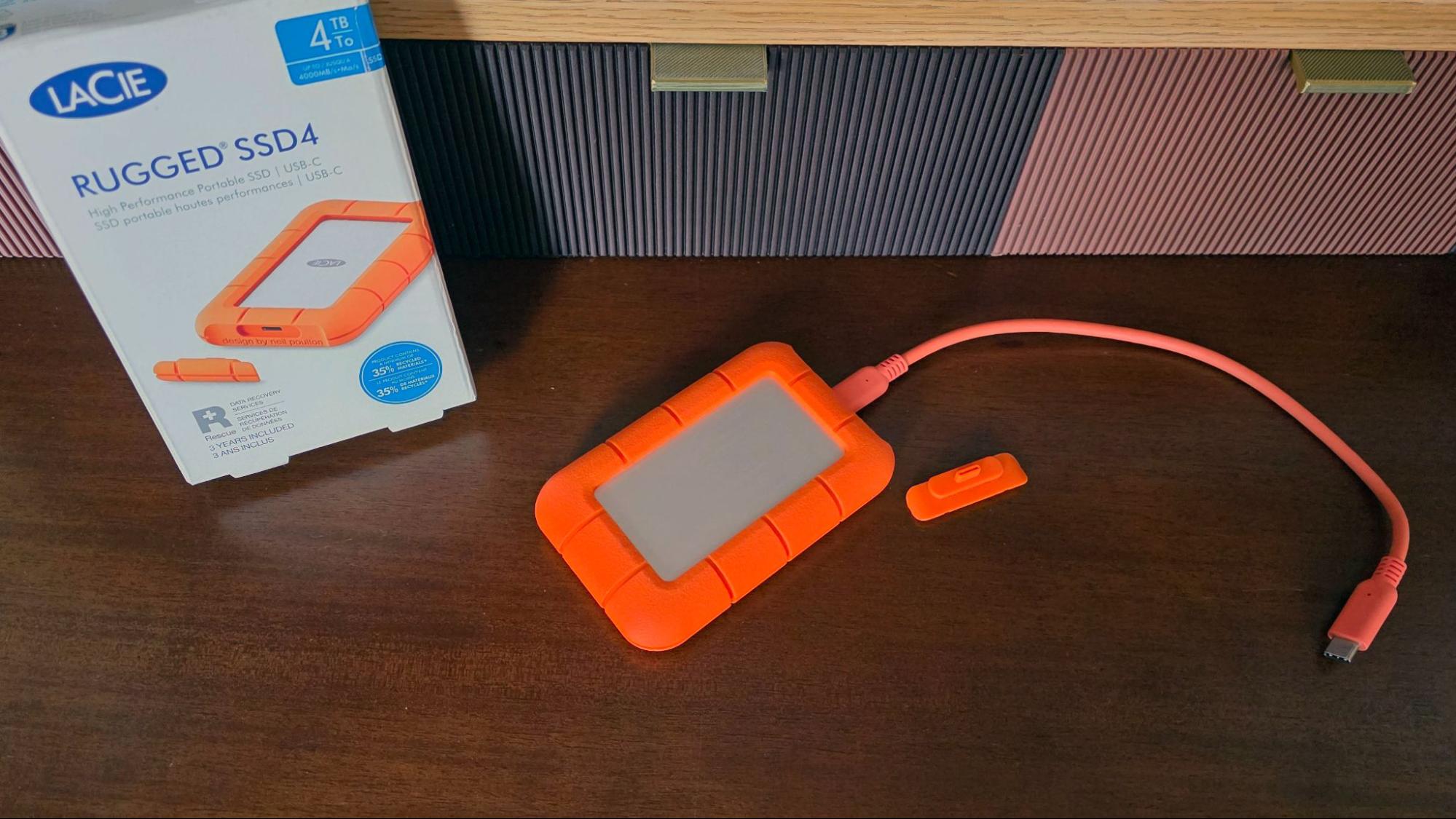
Step-by-Step: How to Back Up Your iPhone to an SSD
With the transition to USB-C on the iPhone 15 and 16 series, backing up your media has become a native, streamlined experience. You no longer need a laptop to bridge the gap; your phone acts as the workstation.
- Connect the Drive: Plug your Seagate Ultra Compact SSD directly into the USB-C port of your iPhone.
- Open the Photos App: Select the photos and videos you wish to move. You can tap 'Select All' or choose specific albums.
- Tap the Share Icon: This is the square with an upward arrow located at the bottom left.
- Select 'Save to Files': Scroll down the share sheet until you see this option.
- Choose the Destination: Tap the 'Browse' tab at the top left. You should see your SSD listed under 'Locations'. Select a folder on the drive (or create a new one) and hit 'Save'.
A Note for Older iPhones: If you are using an iPhone with a Lightning port (iPhone 14 and earlier), you will need a Lightning-to-USB3 Camera Adapter. Because older iPhones often don't provide enough power to run an SSD, you should plug a power cable into the adapter’s charging port simultaneously to ensure the drive mounts correctly.
Step-by-Step: Moving Files on Android Devices
Android has long been the champion of file management flexibility, and the process of backing up to an SSD is intuitive across most major brands like Samsung, Pixel, and Xiaomi.
- Plug and Play: Connect the SSD to your phone's USB-C port. Most modern Android phones will automatically show a notification that a USB drive has been connected.
- Open 'Files by Google' or Native Manager: While brands have their own apps (like 'My Files' on Samsung), Google's 'Files' app is the most universal.
- Locate Your Media: Navigate to 'Images' or 'Videos' under the 'Categories' section.
- Copy or Move: Long-press a file to enter selection mode. Once you’ve picked your files, tap the three dots in the corner and select 'Move to' or 'Copy to'.
- Select External Storage: Choose your Seagate SSD from the list of storage locations.
Troubleshooting Tip: If your Android phone doesn't see the drive, ensure "USB Debugging" is off (usually for developers) and check if your phone requires you to manually enable "OTG" (On-The-Go) in the system settings.
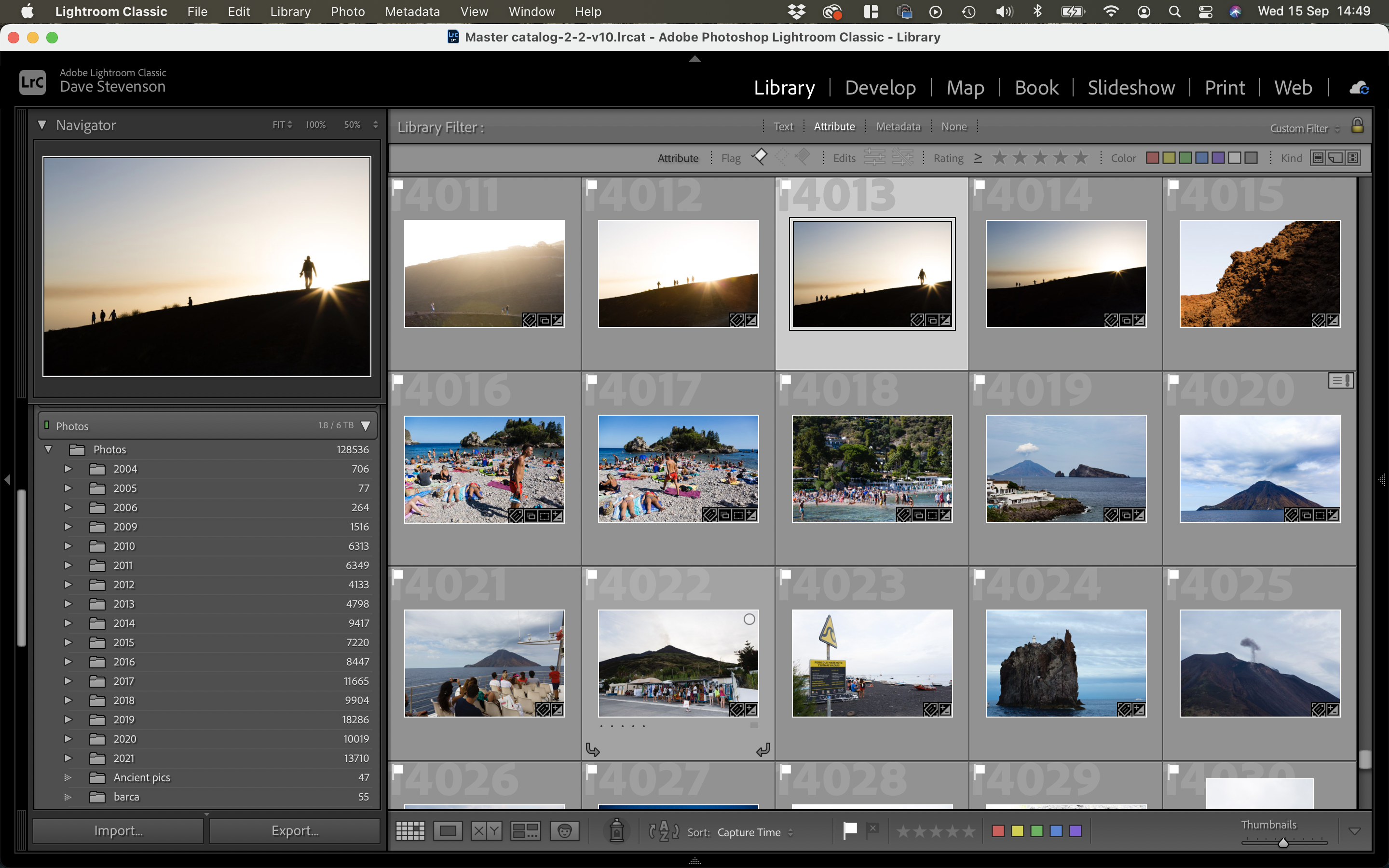
Technical Tips for a Flawless Backup
To ensure your backup process is as smooth as the hardware allows, keep these technical considerations in mind:
- The exFAT Standard: To ensure your SSD works seamlessly across Mac, PC, iOS, and Android, format the drive to exFAT. While other formats like APFS (Apple) or NTFS (Windows) have specific advantages, exFAT is the "universal language" that all these devices understand.
- Organization is Key: Don’t just dump thousands of photos into the root directory. Create a folder structure based on dates or locations (e.g.,
2024_05_Japan_Trip). This makes searching for specific memories years down the line significantly easier. - Safe Ejection: On Android, always tap 'Unmount' or 'Eject' in the notification shade before pulling the cable. On iOS, simply wait until the progress bar in the Files app disappears. Abruptly disconnecting a drive while it’s writing data is the quickest way to corrupt your files.
Beyond the Drive: The 3-2-1 Backup Strategy
As a travel critic, I’ve seen enough hardware failures to know that a single backup is not a strategy—it’s a gamble. Professional data management follows the 3-2-1 Rule:
- 3 copies of your data (the original on your phone, one on the SSD, and one more).
- 2 different media types (e.g., your phone’s internal flash memory and an external SSD).
- 1 copy stored off-site (this is where the cloud is useful, or a second SSD kept at home).
Using a compact SSD as your primary "offline node" gives you the speed and reliability needed for daily backups while you're on the move. When you return home, you can then sync that SSD to a larger desktop drive or a cloud service for that final layer of redundancy.
FAQ
Q: Will using an external SSD drain my phone battery? A: Yes, the SSD draws power from the phone to operate. While modern SSDs are very efficient, expect a 5-10% battery drop during a large transfer (10GB+). It’s always best to start your backup when your phone has at least 30% charge.
Q: Can I edit 4K video directly from the SSD on my phone? A: Absolutely. With the 10Gbps speeds of the Seagate Ultra Compact SSD, apps like LumaFusion (iOS) or CapCut (Android) can read the video files directly from the drive, allowing you to edit high-resolution projects without ever moving them to your phone’s internal storage.
Q: What do I do if my phone says the drive is "Read Only"? A: This usually happens if the drive is formatted in NTFS (the Windows standard). To fix this, you’ll need to connect the drive to a computer and reformat it to exFAT. Warning: Formatting will erase all data currently on the drive.
Don't let a "Storage Full" warning dictate your creativity. Investing in a high-quality, compact SSD is the single best upgrade you can give your mobile photography kit. It’s faster than the cloud, tougher than a hard drive, and gives you the peace of mind to keep shooting, no matter where your travels take you.





