Quick Facts
- The Sweet Spot: For most mid-range PC setups, pursuing 1440p at 144Hz offers the most balanced experience between pixel density and motion clarity.
- Pixel Density Tax: Stepping up to 4K requires your GPU to process 8.29 million pixels per frame, which is exactly four times the workload of a 1080p display.
- Mainstream Reality: According to current gaming data, 1080p remains the most widely used primary display resolution at approximately 55.98%, though 1440p is rising steadily.
- Competitive Standards: Professional and ranked players often target 144 FPS or 240 FPS to minimize input lag, even if it means dropping resolution to 1080p.
- Performance Killers: Heavy effects like Ray Tracing and ultra-high dynamic shadows can slash your frame rate by 20% to 30% while offering diminishing returns in visual quality.
- Console Choice: Modern consoles generally use upscaling or checkerboard rendering to hit high resolutions, meaning Performance mode is usually the smarter pick for consistency.
Balancing resolution vs fps requires prioritizing either visual clarity or fluid movement based on the game genre. Competitive players often lower resolution to maximize frame rates and reduce input lag, whereas single-player gamers typically favor higher resolutions like 4K for greater immersion. Finding the right balance ensures that hardware performance remains stable without stuttering during intense gameplay sequences.
Introduction: The Great Resolution vs FPS Debate
Choosing between high frame rates and crisp resolution is the ultimate gamer's dilemma. Whether you are building a high-end PC or just unboxing a new console, you are immediately faced with a choice: do you want the game to look like a cinematic masterpiece or feel as smooth as butter? The debate over resolution vs fps is not just about numbers; it is about how you perceive the game world.
In my years testing GPUs and monitors, I have found that balancing resolution vs fps requires an honest assessment of your hardware's limits and your specific gaming needs. While a 1080p image can look soft on a large screen, a choppy 4K image at 20 frames per second is virtually unplayable. The goal is to find a equilibrium where motion looks fluid and the image remains sharp enough to pull you into the world. When you understand the relationship between pixel count and frametime stability, you stop fighting your hardware and start making it work for you. Understanding fps vs resolution is the first step toward a superior gaming experience.

Performance vs Quality Mode: Decoding Console Settings
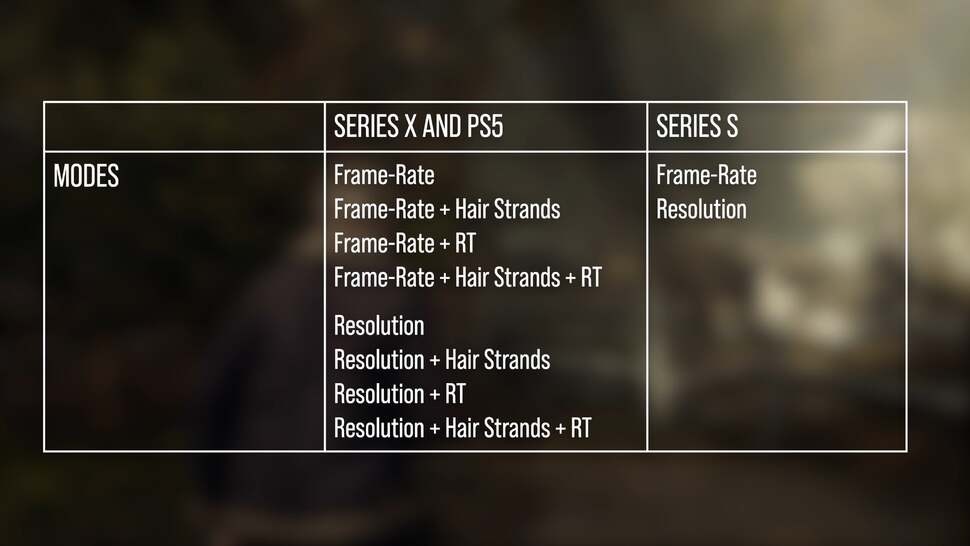
If you are a console gamer on PS5 or Xbox Series X, you likely see a binary choice in every settings menu: performance mode vs quality mode ps5 users have become particularly familiar with. These presets are designed to simplify the resolution vs fps trade-off, but they vary wildly between titles. Usually, Quality mode targets native 4K (2160p) at 30 fps, while Performance mode drops the resolution to 1440p or lower to hit a solid 60 fps.
The Resident Evil 4 Case Study
A perfect example is the resident evil 4 remake resolution or frame rate choice developers gave players. In the Resident Evil 4 Remake, Performance mode focuses on achieving 60fps using upscaling, while Resolution mode targets 2160p but often sees frame rates drop into the 30s or 40s. When you add features like ray tracing into the mix, that frame rate vs resolution ps5 balance becomes even more precarious. In a fast-paced horror game where every shot counts, the frame rate or resolution resident evil 4 decision usually leans toward performance.
Modern titles often utilize checkerboard rendering, a technique that renders only half the pixels in a grid and reconstructs the rest. This allows developers to maintain the appearance of high graphical fidelity without the massive hardware cost of native 4K. If you find your game feels "heavy" or unresponsive in Quality mode, the reduced input lag of Performance mode is almost always worth the slight loss in distant object clarity.
Competitive Gain vs Cinematic Immersion
The resolution vs fps decision should change based on what you are playing. Not every game demands the same level of responsiveness, and not every game benefits from 8 million pixels.
The Competitive Edge
In shooters like Valorant or Counter-Strike 2, high frame rates are king. Increasing your frames per second doesn't just make the game look smoother; it reduces input lag—the time between your mouse click and the action on screen. When asking is 1080 or 1440 better for FPS games, the answer is usually dictated by your monitor's refresh rate. If you have a 240Hz monitor, sticking to 1080p ensures your GPU can actually push those 240 frames. For competitive players, any resolution bump that causes a GPU bottleneck is an immediate disadvantage.
Cinematic Immersion
Conversely, lush, open-world adventures like Cyberpunk 2077 or Red Dead Redemption 2 are designed for visual awe. In these scenarios, many wonder is 60fps or 4k better for single player games? While 60fps is the gold standard for comfort, many gamers find that 4K resolution at 30 or 40 fps is an acceptable trade-off for the sheer detail of the environment. However, the 1440p has grown to an 18.72% share of the market because it represents the perfect 1440p vs 4k gaming balance for mid-range pcs. It provides significantly more detail than 1080p without crushing your system’s performance.
The Software Solution: AI Upscaling and DLSS
We are currently in a golden age of software optimization. Technologies like NVIDIA’s DLSS (Deep Learning Super Sampling) and AMD’s FSR (FidelityFX Super Resolution) have fundamentally changed the resolution vs fps conversation. These tools use AI upscaling to render the game at a lower internal resolution and then use machine learning to reconstruct the image to your output resolution.
When looking at how dlss effects frame rate vs resolution, the results are often staggering. You can effectively get the performance of 1080p with the visual quality of 1440p or 4K. This allows mid-range hardware to punch far above its weight class. However, there is a catch: frame generation. While modern cards can "interpolate" extra frames to boost perceived smoothness, this can occasionally introduce input latency if your base frame rate is already too low. I generally recommend that you ensure a stable base of at least 40-50 fps before turning on frame generation to maintain that snappy feel.
Optimization Workflow: A Step-by-Step Guide
To find your perfect settings, you need a systematic approach. Don't just settle for the "High" or "Ultra" visual presets provided by the game; these are often unoptimized.
- Set a Medium-Baseline: Start with all settings at Medium at your native resolution. This ensures you aren't starting with a GPU bottleneck.
- Identify Clarity Killers: Turn off the settings that make the game look worse regardless of resolution.
- Tackle Heavy Hitters: Adjust shadows, volumetric clouds, and Ambient occlusion. These three settings usually consume the most VRAM and processing power.
- Check VRAM Usage: Most modern games have a VRAM meter in the settings menu. Ensure you have at least 1-2GB of overhead to prevent stuttering during intense scenes.
- Enable Variable Refresh Rate (VRR): If your monitor and GPU support G-Sync or FreeSync, turn it on. This masks small dips in frametime stability, making 50 fps feel much smoother.
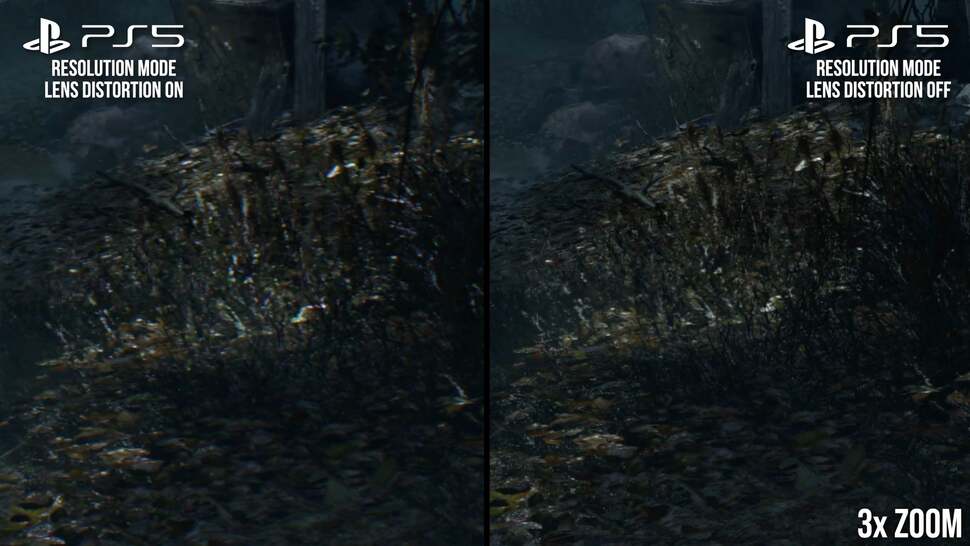
Settings to Disable Immediately For the best visual clarity, consider turning off Chromatic Aberration, Motion Blur, and Film Grain. These post-processing effects often add "noise" or "smear" that obscures fine details regardless of your resolution settings.
Resolution Load Comparison
| Resolution | Pixel Count | Impact on GPU Load |
|---|---|---|
| 1080p | 2.07 Million | 1x (Baseline) |
| 1440p | 3.69 Million | ~1.78x Baseline |
| 4K | 8.29 Million | 4x Baseline |
Technical Troubleshooting: Beyond In-Game Settings
Sometimes the problem isn't the game; it's the system. If you are experiencing unstable fps despite having good hardware, there are deeper technical settings to investigate.
First, consider the API. Many modern games offer a choice between DX11 and DX12. While DX12 is generally better for modern multi-core CPUs, it can sometimes cause shader compilation stutter. If you have older hardware, DX11 might offer better frametime stability.
Another "pro tip" for Windows users is managing Control Flow Guard (CFG). While it is a security feature, it has been known to cause micro-stuttering in certain DX12 titles. Disabling it specifically for your game’s .exe file can sometimes smooth out the experience. Lastly, always ensure your refresh rate in Windows settings matches your monitor's capabilities. It sounds simple, but I have seen many gamers playing at 60Hz on a 144Hz screen because they forgot a single toggle.
FAQ
Is 4K 30 FPS or 60 FPS better?
For almost all scenarios, 60 FPS is superior because it provides a more responsive and fluid experience. While 4K at 30 FPS looks sharp in screenshots, the motion blur and input lag of 30 FPS can make the game feel sluggish, especially in titles with fast camera movement.
Is 1080 or 1440 better for FPS games?
For competitive FPS games, 1440p is becoming the new standard for players who want a balance of target clarity and high performance. However, if your GPU cannot maintain a frame rate that matches your monitor's high refresh rate at 1440p, dropping to 1080p is the better choice for gameplay performance.
Does 1080p look blurry on 4K?
Yes, 1080p can look slightly blurry on a native 4K screen because the pixels don't always align perfectly depending on the scaling method used. Using AI upscaling technologies like DLSS or FSR is a much better way to play at lower internal resolutions on a 4K display without losing sharpness.
What is better, 4K 30fps or 1080p 120FPS?
This depends entirely on the game. For a slow-paced puzzle or strategy game, 4K 30fps might be enjoyable. However, for any action game, shooter, or racer, 1080p 120FPS is vastly superior as the high refresh rate provides a level of motion clarity and responsiveness that 30fps simply cannot match.





