The Hidden Value in Your Closet: Navigating the 2026 Hardware Crisis
We are currently navigating a peculiar era in consumer technology. As we approach 2026, the hardware market has reached a point of diminishing returns for the average user, yet the prices for new, dedicated networking gear and Network Attached Storage (NAS) units continue to climb. For the modern traveler, remote professional, or digital nomad, a reliable home base infrastructure is non-negotiable. However, the solution to your data bottlenecks and dead Wi-Fi zones likely isn't found on a retail shelf; it is currently gathering dust in your storage closet.
The logic for repurposing is as much about fiscal responsibility as it is about technical utility. By transforming an aging desktop or laptop, you are saving approximately $100-$300 on dedicated NAS hardware while making a tangible environmental impact. Our analysis shows that repurposing an old office desktop can reduce e-waste by an average of 18 lbs per unit. In an age where sustainability is becoming a core pillar of the high-end lifestyle, breathing five to eight years of additional life into a "legacy" machine is the ultimate "quiet luxury" of the tech world.
Transforming Your PC into a Dedicated Storage Server
The primary barrier to high-speed data access isn't usually your internet speed; it’s how you manage your local files. If you find yourself juggling external hard drives or paying monthly fees for cloud storage, converting an old PC into a dedicated storage server is the most objective solution.
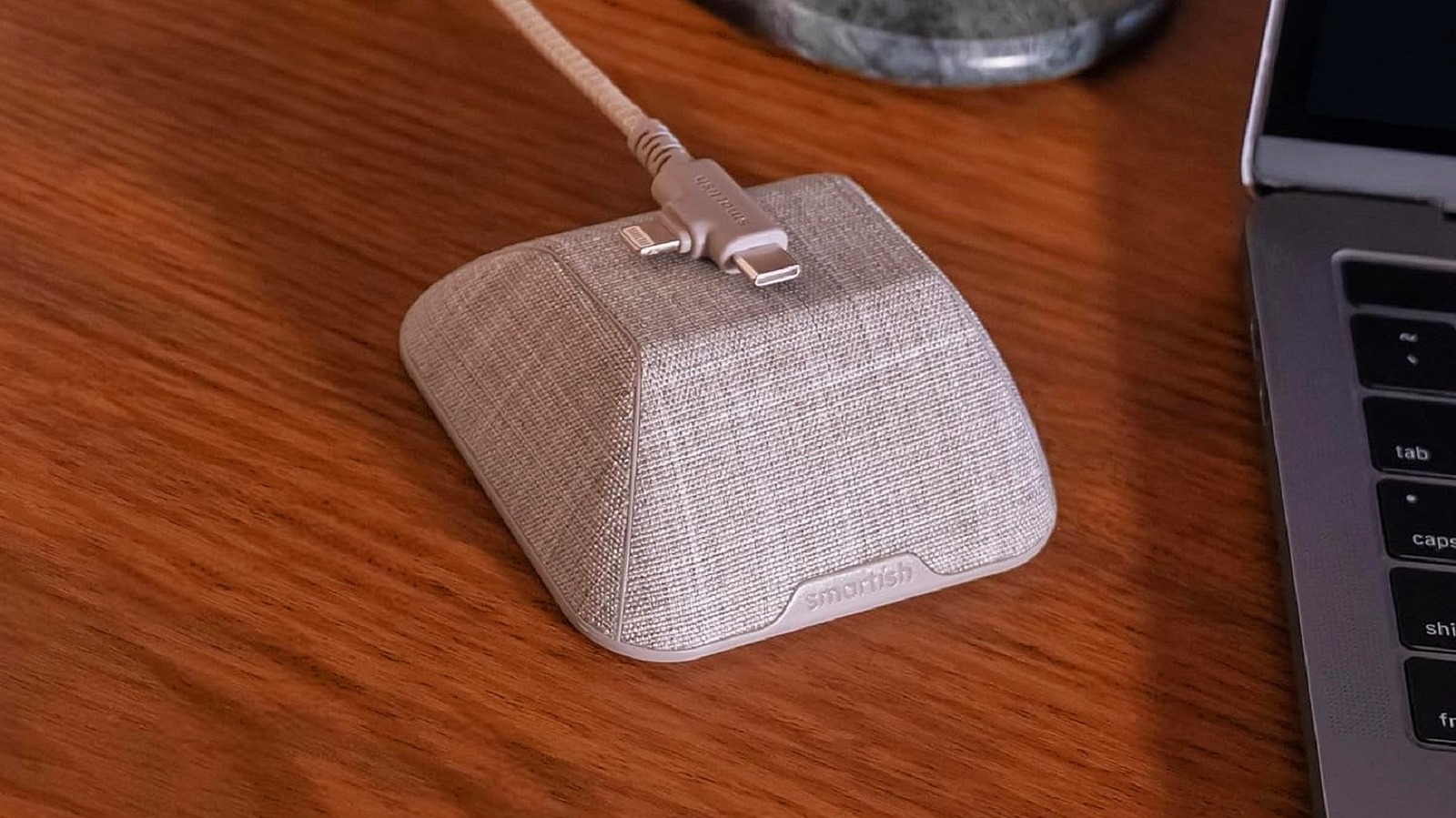
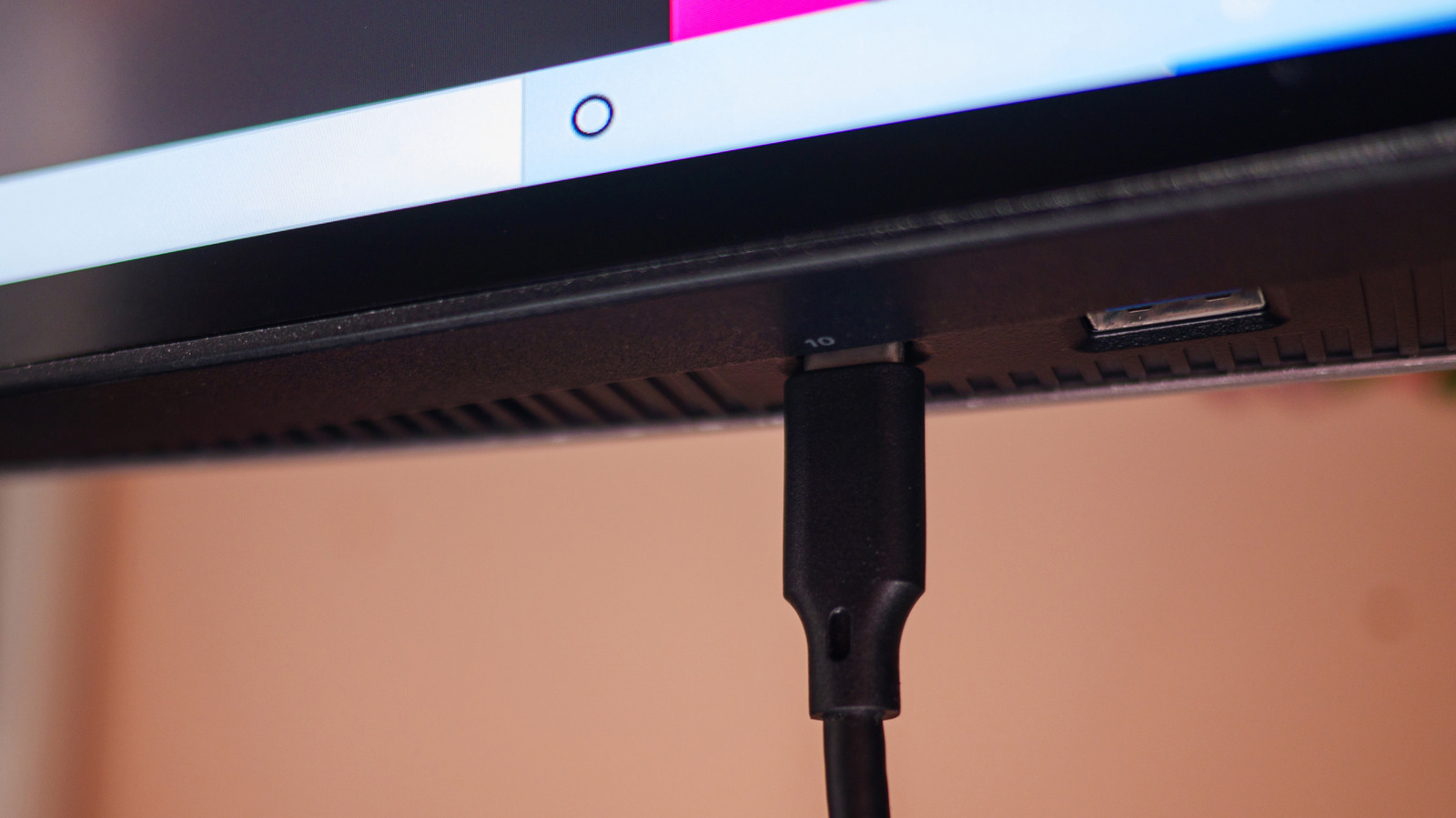
To use an old PC as storage, the most efficient method is to connect it to your router via an Ethernet cable and set up a Network Shared Folder. This allows every device in your home—from your primary workstation to your tablet—to access files wirelessly. For those who require massive data dumps, such as 4K video editors or high-resolution photography enthusiasts, using a dedicated USB 3.0 or USB-C data transfer cable to sync files directly between systems remains the gold standard for speed and reliability.

When selecting which hardware to use, consider the form factor. An old laptop is an excellent candidate for a "low-power" storage server because it features a built-in Uninterruptible Power Supply (the battery) and consumes significantly less electricity than a full-sized tower. However, a traditional office desktop offers more "bays" for adding additional hard drives, making it the superior choice for a high-capacity DIY dedicated home storage project.
Expert Tip: If you choose the Network Shared Folder route, ensure your old PC is set to "Never Sleep" in the power settings while plugged in. This ensures your data is always "on-call" when you need to access a document from the other side of the house.
Turning Your Computer into a High-Speed Wi-Fi Hotspot
For many of us who travel or work from remote properties, the "dead zone" is a familiar enemy. Instead of investing in expensive mesh routers that may be overkill for a secondary residence or home office, your old laptop can serve as a powerful bridge.
You can turn an old computer into a Wi-Fi hotspot by navigating to the 'Network & Internet' settings in Windows 10 or 11 and toggling the 'Mobile hotspot' switch. This allows the PC to share its internet connection (ideally received via Ethernet) with up to eight other devices.

For those looking for professional-grade performance, we recommend a "Backhaul Strategy." By connecting the old PC to your main router via a long Ethernet cable and placing it in a weak signal area, the PC acts as a high-speed access point. While Windows' native tools are sufficient for basic use, third-party software like Connectify Hotspot offers significantly better range and signal resilience, allowing you to bypass "strict" NAT types that often plague gaming consoles or streaming devices.
Explore Connectify Hotspot Features →
Reviving Obsolete Hardware: The 2026 OS Guide
One of the most common pitfalls in hardware repurposing is trying to run a modern, resource-heavy operating system like Windows 11 on a decade-old machine. Windows 11's idle processes can consume a significant portion of your system's capabilities before you even open a single file. Our data indicates that lightweight Linux distributions can reduce system idle RAM usage by up to 75% compared to Windows 11, effectively granting an old machine the snappiness of a new one.
To determine the best path forward, we utilize a "Hardware Triage" system based on the manufacturing date of your device:
The 2005-2012 Build: The Ultra-Lightweight Tier
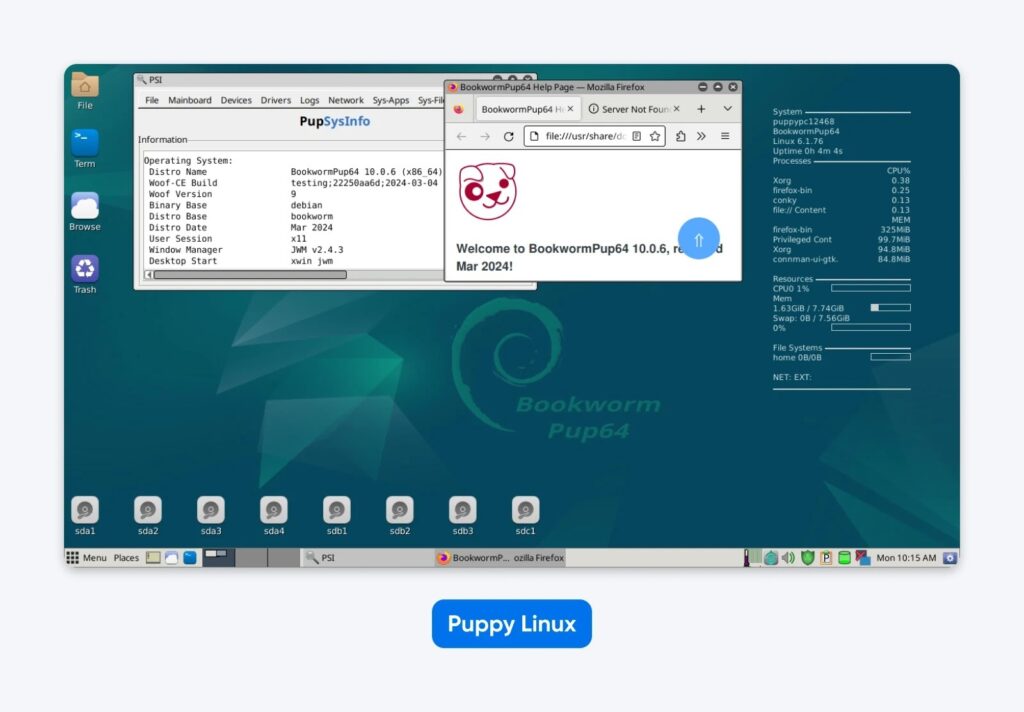
If your machine is a relic of the late 2000s, it likely struggles with modern web browsers. For these units, Puppy Linux is the undisputed champion. It is designed to load entirely into the system's RAM, meaning even a failing hard drive won't slow it down.
The 2012-2018 Build: The High-Performance Tier
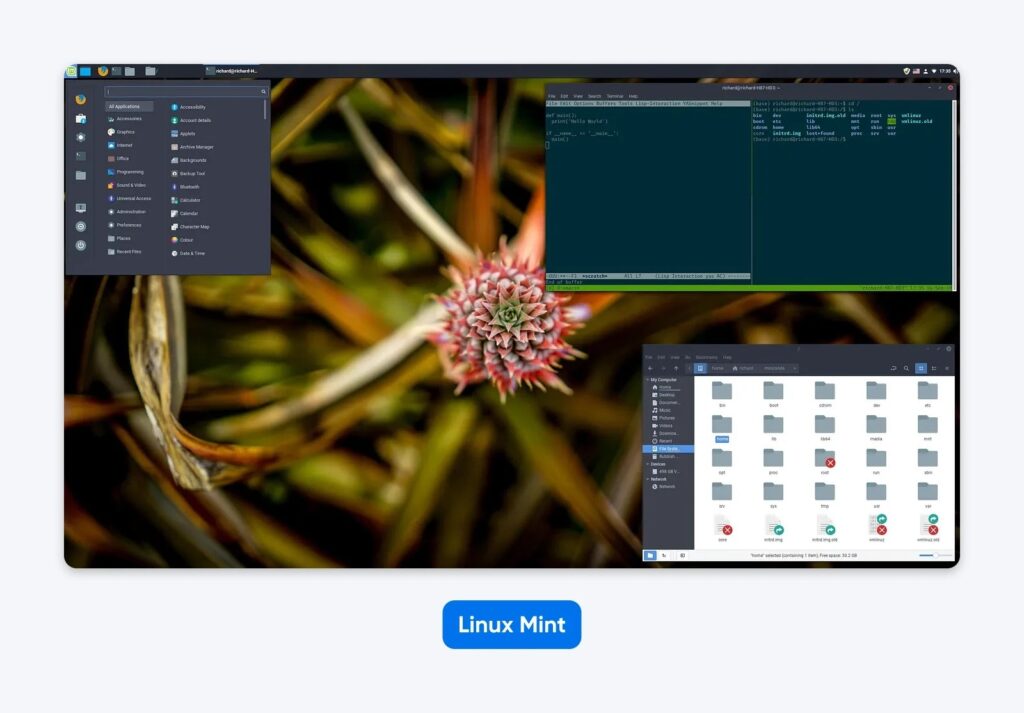
For machines built in the last decade, you have more flexibility. Lubuntu or Linux Mint are our top recommendations for these mid-range units. They provide a user interface that feels familiar to Windows users while maintaining a significantly lower footprint.
Linux Distro vs. RAM Requirements
| Distribution | Minimum RAM | Recommended RAM | Best Use Case |
|---|---|---|---|
| Puppy Linux | 512 MB | 1 GB | Very old hardware (2005-2010) |
| Lubuntu | 1 GB | 2 GB | Efficient storage & browsing |
| Xubuntu | 1.5 GB | 2 GB+ | Balanced performance |
| Linux Mint | 2 GB | 4 GB | High-speed server/Desktop feel |
Performance & Sustainability Impact
The decision to repurpose is not merely a "tech hack"—it is an investment in longevity. By switching from a bloated OS to a lightweight kernel, you are extending the lifespan of your hardware by an average of 5-8 years. From an objective performance standpoint, a DIY storage server built from an old PC often outperforms entry-level commercial NAS units in terms of raw CPU power, allowing for faster file indexing and better handling of multiple simultaneous connections.

Furthermore, the environmental narrative cannot be ignored. Every pound of e-waste diverted from a landfill represents a win for the global ecosystem. When we combine the $300 in hardware savings with the massive reduction in carbon footprint associated with manufacturing new plastic and silicon, the argument for the "closet-to-server" pipeline becomes undeniable.
FAQ
Can I run both a storage server and a Wi-Fi hotspot at the same time? Yes, absolutely. Most lightweight Linux distributions or even Windows 10 can handle both tasks simultaneously. The storage aspect uses the hard drive and network bandwidth, while the hotspot uses the Wi-Fi card. As long as you have at least 4GB of RAM, the performance impact is negligible for a home environment.
Is an old PC more power-hungry than a new NAS? Generally, yes. A dedicated NAS unit is optimized for ultra-low power consumption (often under 20W). An old desktop might pull 60W-100W. However, it would take several years of continuous operation for the electricity cost difference to exceed the $200 upfront cost of a new NAS. For most users, the "sunk cost" of the old PC makes it the more economical choice.
What are the security risks of using an old OS? This is a critical consideration. If you are using an old PC as a server, never use an unsupported OS like Windows 7. Always upgrade to a supported, lightweight Linux distribution or a current version of Windows. This ensures you receive the latest security patches to protect your data from local network vulnerabilities.
Conclusion: Your Roadmap to a Revitalized Home Lab
Repurposing your old hardware is one of the most rewarding DIY projects a tech enthusiast can undertake. It demands very little in terms of financial investment but offers immense returns in utility and sustainability. Before you head to the electronics recycler, go through this final checklist:
- Audit the hardware: Is the fan still working? Does it have at least 1GB of RAM?
- Clean the slate: Back up any old photos and perform a fresh install of your chosen OS.
- Position for success: Place the unit near your router for the best "backhaul" connection if you're setting up a hotspot.
- Secure the perimeter: Set strong passwords for your network shares.
The transition from "obsolete junk" to "critical infrastructure" is simpler than you think. By following these data-driven recommendations, you're not just saving money—you're mastering your digital environment.
Have you successfully breathed new life into an old laptop? Share your homelab setup in the comments below, or subscribe to our newsletter for more authoritative guides on hardware revival and digital efficiency.