The landscape of modern home entertainment is undergoing a seismic shift, moving away from tethered hardware toward integrated, cloud-based ecosystems. The introduction of the Xbox App on Samsung Smart TVs has been a pivotal moment in this evolution, offering a console-quality experience without the need for a physical Xbox. However, for many users, this seamless future is often interrupted by a frustrating technical hurdle: the controller handshake.
To fix an Xbox controller that won't connect to a Samsung TV, ensure you are using a Bluetooth-enabled model (Xbox One S or newer), update the controller firmware via a PC or console, and verify that your Samsung TV is a 2020 model or later which supports the Xbox app. The most common reason for connection failure is using an older Xbox One controller that lacks Bluetooth. You can identify Bluetooth-compatible controllers by looking at the plastic around the Xbox button; if it is part of the same faceplate as the controller's body, it supports Bluetooth.
1. Compatibility Check: Does Your Controller Support Bluetooth?
The primary friction point in the Samsung-Xbox ecosystem is hardware fragmentation. While the "Xbox Controller" brand has remained consistent for over a decade, the internal wireless protocols have undergone significant revisions. Older Xbox One controllers, specifically those bundled with the original 2013 console, rely on a proprietary 2.4GHz radio frequency protocol that Samsung TVs simply cannot interpret without a specialized USB dongle.
The industry has moved toward standardization, and today, 100% of Xbox Wireless Controllers produced since the Xbox Series X|S launch feature built-in Bluetooth and dedicated 'Share' button functionality for seamless Samsung TV integration. However, if you are pulling an older controller out of a drawer, you must perform a visual audit.
Quick Check: The Faceplate Secret Look at the area surrounding the glowing Xbox button. On non-Bluetooth models, the plastic surrounding the button is part of the "bumpers" on top of the controller, usually in a different color or glossy texture. On Bluetooth-enabled models (Xbox One S, Series X|S, Elite Series 2), the plastic around the button is part of the main faceplate, sharing the same matte texture and color as the rest of the controller body.
If your controller is the older, non-Bluetooth variety, no amount of software troubleshooting will bridge the gap. In these instances, the only path forward is a wired connection via a micro-USB cable to the TV's USB port, or upgrading to a modern peripheral. For those with compatible hardware who still face connectivity drops, the issue likely resides in the firmware or the TV’s internal Bluetooth stack.
2. Step-by-Step: Pairing Your Xbox Controller to a Samsung TV
Once compatibility is confirmed, the pairing process is generally straightforward, though Samsung’s Tizen OS interface can vary slightly depending on the model year of your set. To begin, you must put the controller into "Pairing Mode." Hold the Bind button (the small circular button on the top edge) for three seconds until the Xbox logo flashes rapidly. This indicates the controller is broadcasting its Bluetooth signal.
Navigating the TV menu is where most users lose their way. For 2022 and 2023 models featuring the dedicated "Gaming Hub," the process is streamlined. However, older sets require a deeper dive into the system settings.
| TV Model Year | Primary Menu Path | Secondary Connection Step |
|---|---|---|
| 2022 - 2024 | Gaming Hub | Select Controller icon > Pair a controller |
| 2021 (AU/QN/Q) | Settings > General | External Device Manager > Input Device Manager |
| 2020 (TU/Q) | Settings > General | External Device Manager > Remote Management |
After selecting Pair a controller, your TV will scan for nearby Bluetooth devices. When "Xbox Wireless Controller" appears on the screen, select it using your TV remote. The controller will vibrate briefly, and the Xbox button will turn solid, signaling a successful handshake. If you find the wireless latency too high for competitive play, Samsung TVs do support a direct "Plug-and-Play" approach. Connecting your controller via a high-quality USB-C or Micro-USB cable to the TV's USB 2.0/3.0 port will bypass Bluetooth entirely, offering the lowest possible input lag.

3. Why It Won't Connect: Common Troubleshooting Fixes
Data suggests that over 95% of connection issues between Xbox controllers and Samsung Smart TVs can be resolved by updating the controller to the latest firmware version. Unlike a console, which prompts you for updates automatically, a controller used exclusively with a TV or PC often languishes on outdated software. This creates a protocol mismatch where the TV’s modern Bluetooth stack expects a handshake that the controller’s old firmware cannot provide.
To update, you must connect the controller to an Xbox console or a Windows PC via USB. Open the Xbox Accessories app, select the "..." menu, and click Update Now. This simple step often resolves "ghosting" (where the controller is paired but doesn't move the cursor) and frequent disconnects.
Beyond firmware, environmental factors play a significant role. Bluetooth operates on the 2.4GHz frequency, which is notoriously crowded. If your Samsung TV is located near a microwave, a powerful Wi-Fi router, or even certain types of baby monitors, the signal may drop.
A Troubleshooting Checklist for Persistent Failures:
- Power Cycle the TV: Don't just turn it off with the remote; unplug the power cable for 60 seconds to clear the system cache.
- Clear Bluetooth Cache: In the TV's Service Menu, you can often reset the Bluetooth module if it becomes unresponsive to new devices.
- Check Device Limits: Most Samsung TVs can only maintain two active Bluetooth connections simultaneously. If you have a soundbar and a remote connected, you may need to disconnect one to make room for the controller.
- Battery Levels: Bluetooth radios in controllers often enter a "low power mode" when batteries are below 15%, which significantly weakens the signal strength.
4. Optimizing the Experience for Gaming
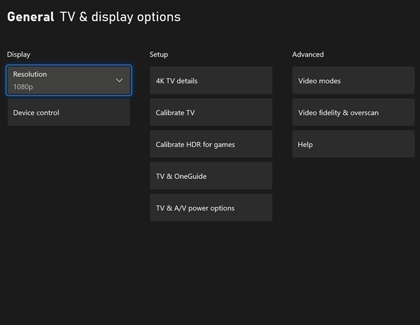
Successfully connecting the controller is only half the battle; ensuring the experience is "playable" requires fine-tuning the TV's processing engine. By default, many Samsung TVs apply heavy image processing—such as motion smoothing and noise reduction—which adds significant "input lag." For a traveler used to the precision of a dedicated monitor, this delay can make cloud gaming feel sluggish.
To fix this, ensure Game Mode is set to "On" rather than "Auto." This forces the TV to bypass unnecessary processing stages. Furthermore, you should enable Input Signal Plus (formerly known as HDMI UHD Color) for the specific port or app you are using. This expands the bandwidth for HDR (High Dynamic Range) data, ensuring that the visual output of the Xbox App matches the artistic intent of the game.
For those utilizing the Xbox app for Cloud Gaming (Xbox Cloud Gaming/xCloud), network latency is often mistaken for controller lag. While the controller might be perfectly synced to the TV, a jittery Wi-Fi connection will make the buttons feel unresponsive. If possible, hardwire your Samsung TV via an Ethernet cable. If you must use Wi-Fi, ensure the TV is connected to a 5GHz band rather than the more common 2.4GHz band to avoid interference with the controller itself.
Check Samsung Official Compatibility List →
FAQ
Can I use an Xbox 360 controller with my Samsung TV? No. Xbox 360 controllers use a legacy wireless protocol that is not compatible with Bluetooth or the Tizen OS USB drivers. Only Bluetooth-enabled Xbox One and Series X|S controllers are supported for wireless play.
How do I disconnect the controller from the TV to use it with my console again? You will need to "re-sync" the controller to your console. Press and hold the Bind button on both the console and the controller simultaneously. Alternatively, connect the controller to the console via a USB cable once, and it will automatically re-pair.
My controller is connected, but the audio is still coming from the TV instead of my controller's headset jack. Why? Samsung TVs do not currently support audio passthrough via the controller's 3.5mm jack over Bluetooth. To use headphones, you must pair a set of Bluetooth headphones directly to the TV or use a wired connection to the TV’s own audio output.
The transition to a console-less world is not without its growing pains. However, by understanding the hardware limitations and maintaining a rigorous firmware update schedule, you can transform your Samsung TV into a high-performance gaming hub that rivals a dedicated setup. As the infrastructure for cloud gaming matures, these "handshake" issues will likely fade into the background, leaving only the seamless convenience that James Wright and other critics have long championed for the modern digital nomad.





